 Otter.ai
 review: can you trust its notes?
Verdict: Otter suits a team of up to five that wants a cheap record of its online meetings and will check the notes and arrange client consent itself, because the numbers, dates and corrections held up in my test. It gave no task an owner and got nearly half the names wrong, and a disclaimer email or Teams permission step needs the Enterprise plan. For tasks that come out with owners, or a consent step built in, the other notetakers are a better fit.
Suits
- Teams of one to five who want a cheap, searchable record of Google Meet, Zoom or Teams calls
- Owners who will check the notes and add task owners before sending
- Businesses that already have their own way of getting client consent to record
Doesn't suit
- Teams that need action items to come out with owners already assigned
- Businesses that want a recording disclaimer email or Teams permission step without paying for Enterprise
- Teams of six or more who want to stay on the cheaper Pro plan
- Sensitive health, legal or HR work where data must stay in Australia or out of AI training
- Anyone who needs to record ordinary phone calls directly
How it was tested
I tested Otter by playing a team meeting with known answers into a live call. A review agent I built did the rest of the hands-on testing and recorded the screen, and I checked several of the findings myself. How I test explains the method.
For the main test, I played a pre-recording of a made-up landscaping firm's weekly meeting, with four speakers, into a live Google Meet call with seven popular AI notetakers listening. Then I checked each tool's notes against the script for tasks, owners, due dates, corrections, names and numbers. The hands-on testing then covered Otter's notes, settings, search, export, help pages, terms and checkout on the free Basic plan, stopping before a card was entered.
Notes you can send as they are
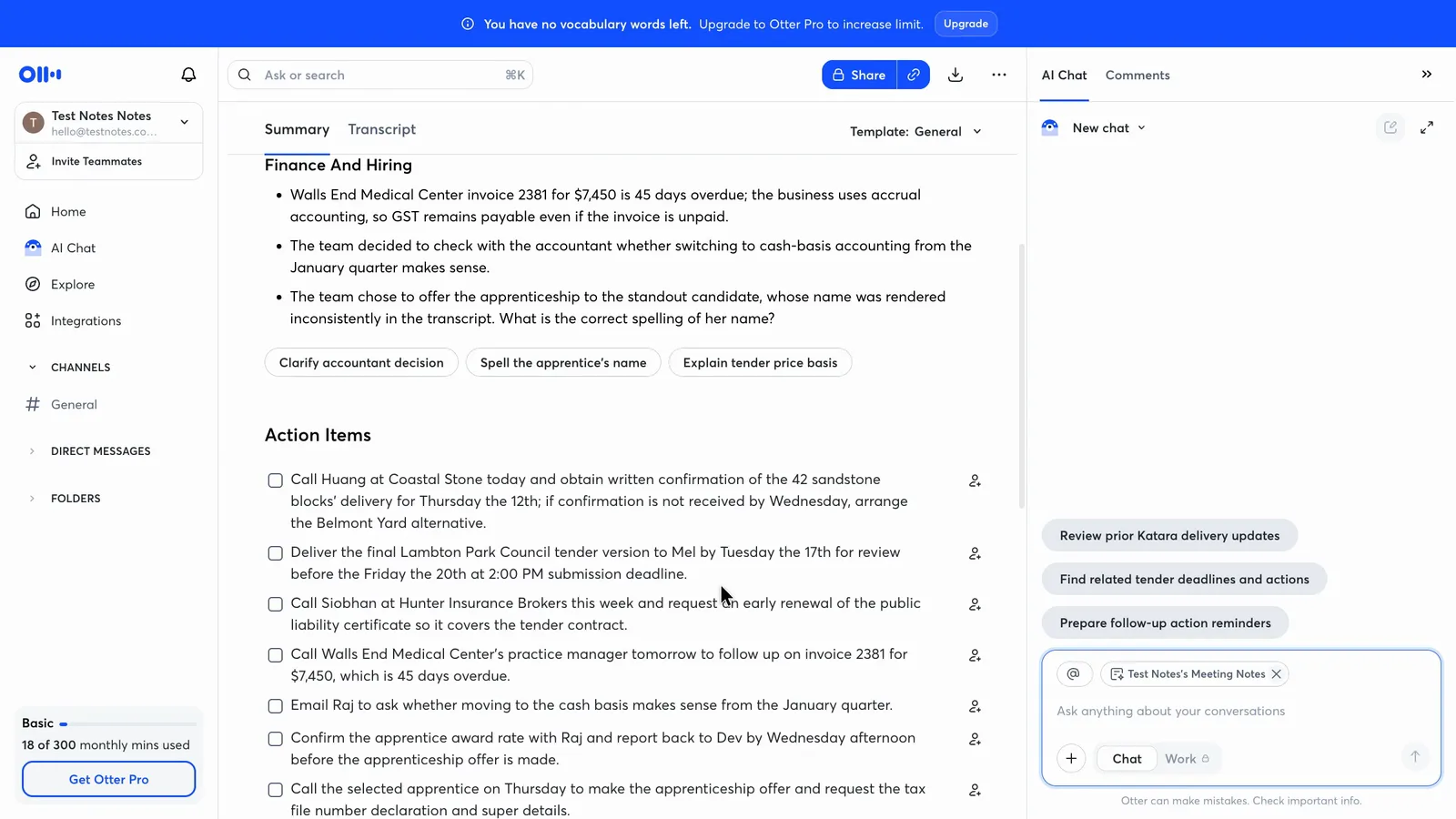
Otter's notes need checking before they go out. It got every number, due date and correction right, but it gave no task an owner and got nearly half the names wrong.
| Tool | Owners right (of 6) | Due dates (of 8) | Corrections (of 2) | Names right (of 18) | Numbers right (of 18) |
|---|---|---|---|---|---|
| Fathom | 6 | 6 | 1 | 11 | 18 |
| Fireflies.ai | 6 | 6 | 2 | 11 | 18 |
| Granola | 6 | 6 | 2 | 12 | 18 |
| MeetGeek | 6 | 8 | 1 | 9 | 18 |
| Otter.ai | 0 | 8 | 2 | 10 | 18 |
| Read.ai | 6 | 4 | 2 | 11 | 18 |
| Wispr Flow Notetaker | 5 | 8 | 2 | 8 | 17 |
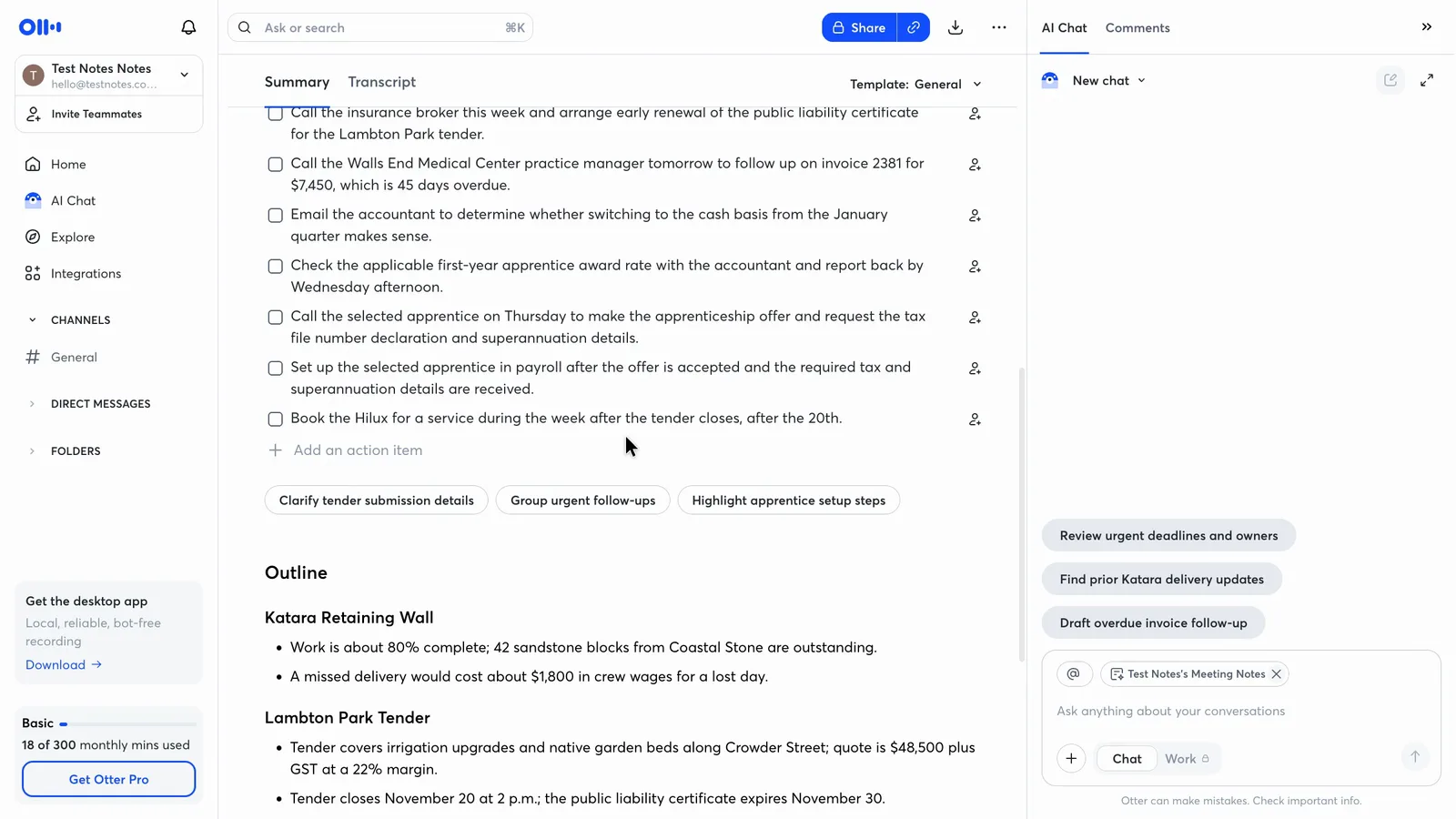
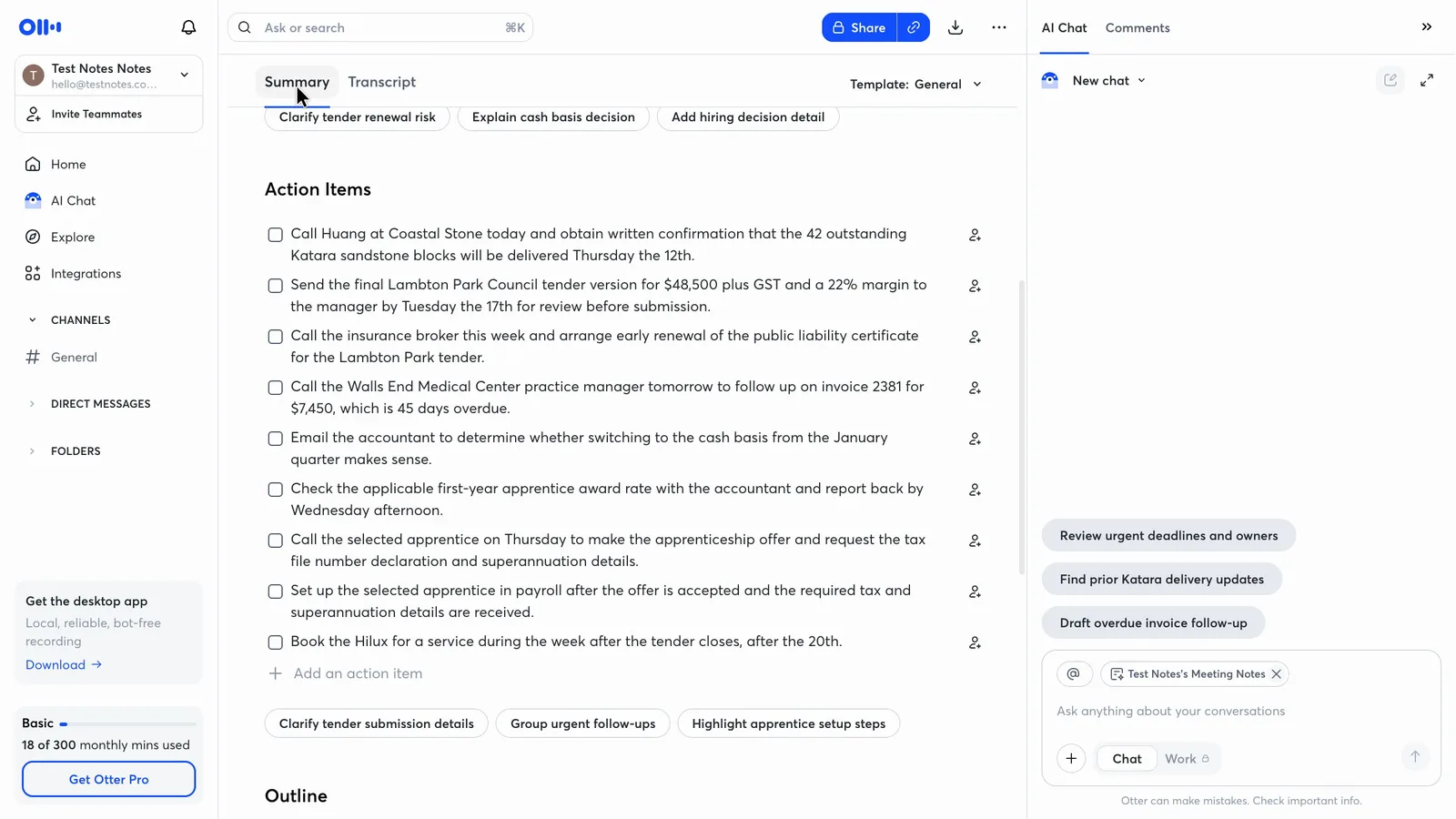
Otter found 8 of the 9 tasks and part of the ninth, and its dates and corrections were as good as any tool's. The other six tools named five or six of the six people given a task out loud. Otter named none, and every row in its action list has an empty assign icon, so you'd add the owners yourself. All the voices came through one participant, so a real call with people joining separately might do better.
 (enlarge)
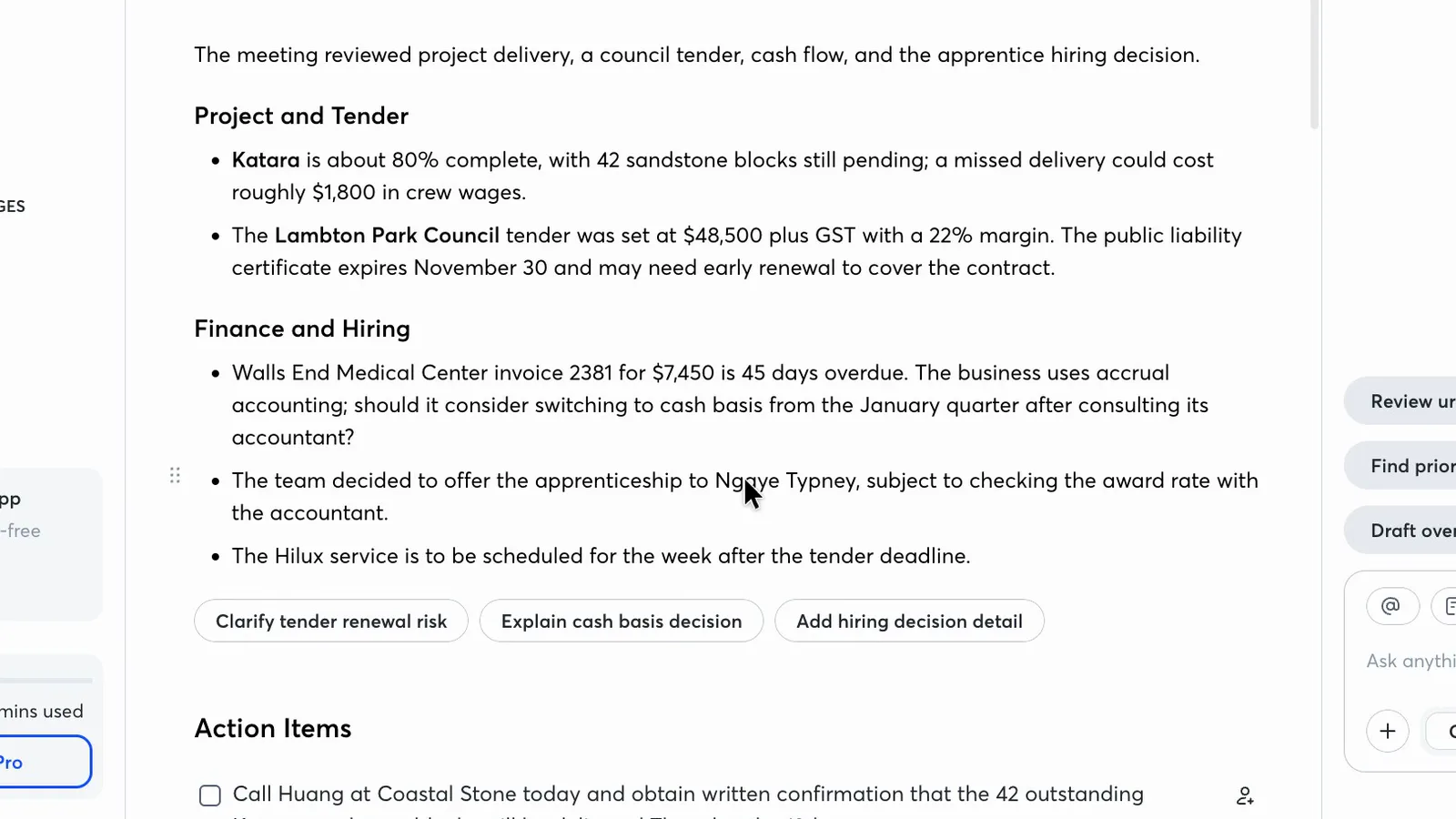
The notes also appear to turn a firm decision into a maybe. The apprentice offer was made outright in the meeting, but Otter's overview says it's "subject to checking the award rate with the accountant".
 (enlarge)
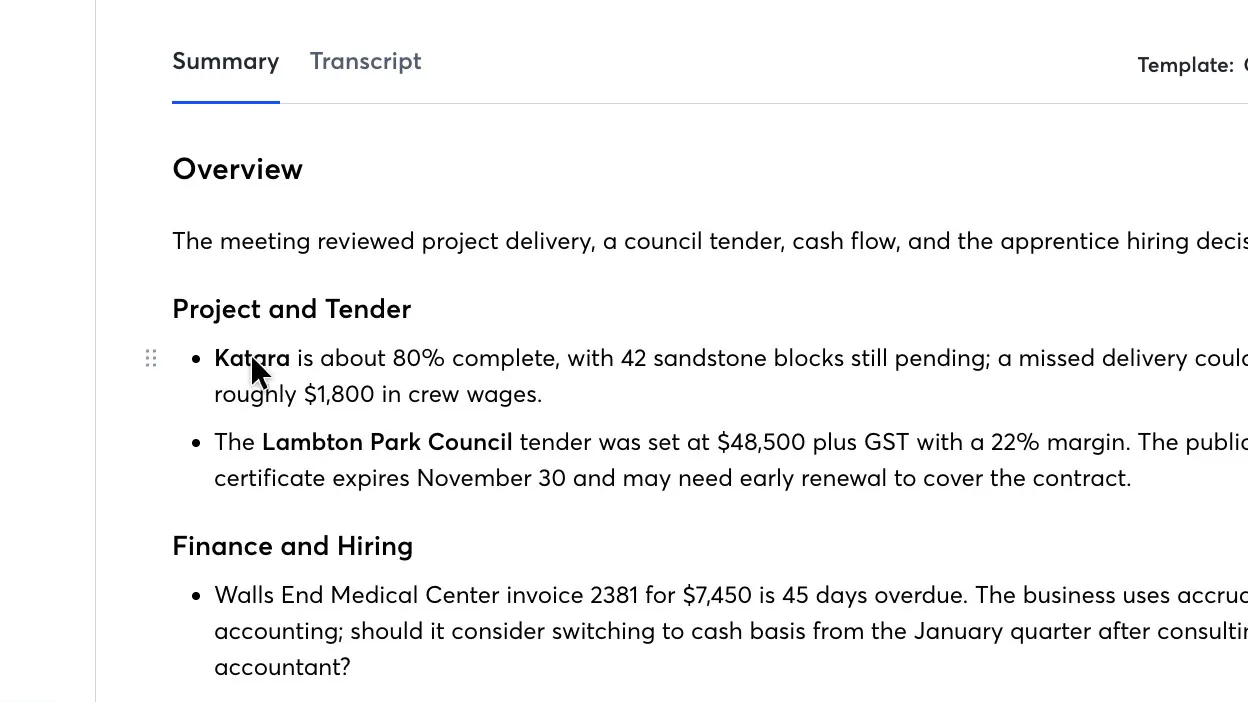
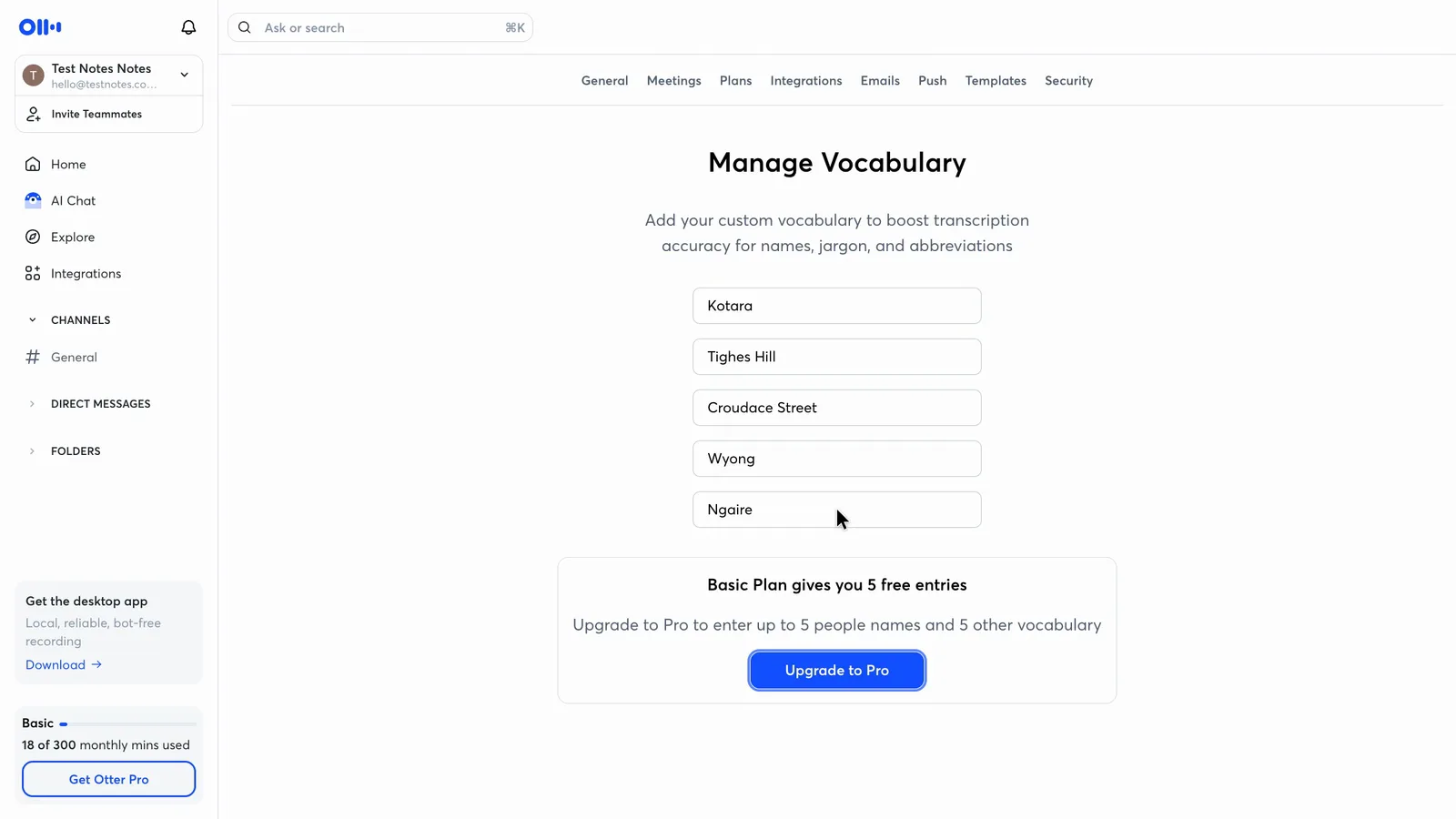
Local names slipped too. Otter wrote Katara for the suburb of Kotara, and 8 of the 18 names came out wrong. The free spelling list stops at five entries, which wouldn't cover even this one meeting.
 (enlarge)
 (enlarge)
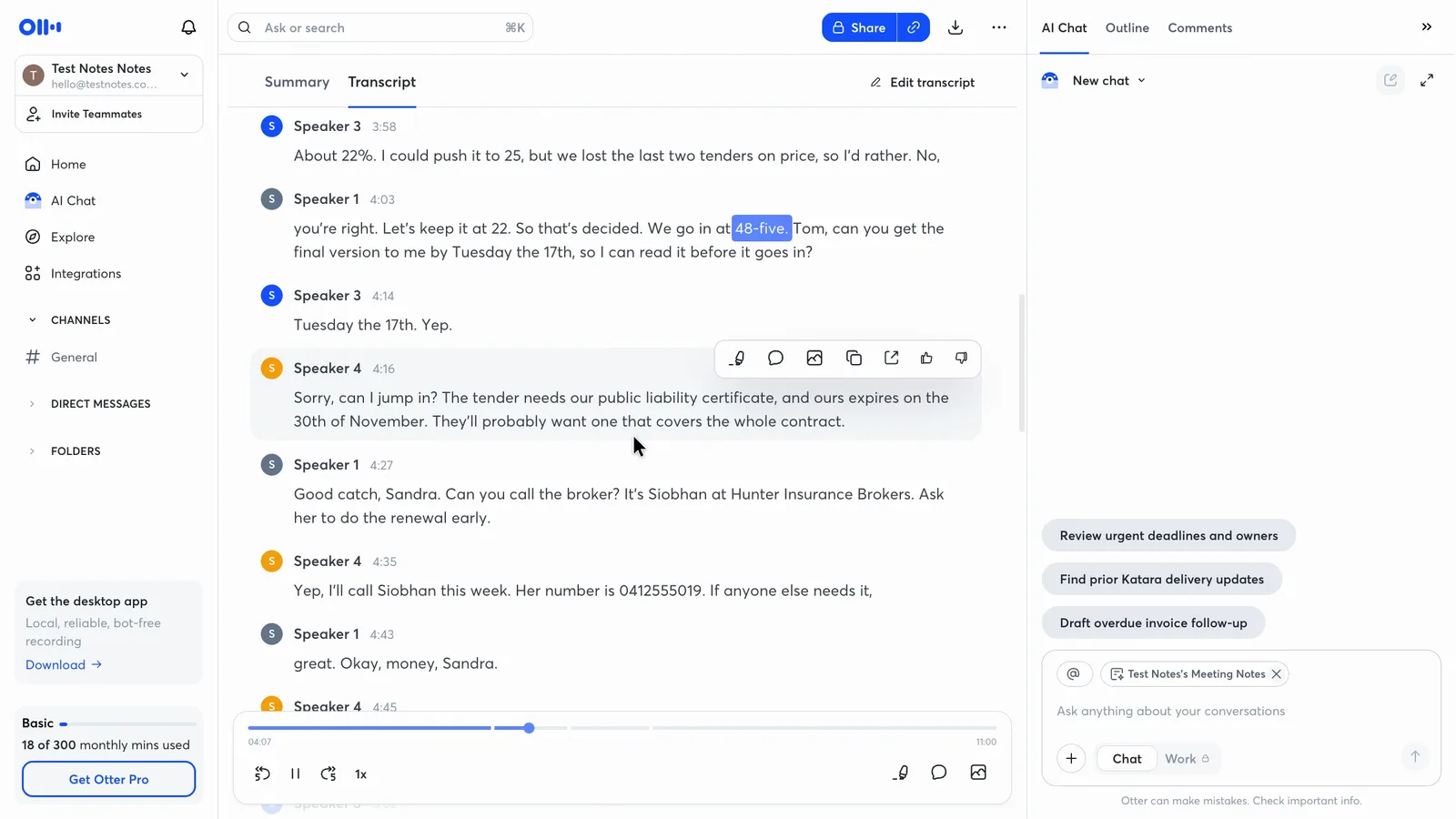
Checking a doubtful line is quick. Click it in the transcript and the audio plays from that point, even on the free plan. The summary and action items didn't appear to link back to their lines here, though Otter's help describes a View in transcript option on action items. You can edit the summary and action items before anything goes out, but automatic sharing needs to be off first if you want to fix them before anyone sees them.
 (enlarge)
 (enlarge)
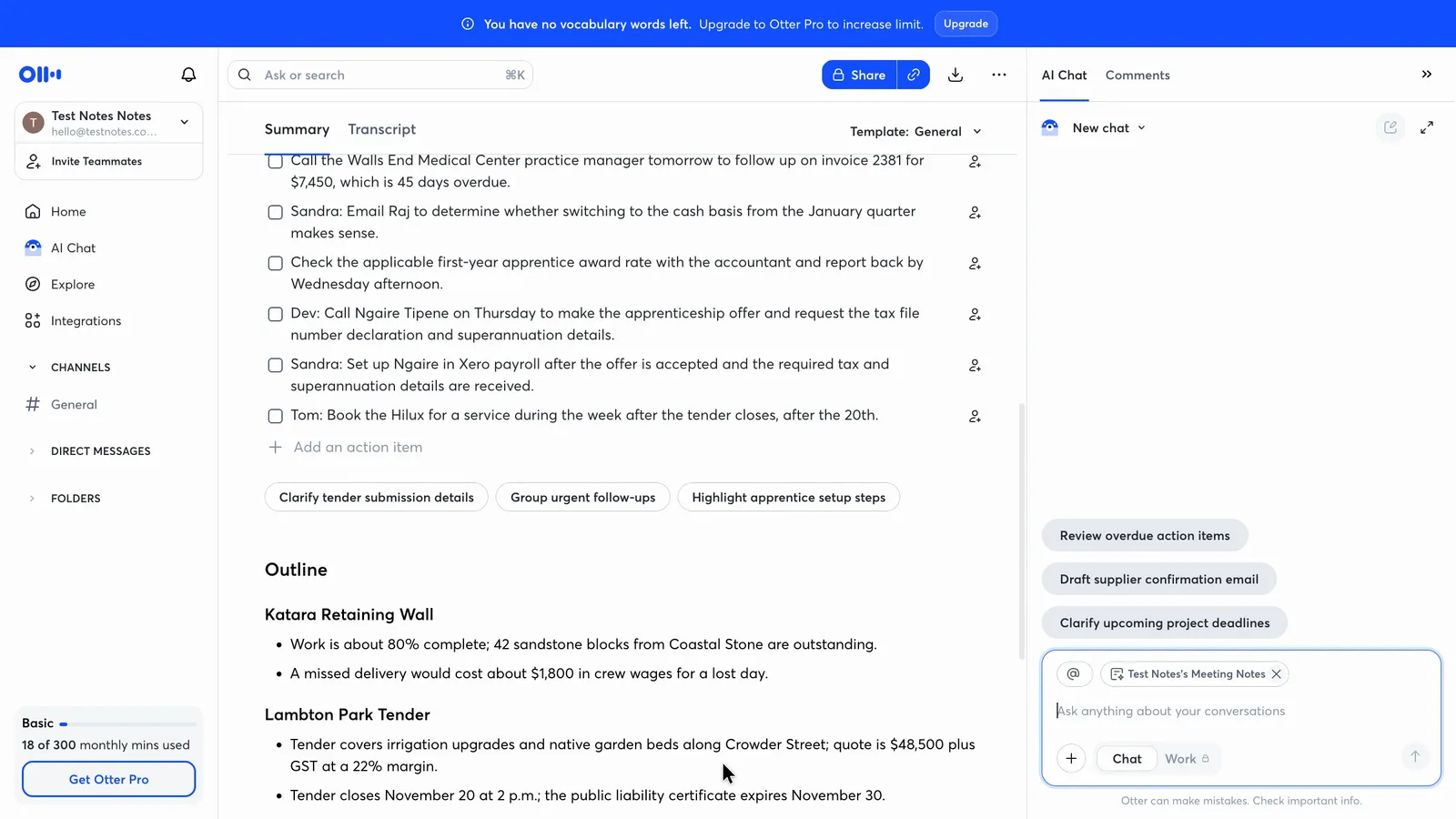
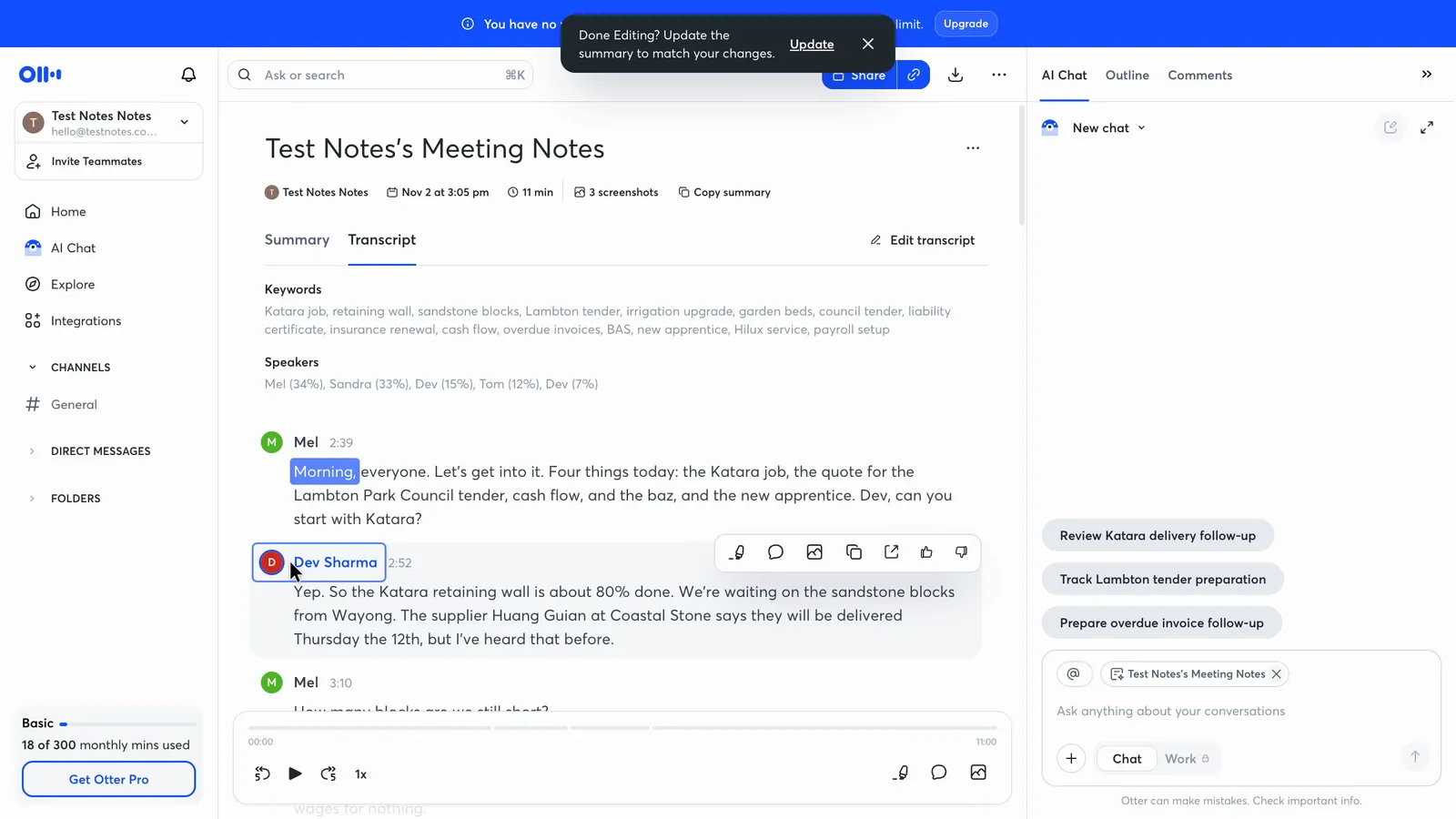
Pressing Update after renaming a speaker may undo your edits. In one test run, not yet repeated, it appears to have rewritten the summary and all nine action items. The owners typed in by hand disappeared, and the prompt said only "Update the summary to match your changes", with no warning seen.
 (enlarge)
 (enlarge)
 (enlarge)
Online calls and in-person meetings
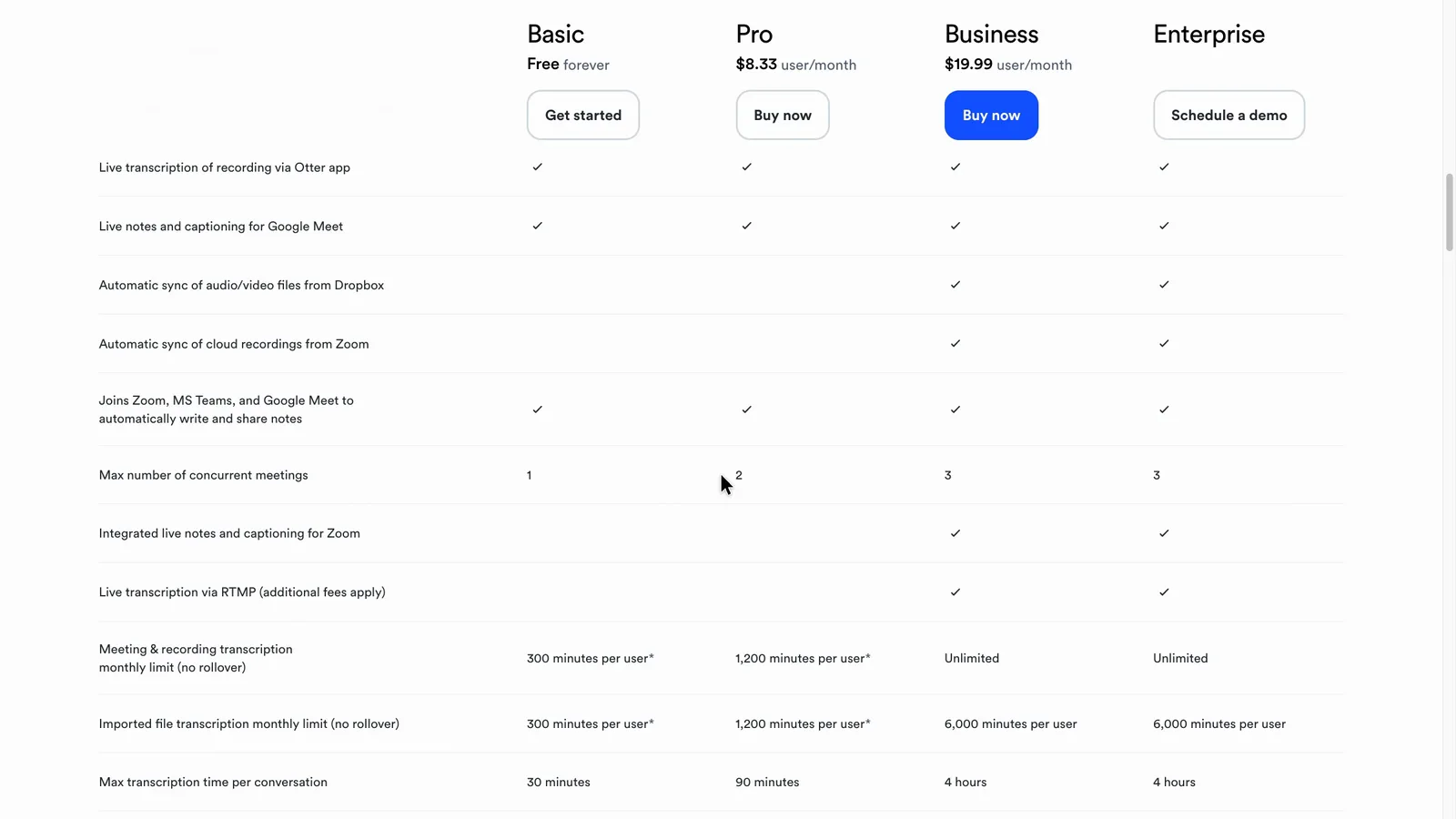
The only route tested was the Google Meet bot. Otter's pricing table ticks the bot for Zoom, Teams and Google Meet on every plan, with one meeting at a time on the free plan.
 (enlarge)
For face-to-face meetings, Otter's in-person post describes recording on iPhone and Android. By comparison, Fathom lists its in-person app for iPhone only.
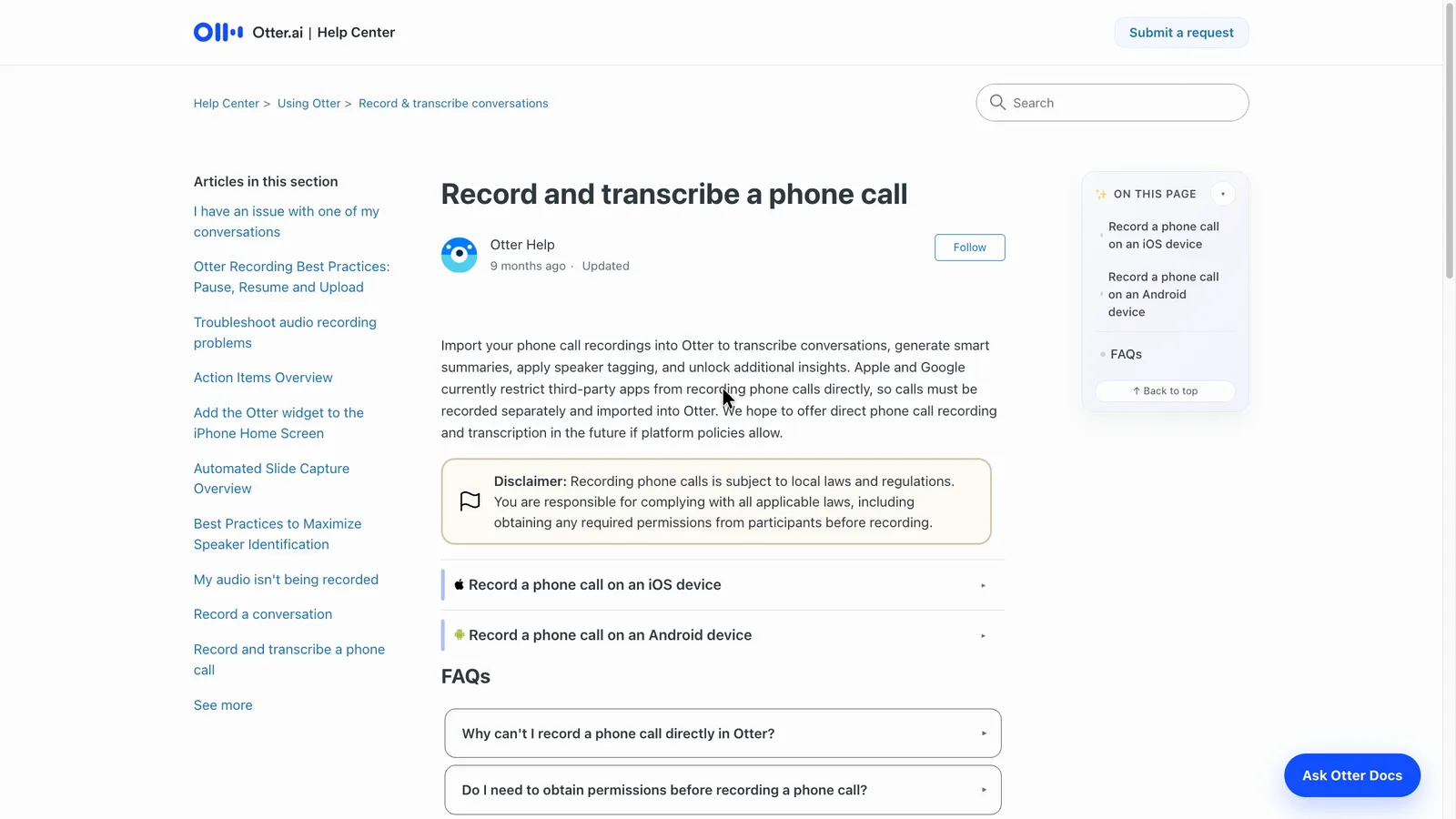
Otter says it can't record ordinary phone calls directly, because Apple and Google stop apps doing that. You'd have to record the call some other way and import the file. Free accounts get three imports in total, and Pro gets 10 a month.
 (enlarge)
 (enlarge)
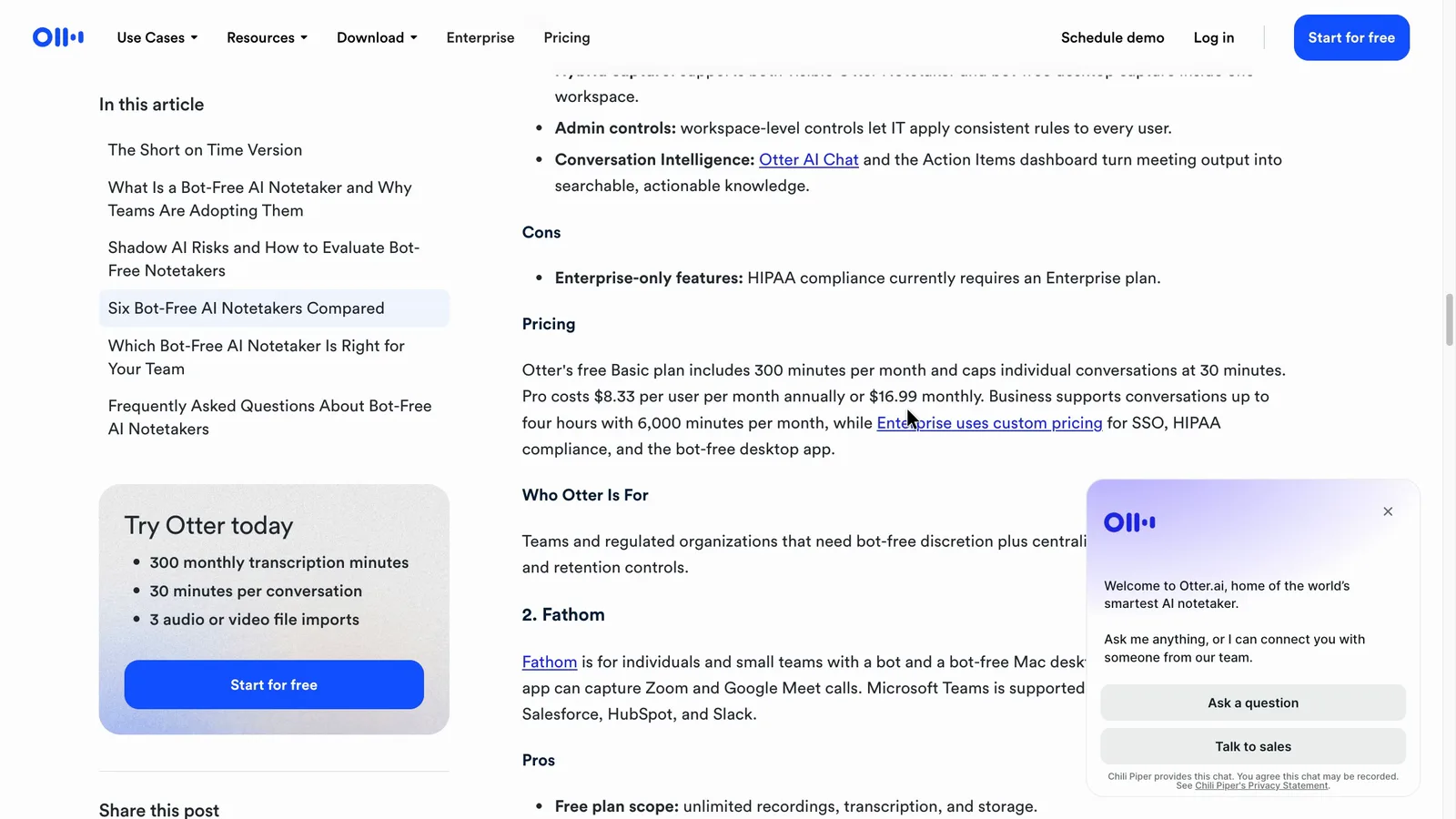
Otter also has a desktop app that records without a bot joining the call, but its pages don't seem to agree on who gets it. Otter's October post lists "the bot-free desktop app" under Enterprise, while the desktop app page doesn't name a plan and the free account's sidebar advertises bot-free recording. The free Basic card on the pricing page lists the Mac and Windows downloads.
 (enlarge)
 (enlarge)
Who knows it's recording
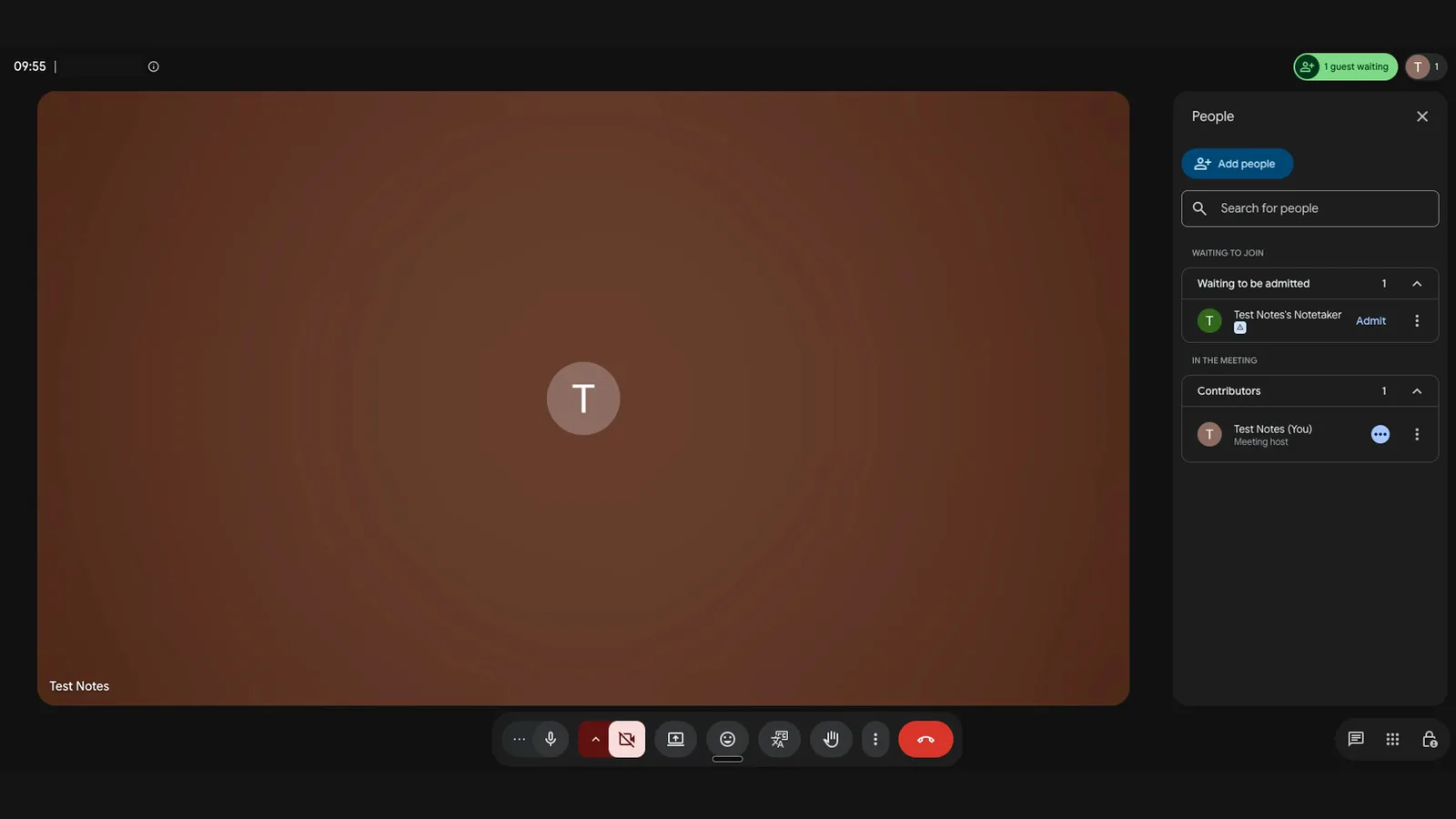
The bot shows up in the call clearly labelled as Otter, but on every plan, Enterprise included, getting consent is up to you under Otter's terms.
 (enlarge)
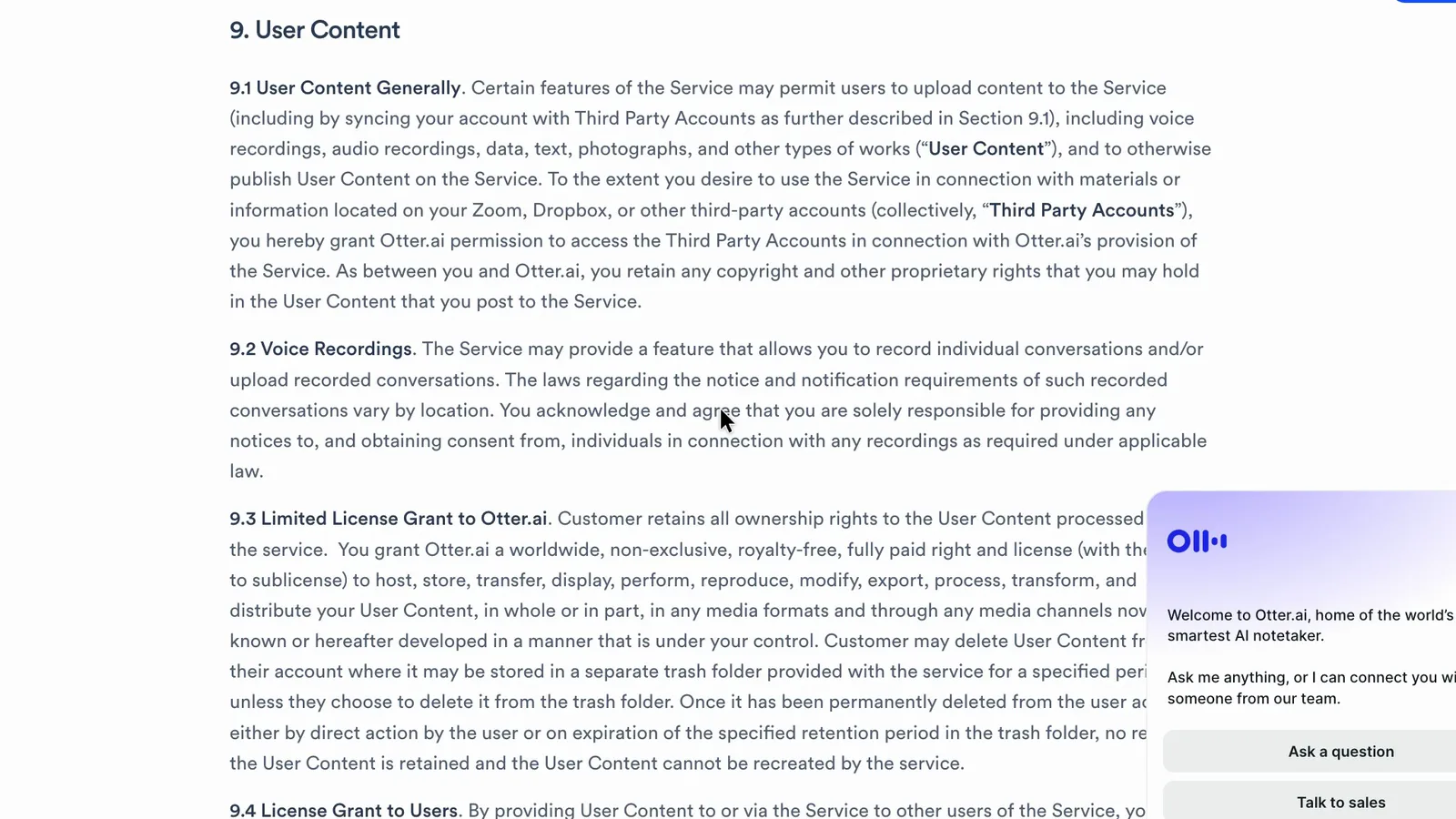
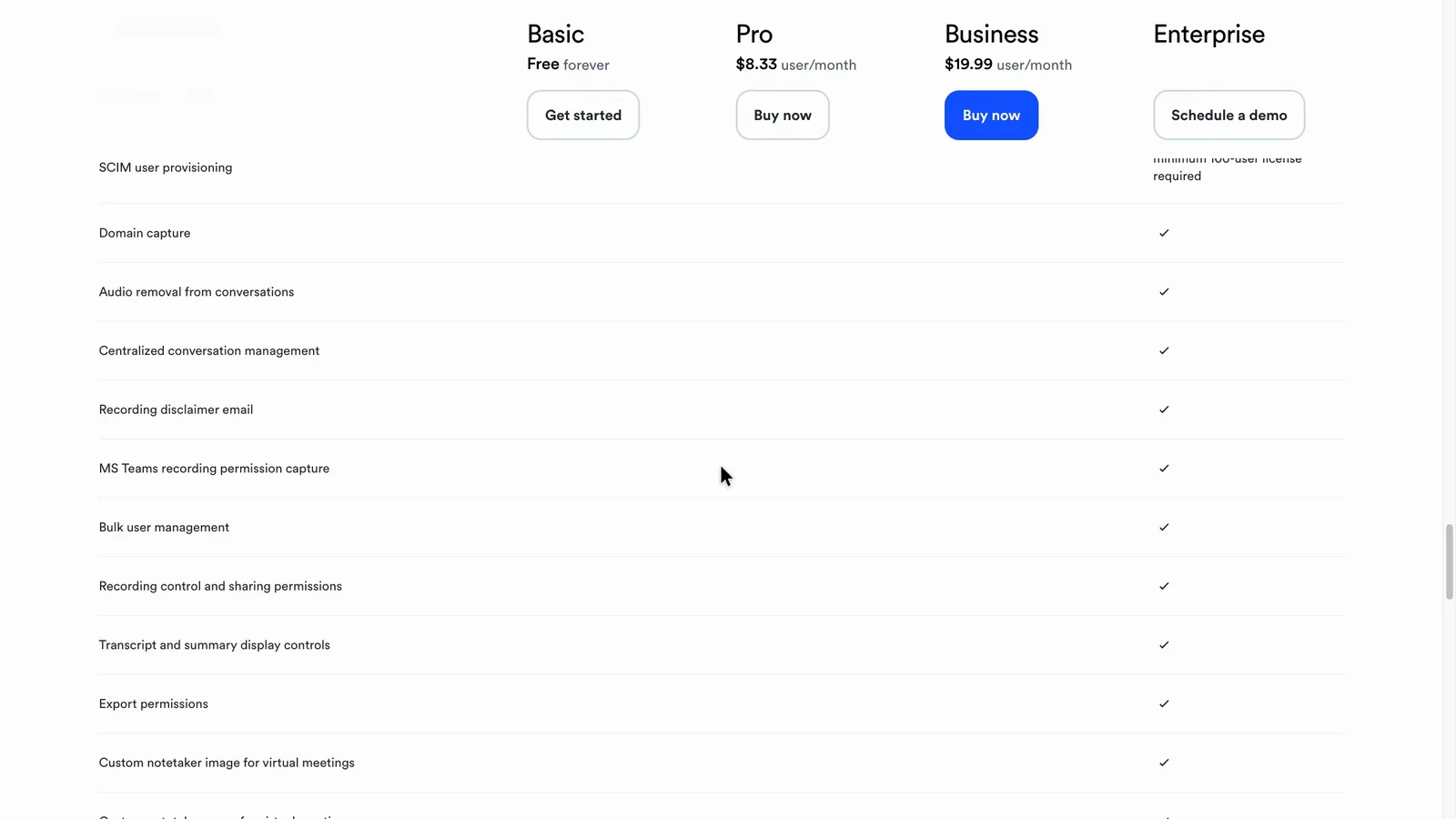
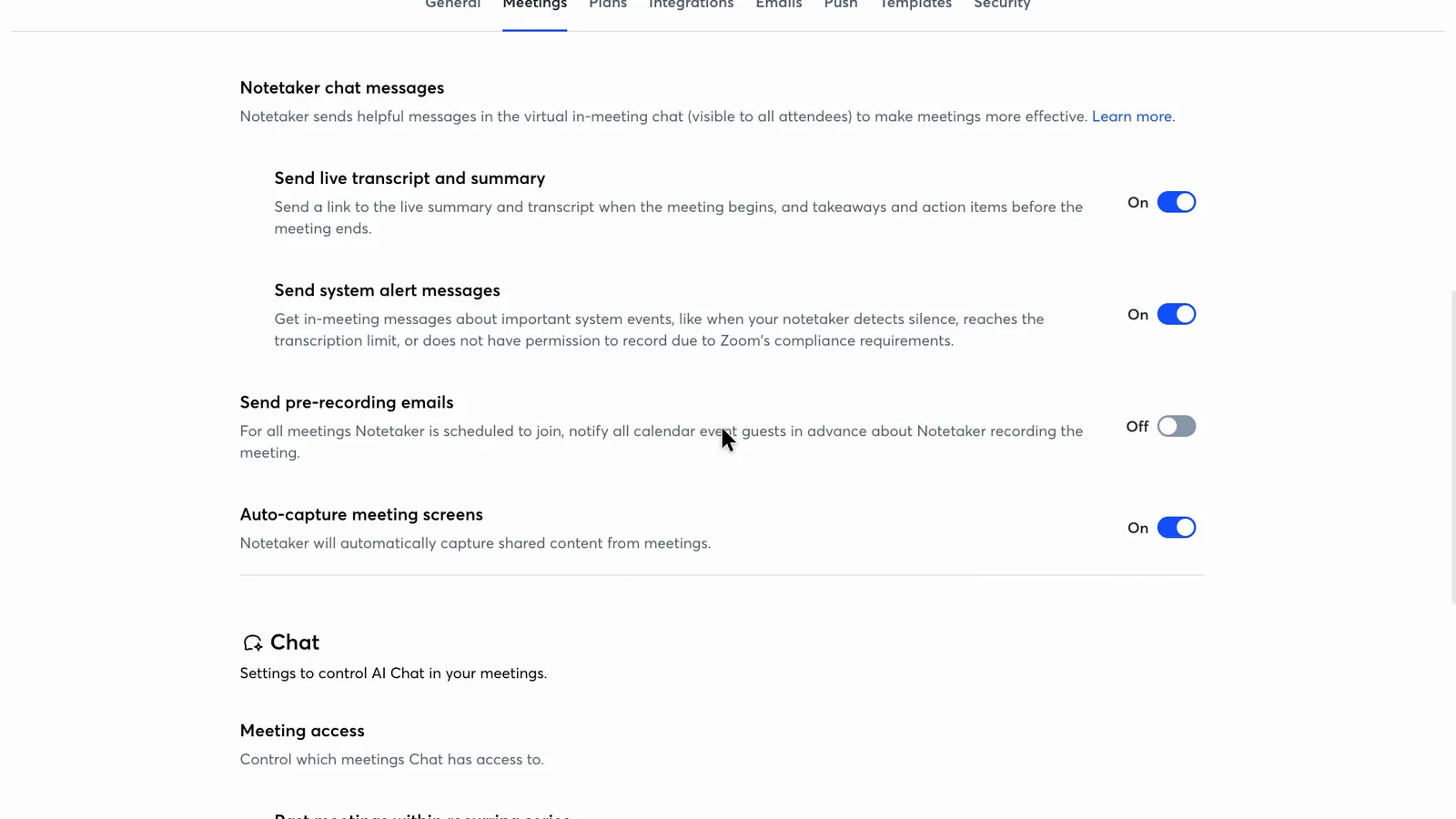
Otter's terms say you're "solely responsible" for notices and consent. In NSW you generally need consent from all the main parties to record a private conversation under the Surveillance Devices Act 2007. Otter's pricing table ticks the recording disclaimer email and Microsoft Teams recording permission capture for Enterprise only. A "Send pre-recording emails" switch does show on the free account, but whether it works there wasn't tested.
 (enlarge)
 (enlarge)
 (enlarge)
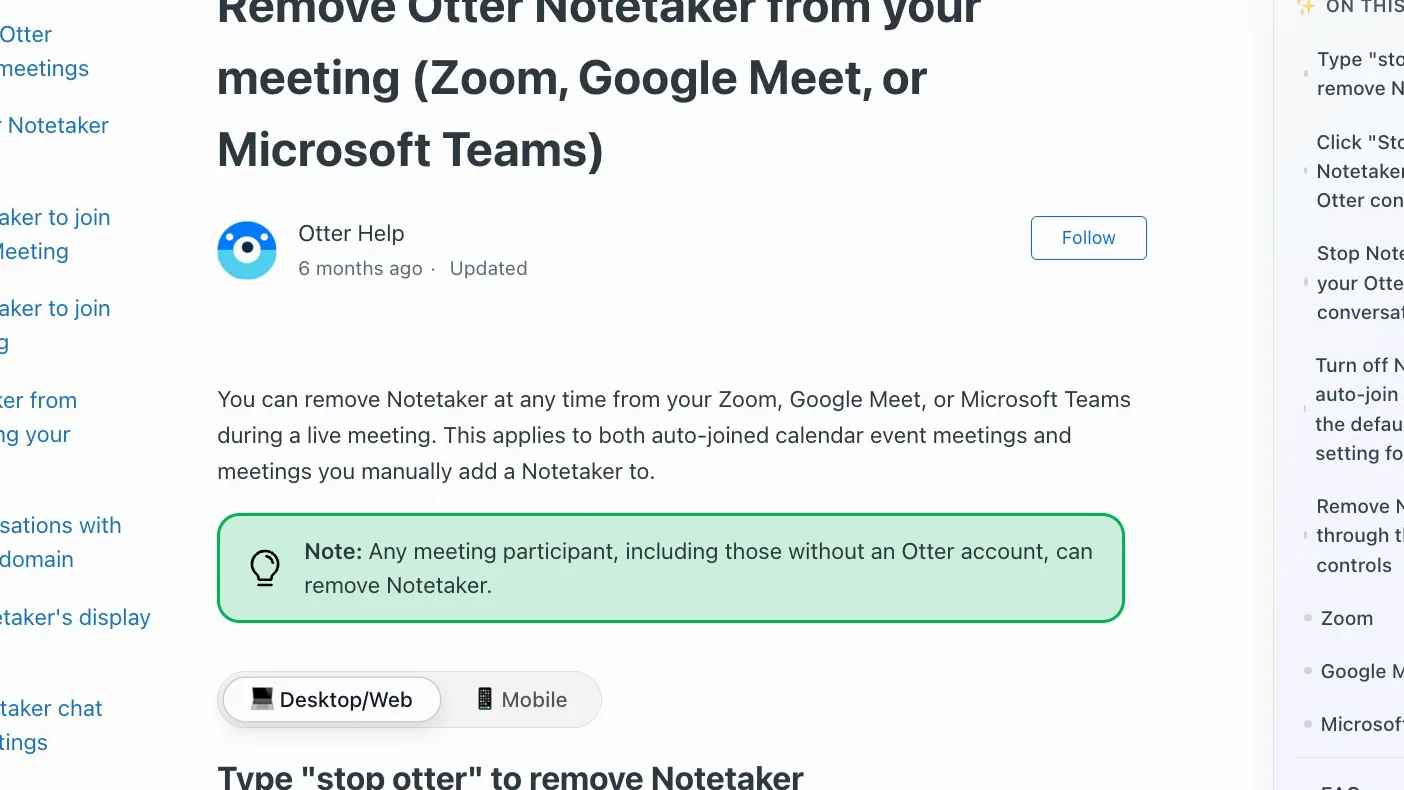
Otter's help says any participant, even without an Otter account, can remove the bot by typing "stop otter" in the meeting chat.
 (enlarge)
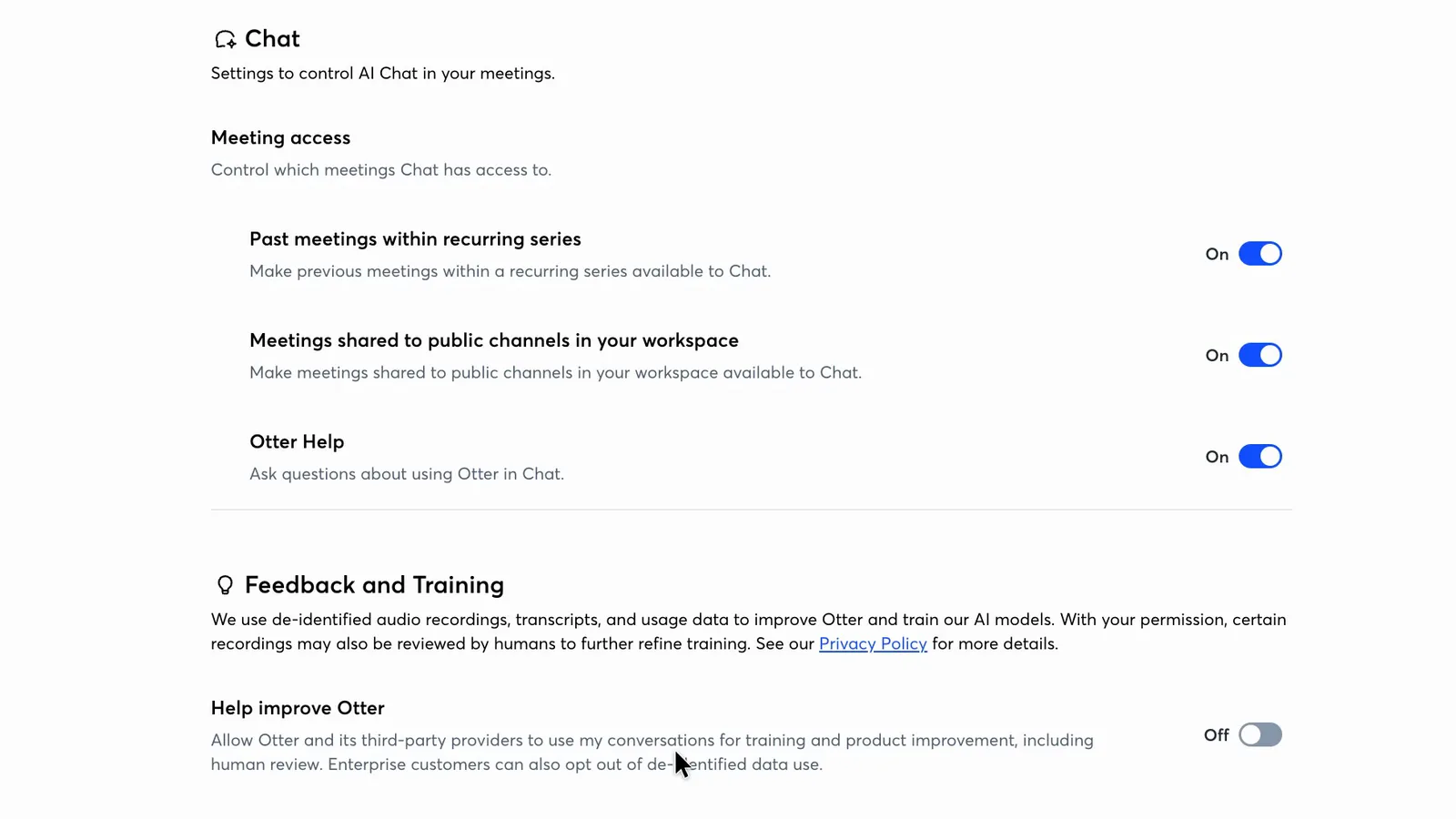
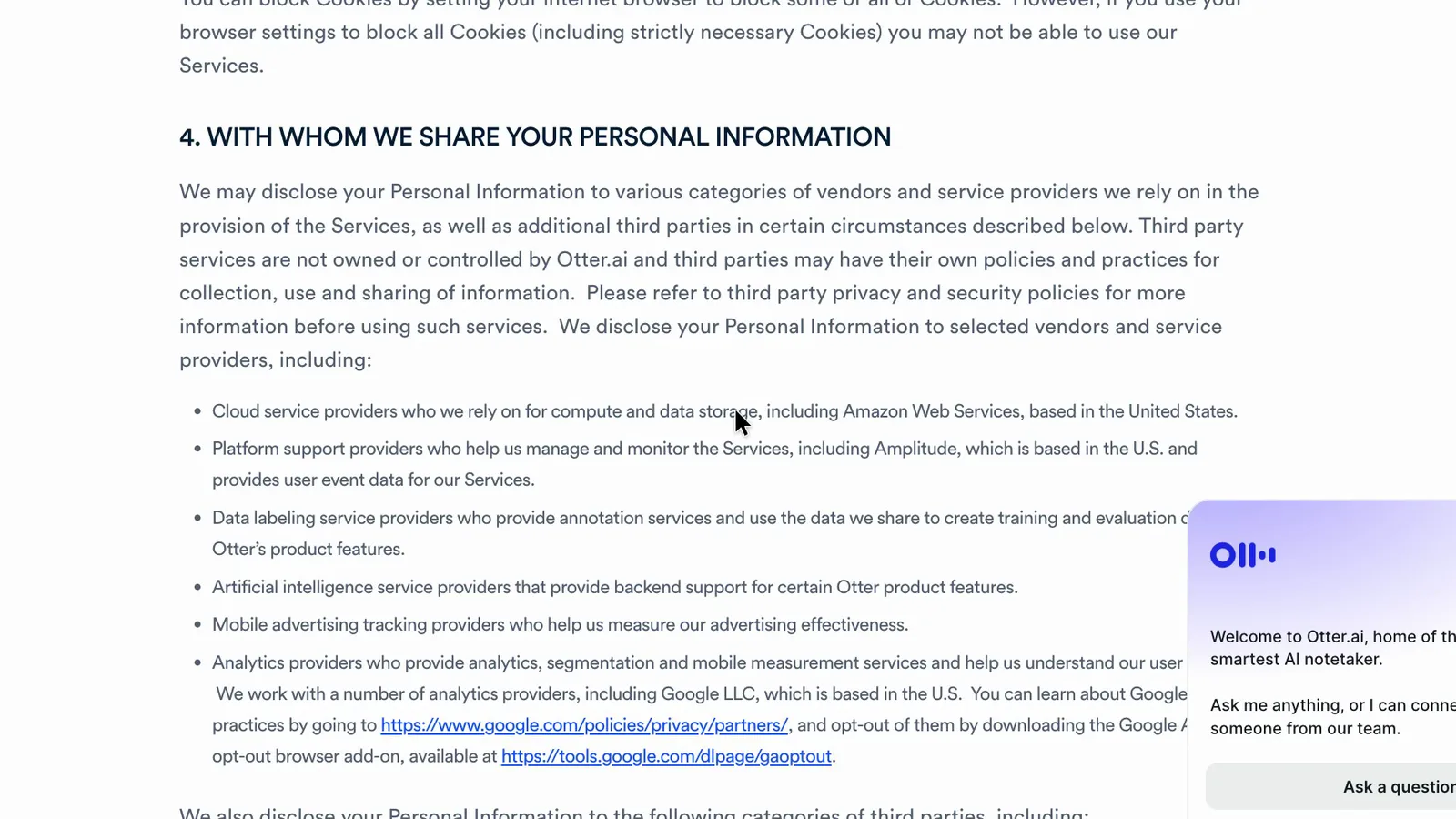
On AI training, Otter's settings say "Enterprise customers can also opt out of de-identified data use", which means data with personal details taken out. Its privacy policy covers training on transcriptions "which may contain Personal Information". It appears a free or Pro account can turn off human review and the use of its conversations for training, but Otter's pages don't make clear whether that covers de-identified data. The policy also names Amazon Web Services, "based in the United States", as its cloud provider, and the part read doesn't mention Australia. The OAIC's guidance on commercial AI products asks businesses to check both points. Together they could rule Otter out for sensitive health, legal or HR work, or where a client contract limits where data goes.
 (enlarge)
 (enlarge)
Control over joining and sharing
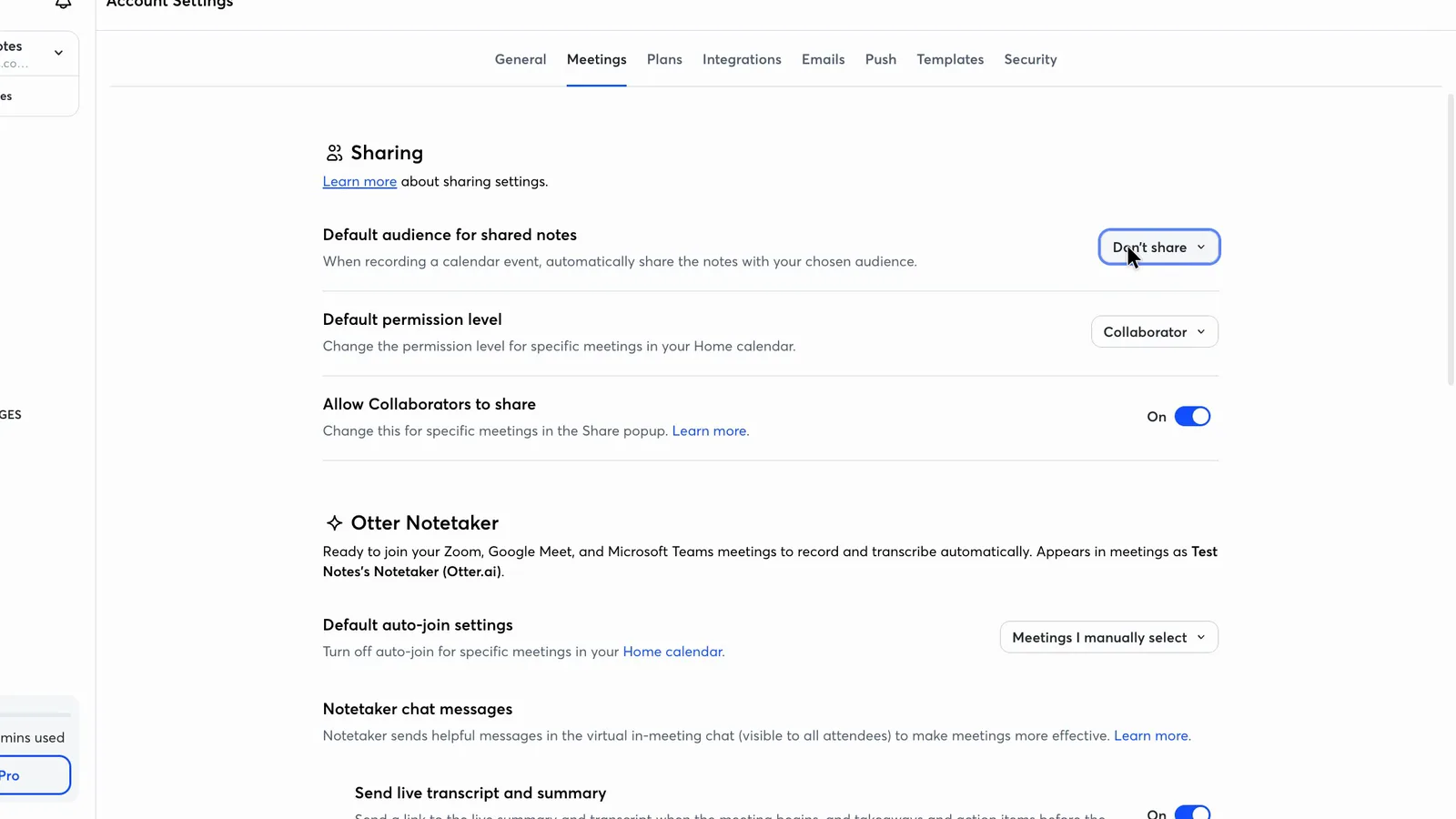
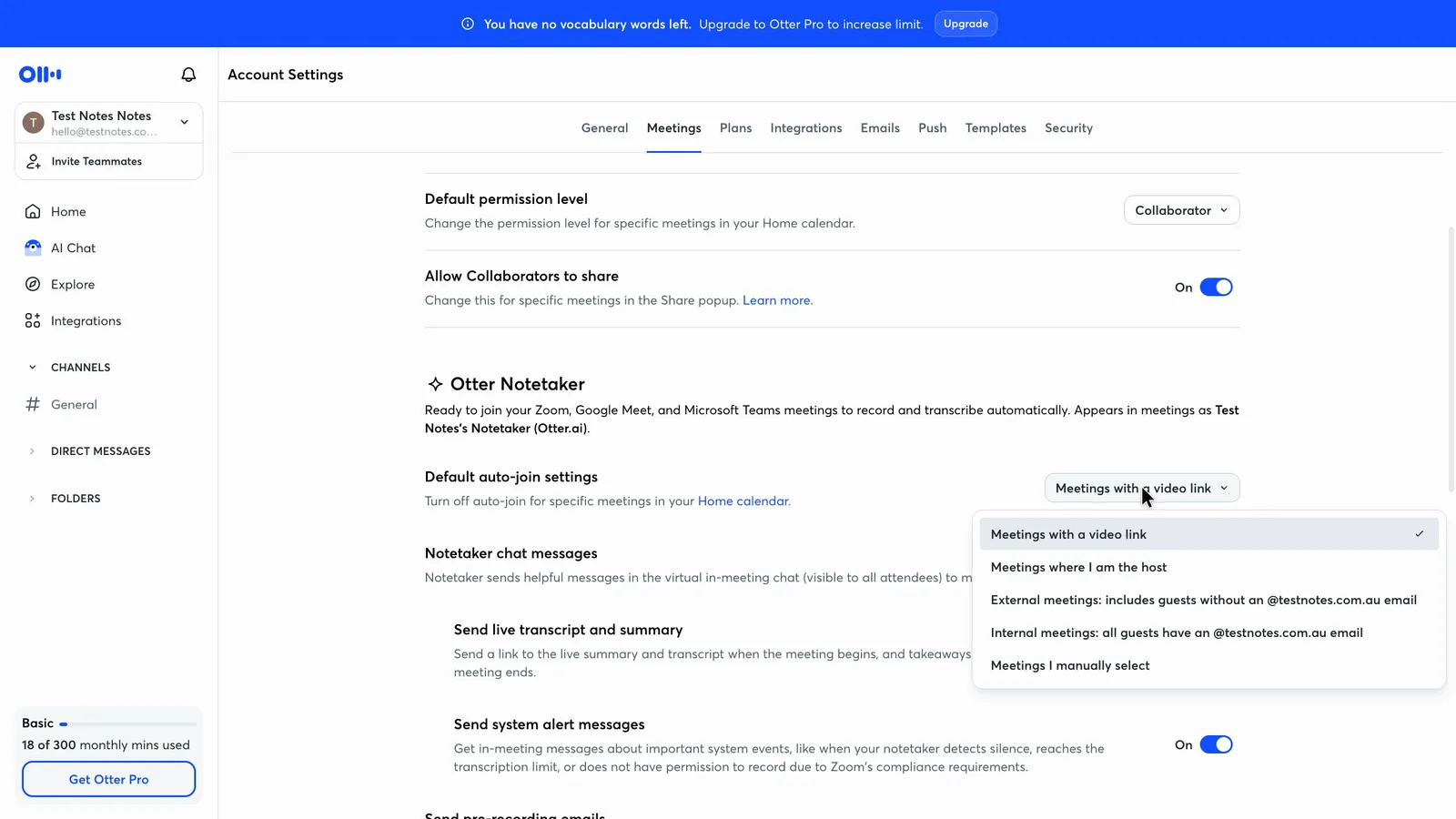
The controls for keeping the bot out of the wrong meetings are easy to reach on the free plan. In the auto-join settings you can tick "Meetings I manually select", and the default audience for notes can be set to "Don't share". Each took two clicks, with no upgrade prompt.
 (enlarge)
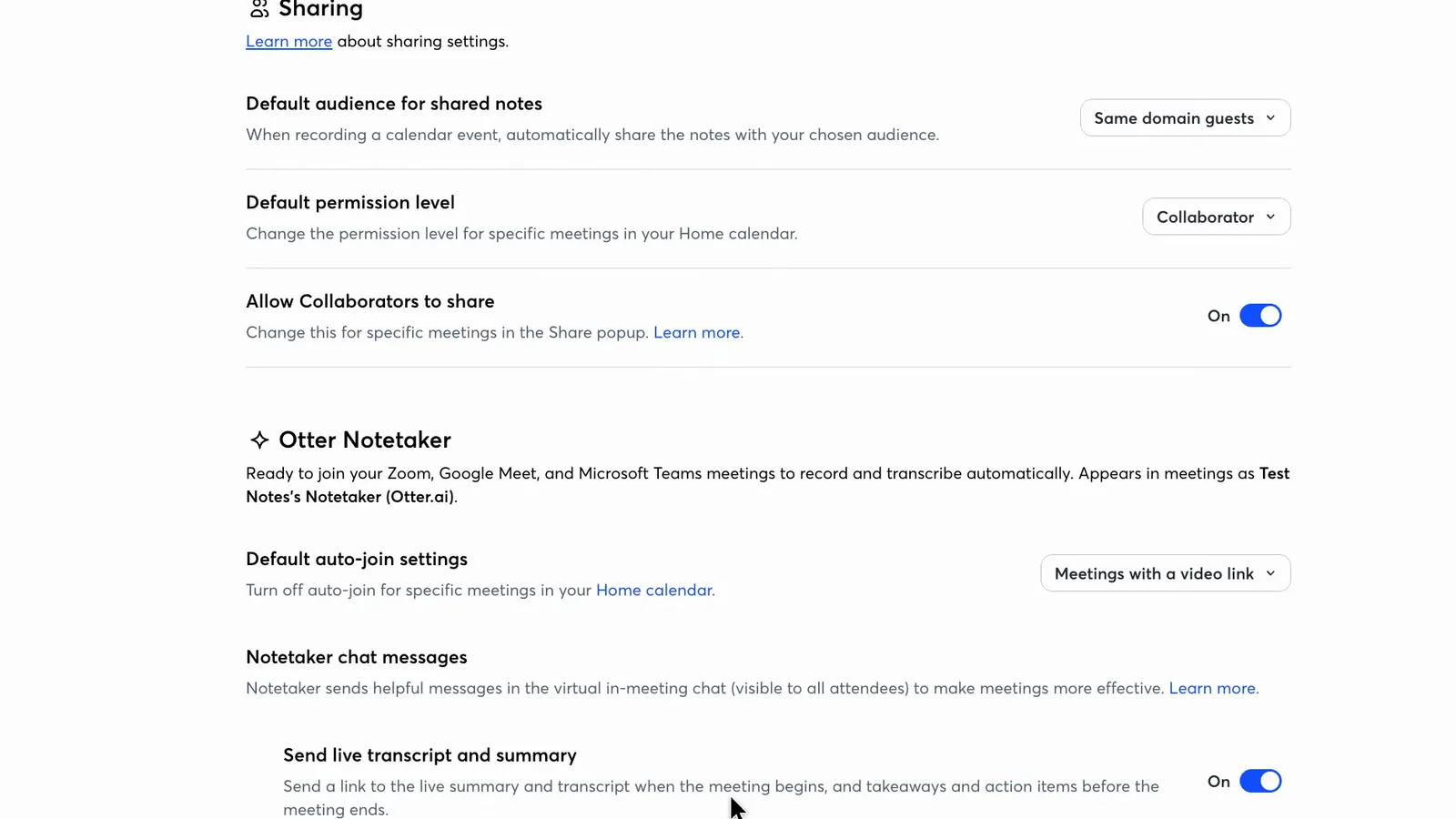
This wasn't a new account, so its settings don't show what a new user starts with. Left alone, it would have sent the bot to meetings with a video link and shared notes with guests from the same email domain. Another setting posts a link to the live summary and transcript in the meeting chat for everyone.
 (enlarge)
 (enlarge)
Some online complaints describe the bot joining uninvited. Many date from 2025, and Otter's controls have changed since. A US class action over the bot joining and recording calls without consent is still going, and its core claims survived a bid to dismiss them in August 2026. They are allegations, not findings against Otter.
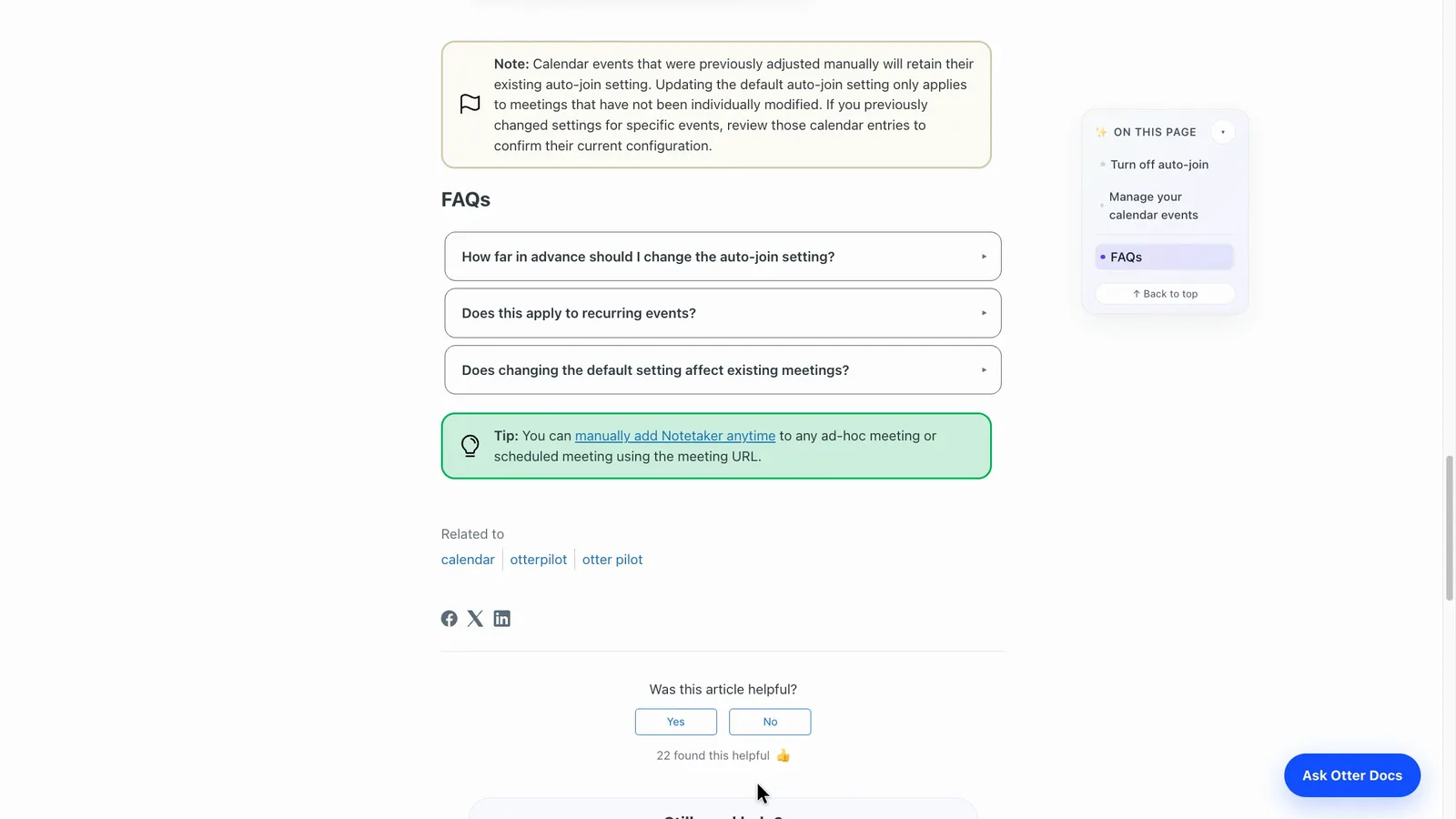
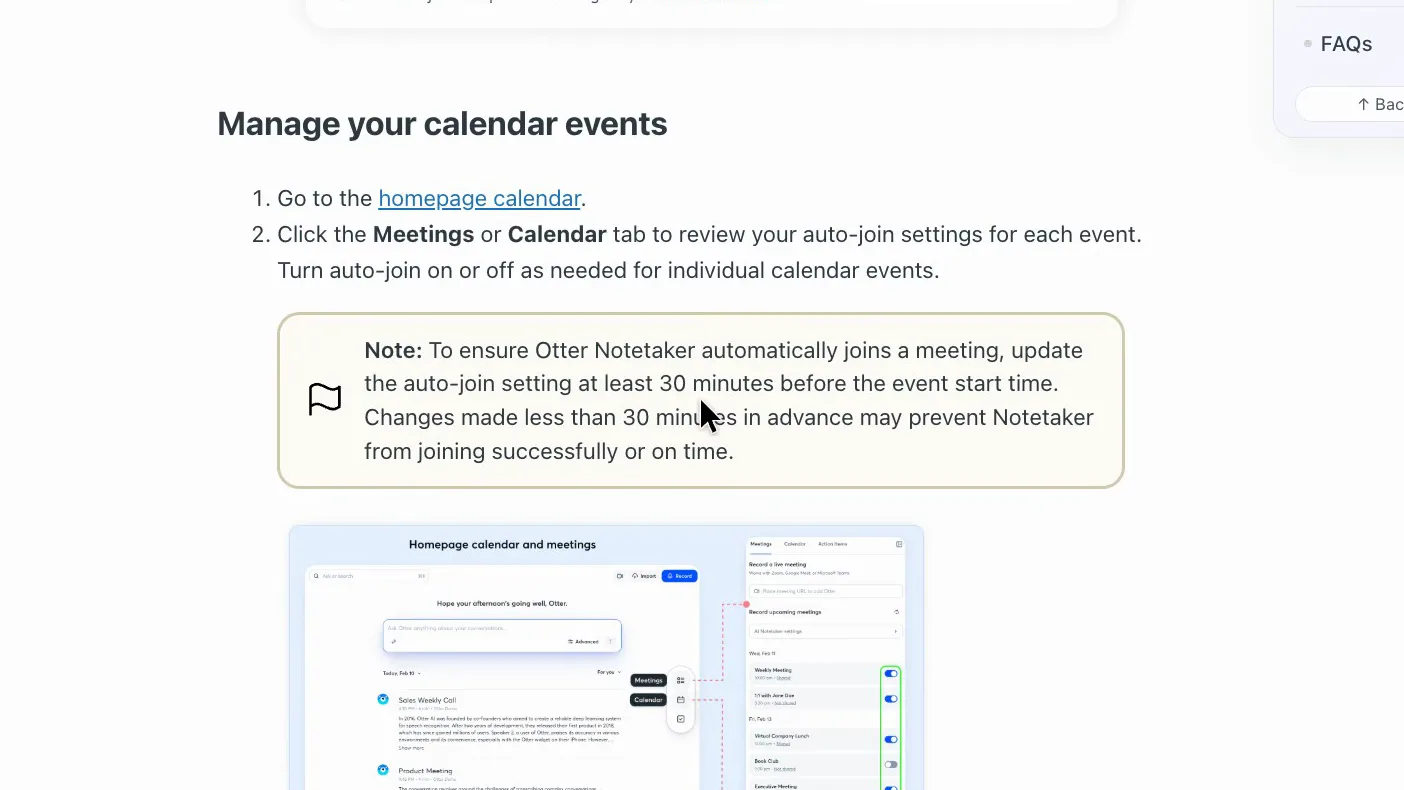
Two help notes affect meetings already in your calendar. Otter says meetings you changed one by one "will retain their existing auto-join setting", and that changes made less than 30 minutes before a meeting may stop the bot joining properly. A new default may therefore not reach every meeting you've already booked.
 (enlarge)
 (enlarge)
True cost and billing surprises
Pro is cheap for one to five people, but the free plan won't cover an hour-long meeting, and a sixth person moves the whole team onto Business.
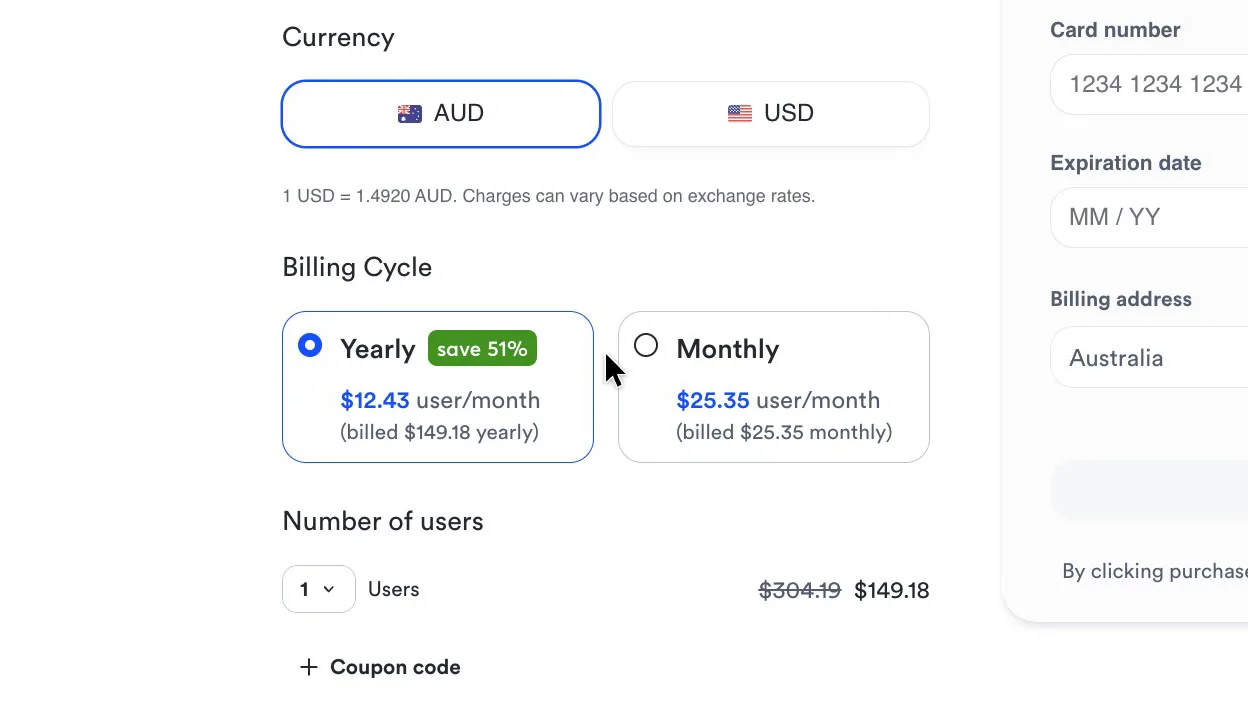
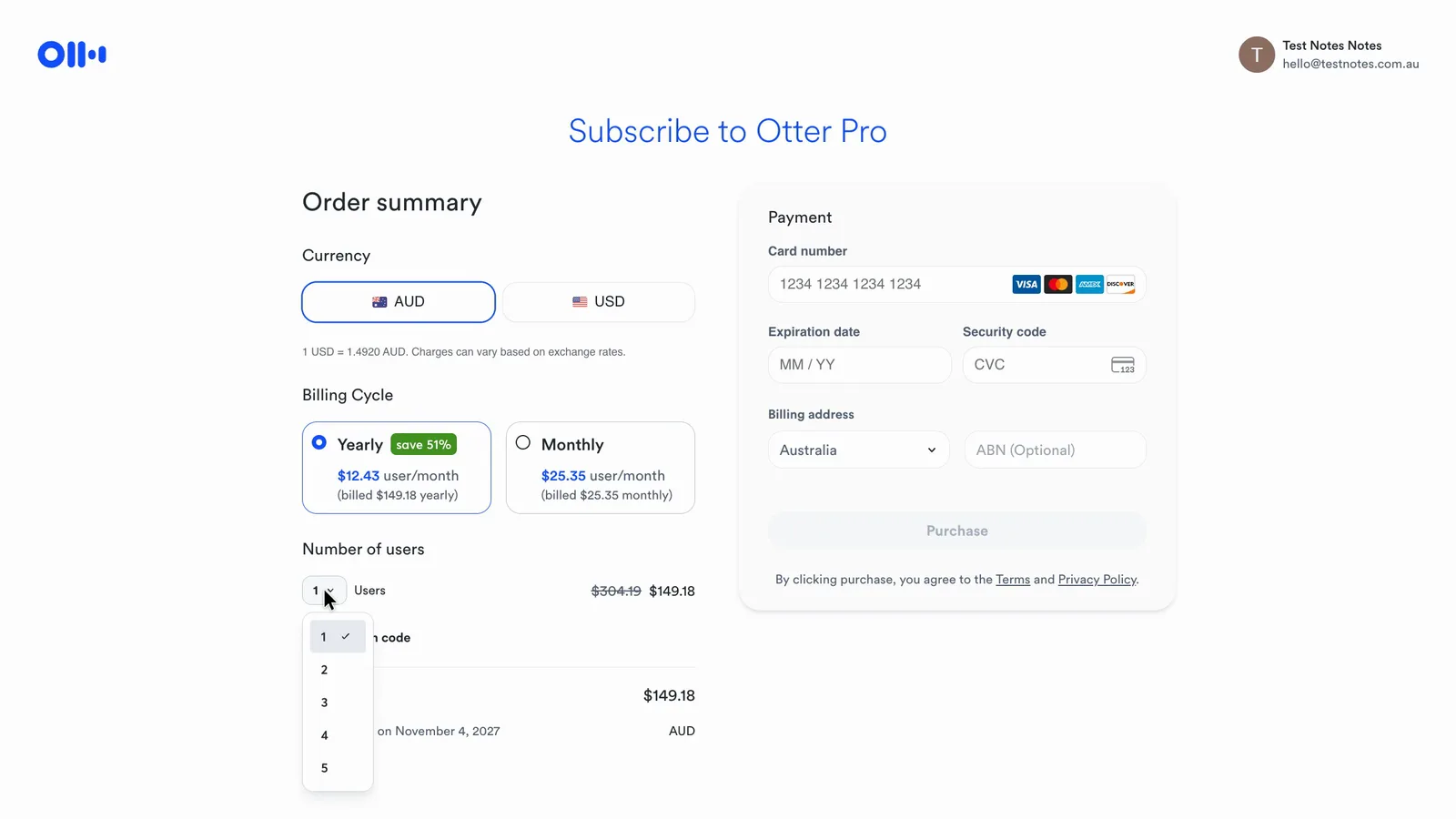
At checkout, Otter showed Pro at around $12 a user a month billed yearly, or around $25 billed monthly. The prices are converted to Australian dollars from US prices, so they move with the exchange rate. Five people on yearly Pro come to roughly $60 a month, and the seat list stops at five. Business costs around $30 a user a month billed yearly or around $45 monthly, so eight people on yearly Business pay close to $3,000 a year.
 (enlarge)
 (enlarge)
Going by current published prices, eight people on yearly billing would pay about a quarter less on Fathom's Team plan and about half on Fireflies' Pro plan.
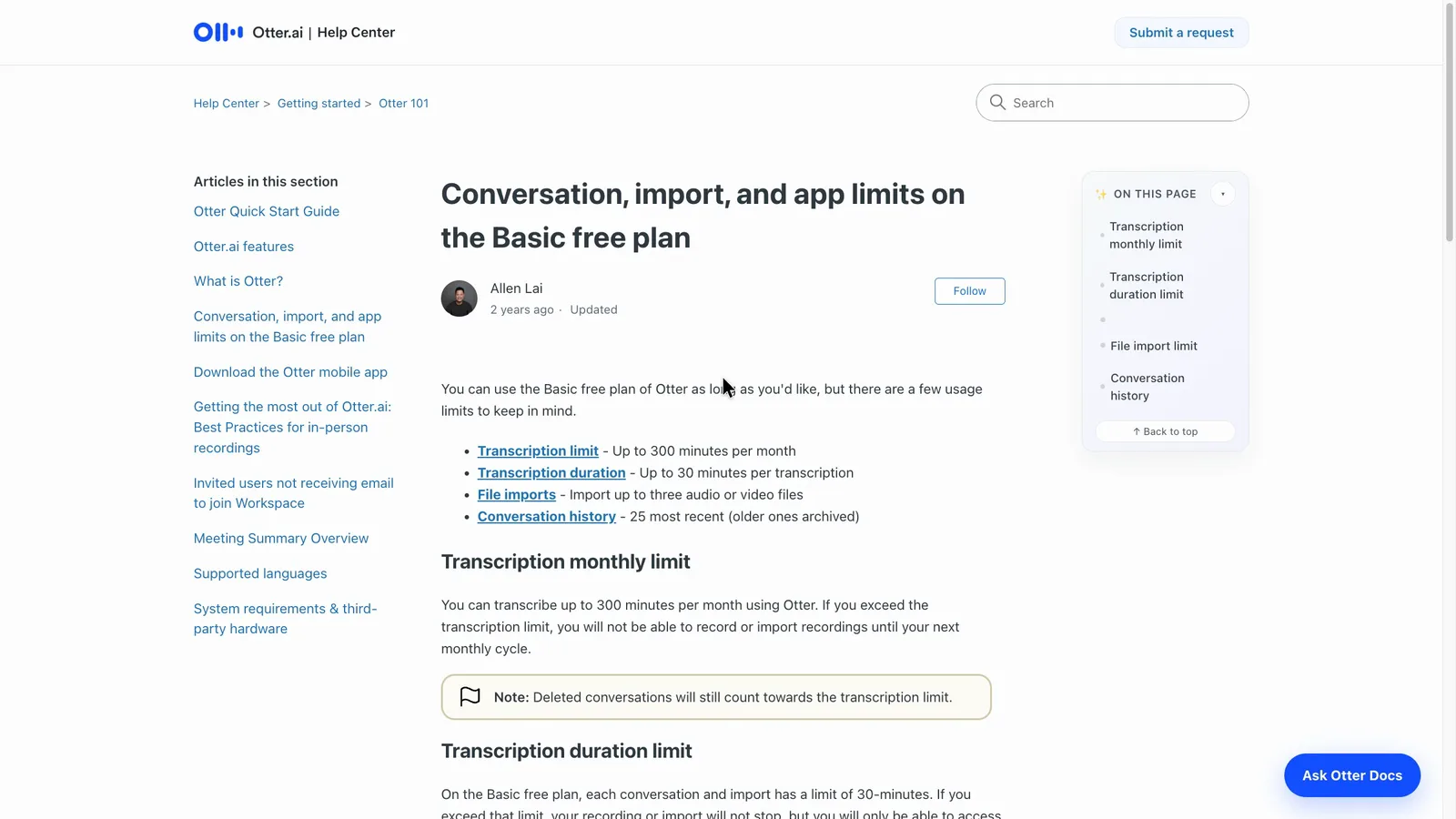
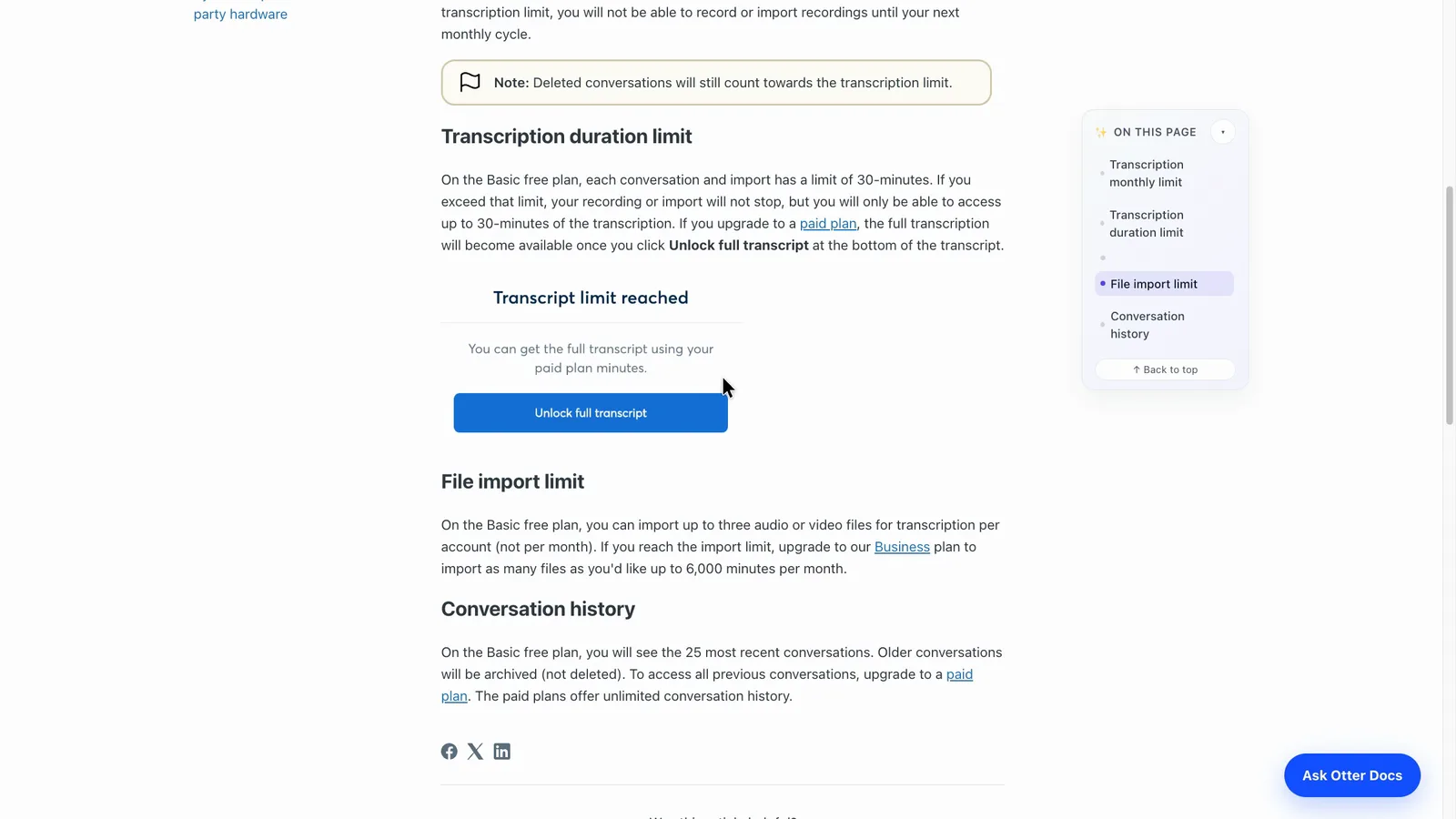
The free plan gives 300 minutes a month, and a counter in the sidebar shows how many you've used. Otter says a free recording past 30 minutes keeps going, but you can only read the first 30 minutes of transcript until you upgrade. Pro lifts meetings to 90 minutes and Business to four hours.
 (enlarge)
| Plan | What this review saw or couldn't see |
|---|---|
| Free (seen) | Google Meet bot, summary and action items, playback from a transcript line, AI Chat, keyword search, five vocabulary entries, TXT export |
| Pro (not seen) | 90-minute meetings, 1,200 minutes a month, unlimited history, PDF, DOCX and SRT export, Zapier, HubSpot or Salesforce sync for one user |
| Business (not seen) | Four-hour meetings, unlimited meeting minutes, bulk export, usage reports |
| Enterprise (not seen) | Recording disclaimer email, Teams recording permission capture, direct Asana connection |
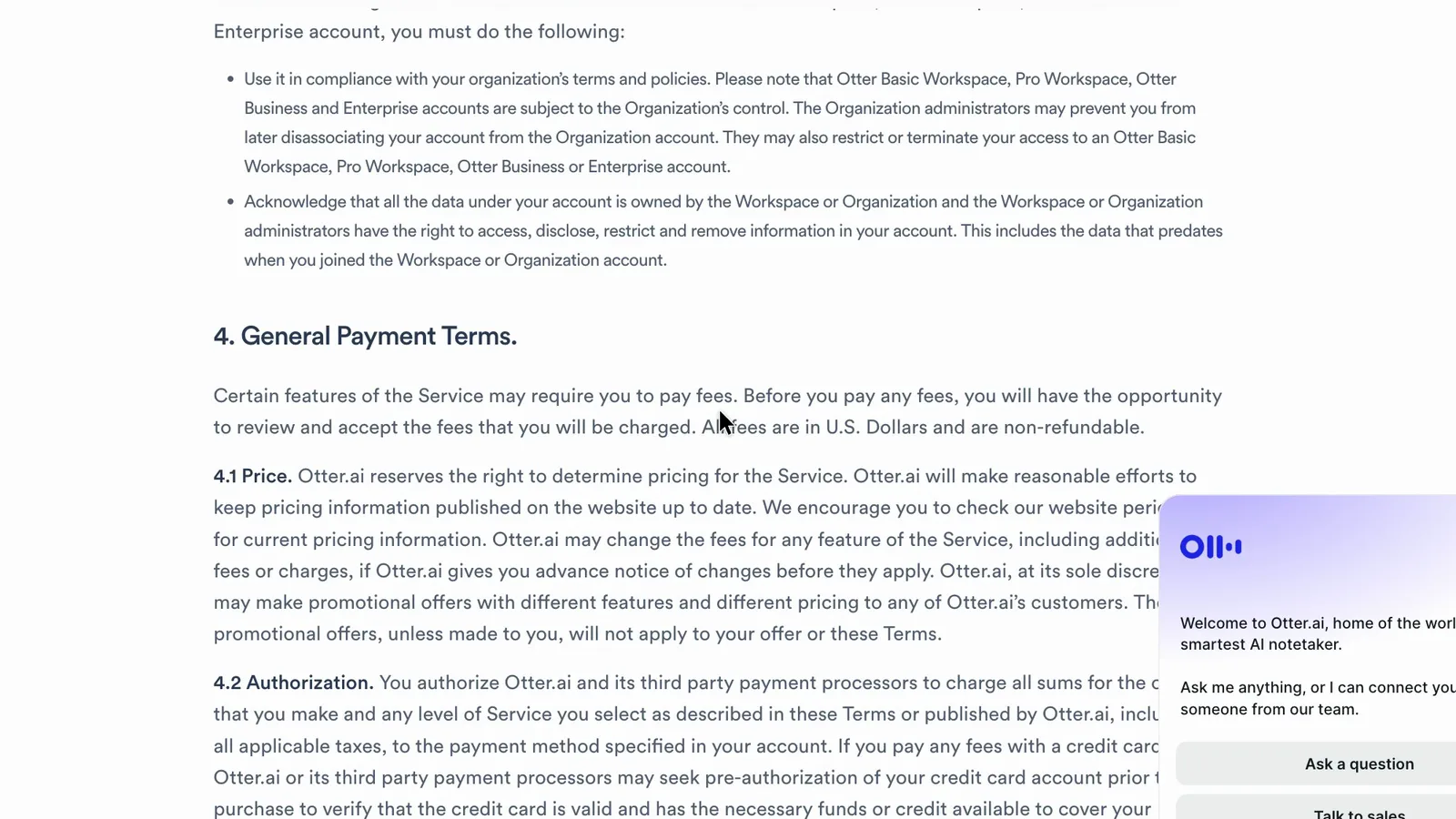
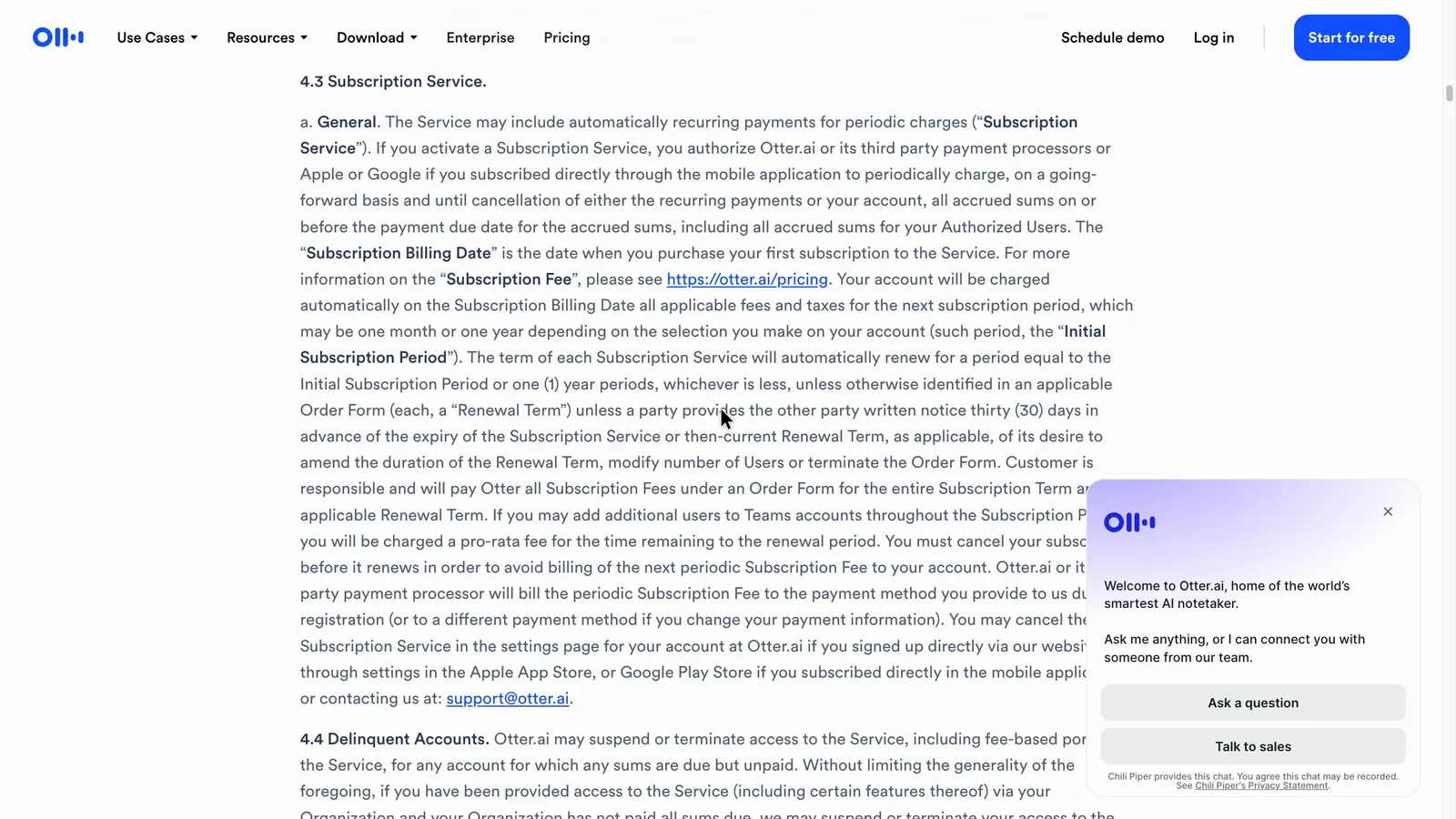
Otter's terms say "All fees are in U.S. Dollars and are non-refundable". They also ask for 30 days' written notice before renewal, next to a line saying you can cancel in settings, and guides citing Otter's help say to cancel at least 24 hours before the next billing date. It isn't clear how those fit together.
 (enlarge)
 (enlarge)
Finding and keeping your records
Finding things worked well on a small sample, and the free plan can export a single transcript. Keeping a long archive and moving work into other tools needs a paid plan.
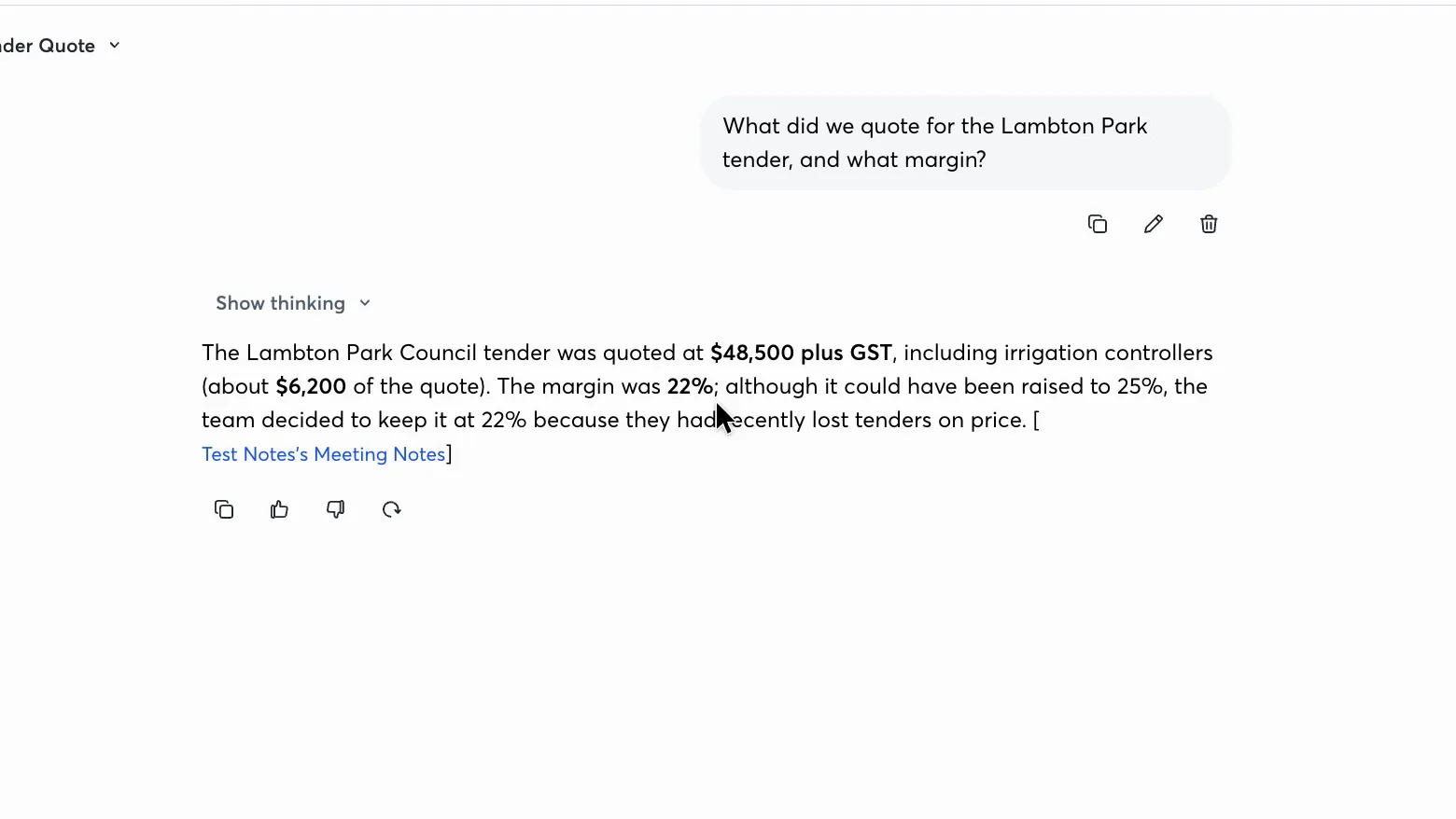
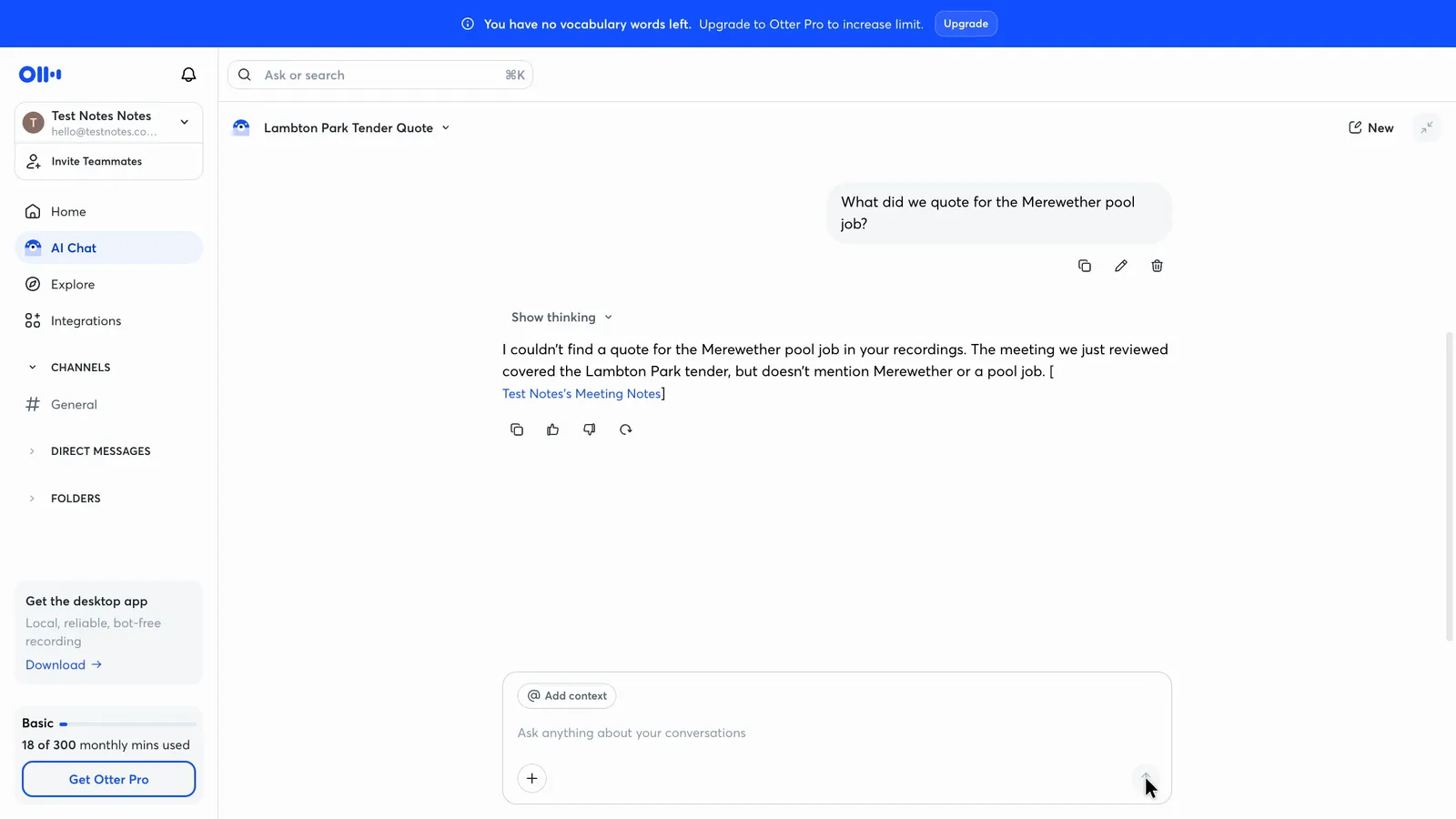
Asked about the real council tender, AI Chat gave an accurate answer with the quoted figures. Asked about a made-up pool job, it said it couldn't find a quote in the recordings rather than inventing one. Its answers link to the meeting rather than the exact line, and the account held only three conversations. Keyword search also found the right meeting, with the word highlighted.
 (enlarge)
 (enlarge)
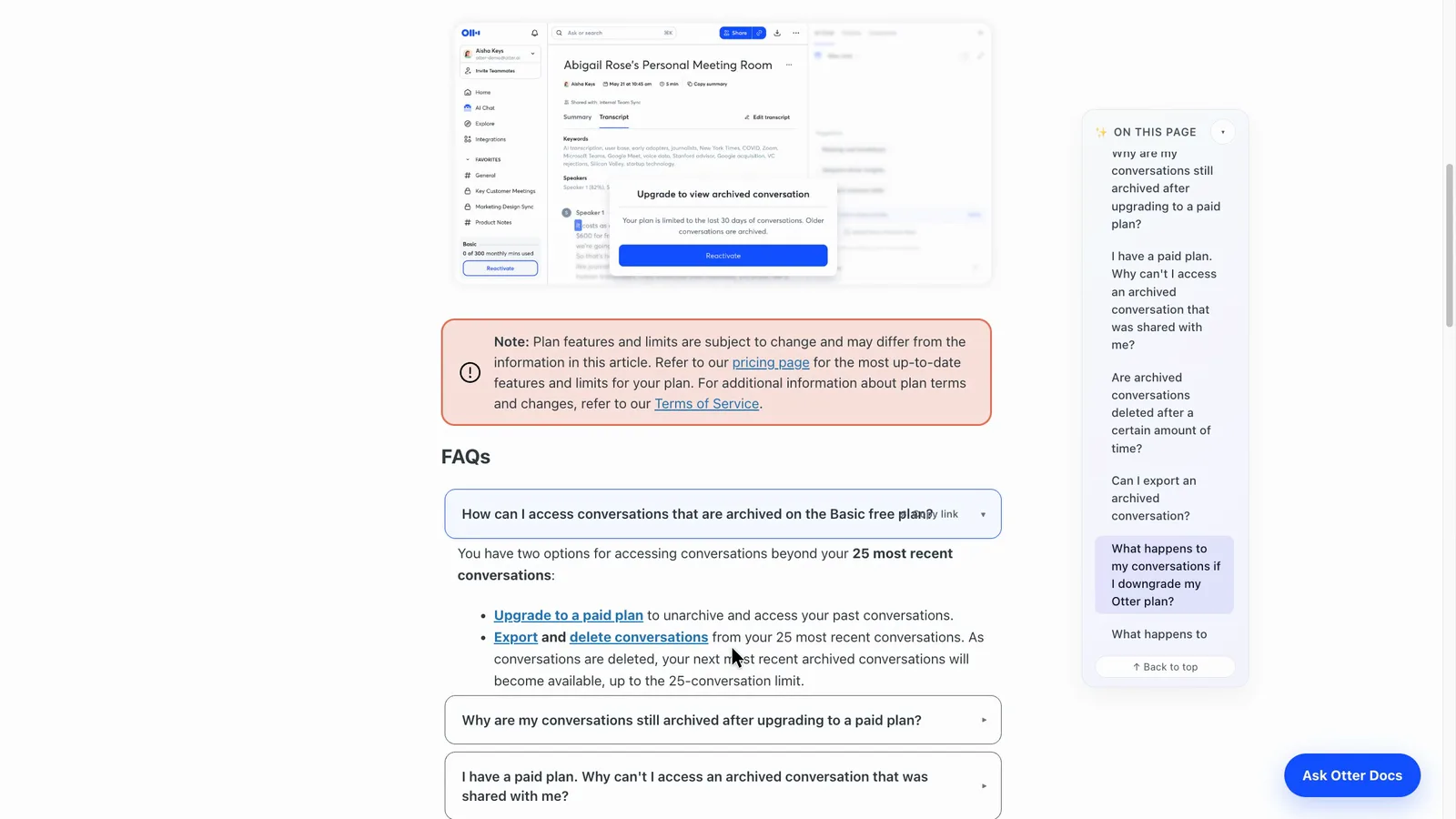
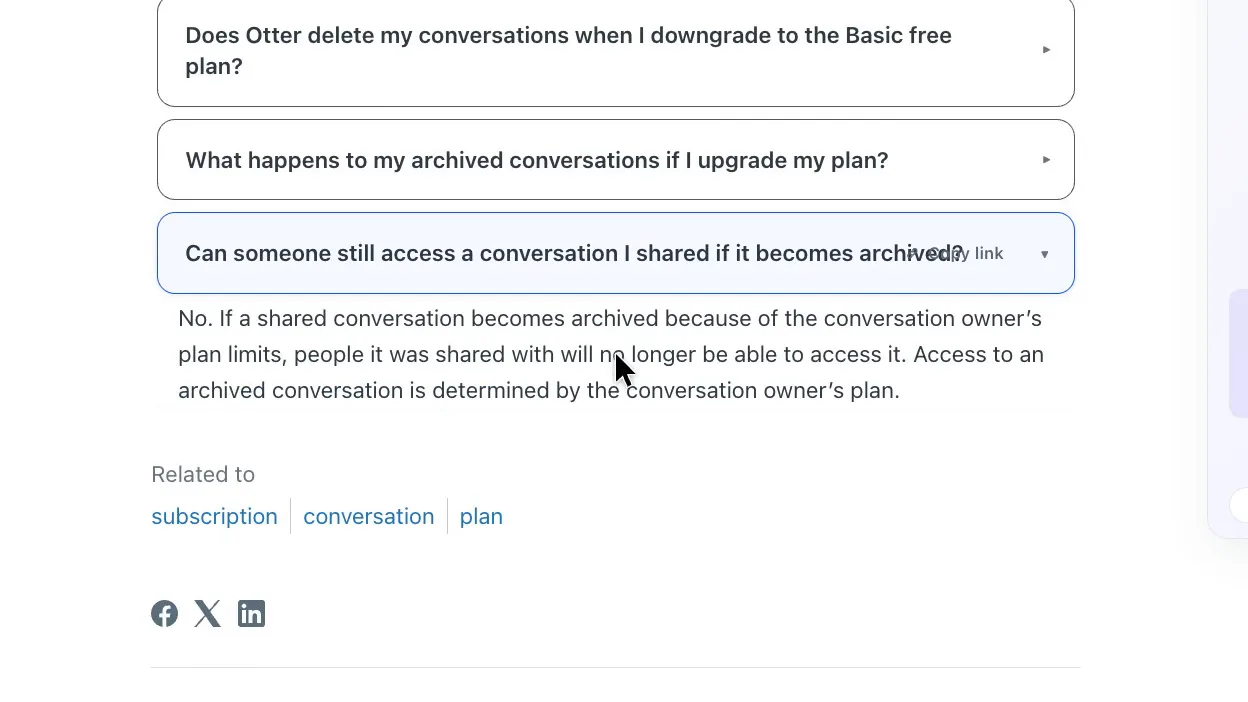
Otter's help on cancelling or downgrading says conversations "will remain in your account" if you cancel, but free accounts only reach the latest 25. It says archived conversations aren't deleted automatically and can be exported without upgrading or unarchiving them, though opening one again on the free plan appears to mean deleting recent ones to bring it back into the 25. People you shared a conversation with lose access if it's archived because of the owner's plan limits.
 (enlarge)
 (enlarge)
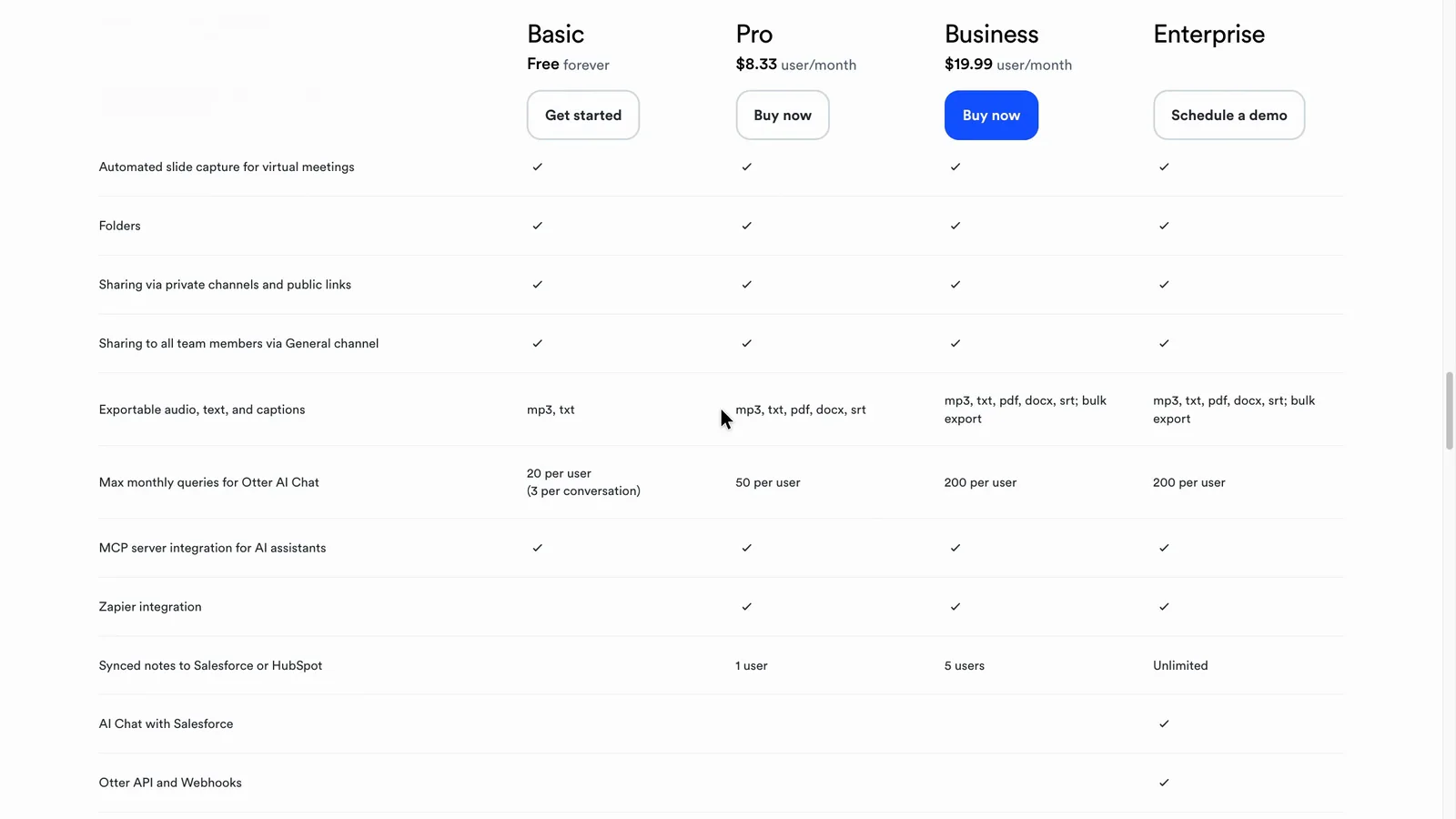
Bulk export needs Business, so on the cheaper plans you'd export conversations one at a time. The pricing table lists MP3 and TXT exports for the free plan, and the single export seen on the free account was a TXT file.
 (enlarge)
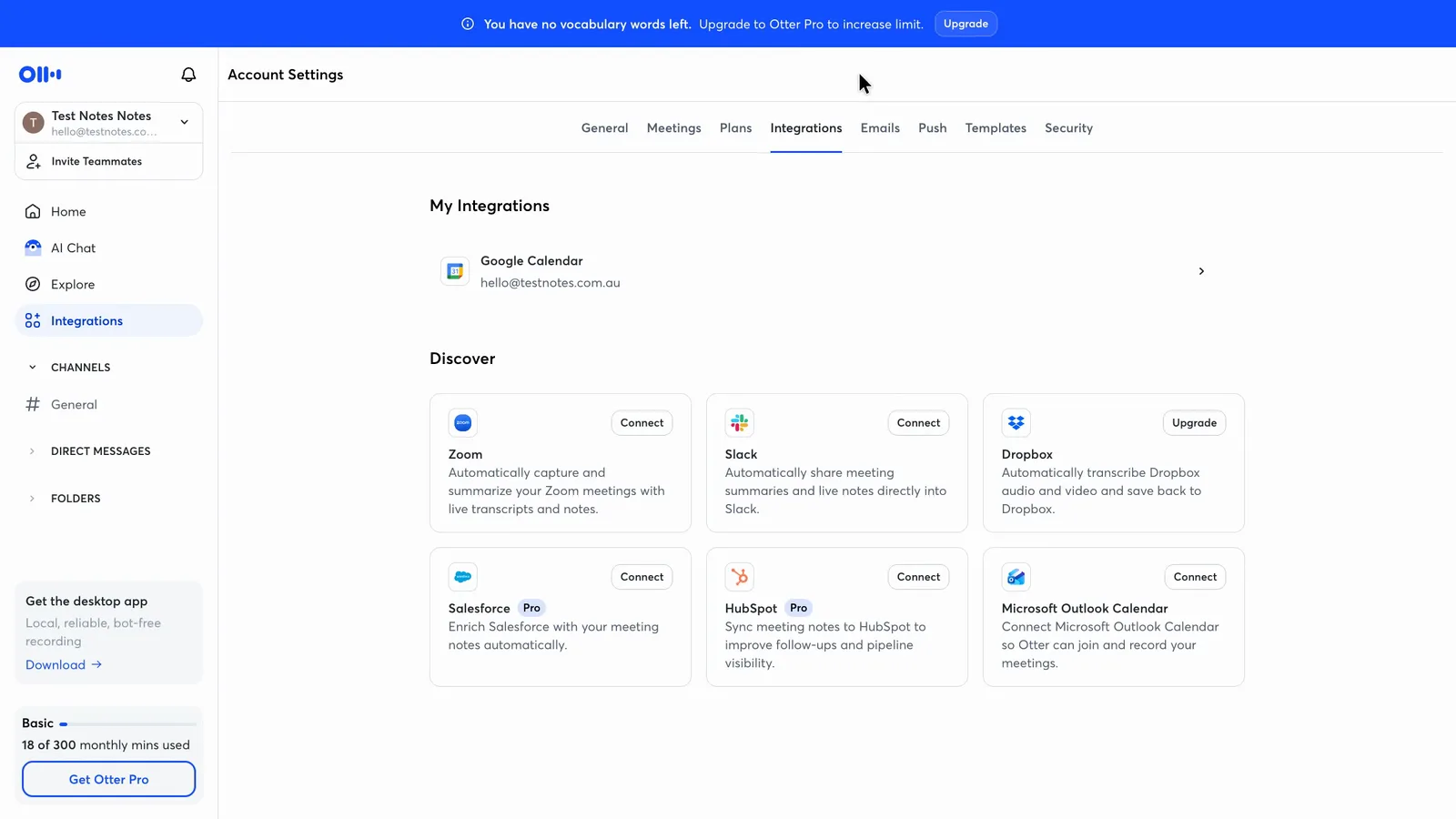
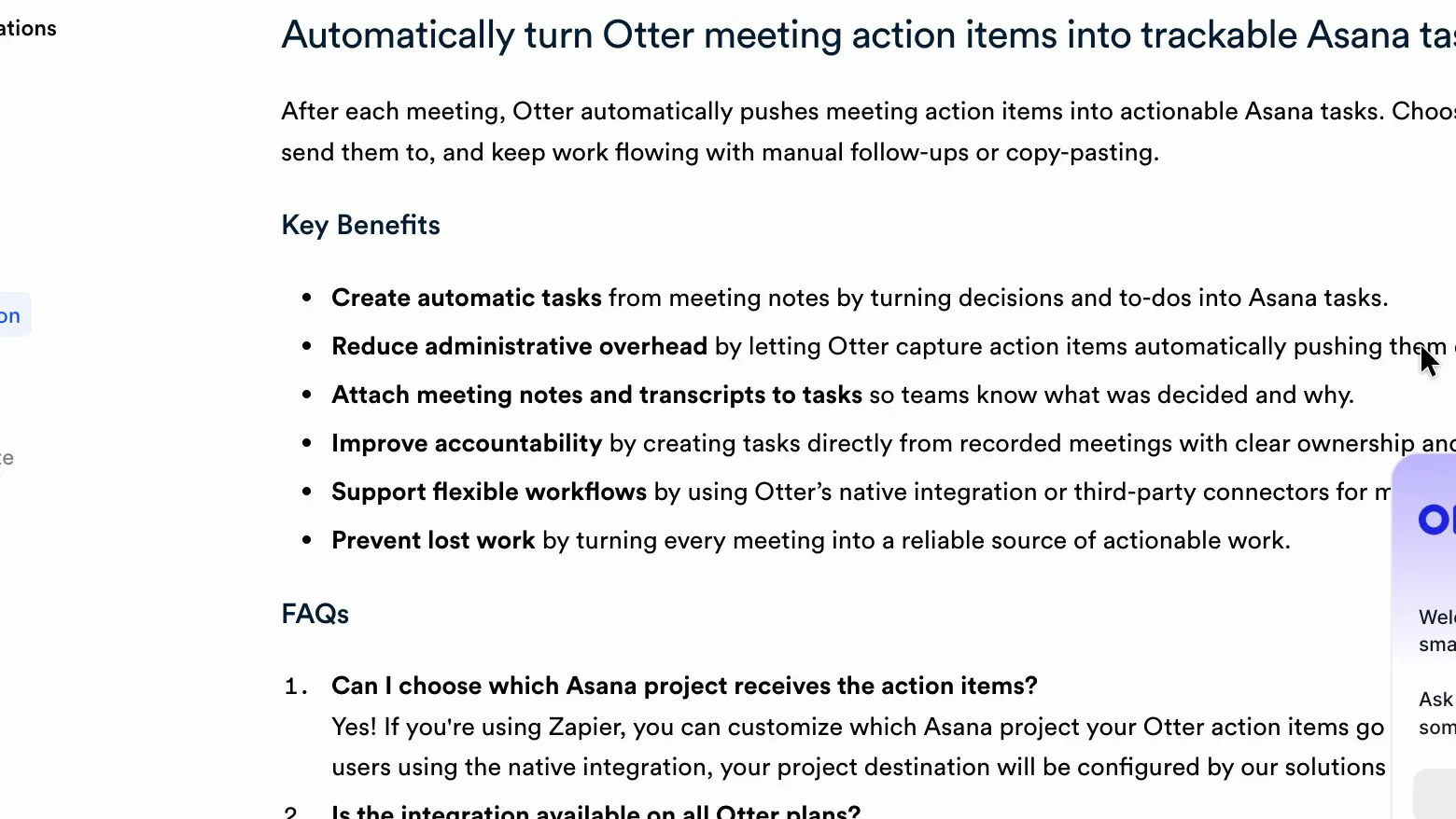
CRM sync and Zapier need a paid plan. The free account's Integrations page offers Slack and Zoom and tags HubSpot and Salesforce as Pro. Otter says Asana comes through Zapier from Pro, with the direct connection on Enterprise only.
 (enlarge)
 (enlarge)
Other notetakers to compare
Fathom and Fireflies both named all six task owners from the same audio, and going by their published prices both cost less than Otter Business for a team of eight on yearly billing. Granola also named all six owners and records without a bot joining the call, which is a recurring ask for client calls.
Pricing in AUD
| Plan | Price | Per | Includes |
|---|---|---|---|
| Basic | Free | Free plan: 300 minutes a month, 30-minute transcripts, latest 25 conversations, 3 imports in total, one meeting at a time | |
| Pro (billed yearly) | $149.18 ex GST | per user per year | Up to 5 users, 1,200 minutes a month, 90-minute meetings, Zapier and CRM sync for one user |
| Pro (billed monthly) | $25.35 ex GST | per user per month | Up to 5 users, 1,200 minutes a month, 90-minute meetings, Zapier and CRM sync for one user |
| Business (billed yearly) | $357.90 ex GST | per user per year | Unlimited meeting minutes, 4-hour meetings, bulk export, usage reports |
| Business (billed monthly) | $44.76 ex GST | per user per month | Unlimited meeting minutes, 4-hour meetings, bulk export, usage reports |
AUD, inc GST unless marked ex GST or GST not stated. Checked 5 Nov 2026. Source: otter.ai/pricing
Integrations
| Connects to | What syncs | Direction | Checked |
|---|---|---|---|
| Google Meet | Bot joins and records the meeting | Google Meet → Otter.ai | |
| Google Calendar | Calendar events so the bot can join meetings | Google Calendar → Otter.ai | |
| Zoom | Bot joins and records meetings | Zoom → Otter.ai | |
| Microsoft Teams | Bot joins and records meetings | Microsoft Teams → Otter.ai | |
| Outlook Calendar | Calendar events so the bot can join meetings | Outlook Calendar → Otter.ai | |
| Slack | Not stated | Not stated | |
| HubSpot | Meeting notes to the CRM | Otter.ai → HubSpot | |
| Salesforce | Meeting notes to the CRM | Otter.ai → Salesforce | |
| Zapier | Not stated | Not stated | |
| Asana | Action items as tasks | Otter.ai → Asana | |
| Dropbox | Not stated | Not stated |
What I didn't test (9 things)
- A real call with people joining separately, so whether task owners and speaker names improve there is unknown
- Zoom, Teams, the desktop app, the Chrome extension and phone or in-person recording; only the Google Meet bot was used
- What a guest sees or receives, signed-out link access and the "stop otter" command, because no guest joined
- A meeting after changing the auto-join and sharing settings, and the settings on a brand-new account
- Whether the five free vocabulary entries fix misheard names, because no new audio was run
- The 30-minute free cut-off in a live meeting, and the 26th-conversation archive
- Paid plans: cancelling, invoices, GST on a receipt, team invites, paid exports and connected integrations, because nothing was bought
- Support response times during Australian business hours, because no tickets were sent
- Deleting a meeting and audio export
Video transcript
Otter.ai review
I ran the same four-person meeting through seven popular AI notetakers, and Otter AI got every number, due date, and correction right, but it didn't assign an owner to a single task. Otter is an AI tool that records your meetings and writes up the notes, for anyone who'd rather talk than type. With the help of my AI review agent, I tested it hands-on to find its strengths and weaknesses and who it suits best. Otter AI suits a team of up to five that wants a cheap record of its online meetings and will check the notes and arrange client consent itself. If you need tasks with owners, I'd look at the other notetakers first, at least going by this test, and the same if you want Microsoft Teams permission or a recording disclaimer email switched on for your whole company without paying a lot more for the Enterprise plan.
Notes you can send as they are
Here's how the seven AI note-taking tools performed in my test, where I played a pre-recording of a fictional landscaping firm's weekly meeting. Otter found nearly all the tasks, and its due dates and corrections were as good as any of the competition.
Notes you can send as they are
The other six tools named five or six of the six people given a task out loud, but Otter named none. Every row in this action list just has an empty assign icon, so you'd be adding the owners yourself. Note that all the voices in this test came through one participant, so I didn't test whether a real call, with people joining separately, gets owners. The apprentice offer was decided outright in the meeting, but Otter's notes turn it into a maybe, subject to checking the award rate with the accountant.
Notes you can send as they are
Local names needed checking too. Otter wrote Katara for the suburb of Kotara, and eight of the 18 names in this meeting came out wrong. The free spelling list stops at five entries, so it wouldn't cover even this one meeting, and I didn't test whether it fixes names. Checking a doubtful line is pretty quick, though, you just click it in the transcript and the audio plays from there, even on the free plan, which is great. The summary and action items didn't appear to link back to those lines here, though Otter's help describes a View in transcript option on action items, so you may have to find the place yourself. You can then edit the notes, but turn off automatic sharing first if you want to fix them before anyone sees them.
Notes you can send as they are
Pressing Update after renaming a speaker may undo your work. In one run, it appears to have rewritten the summary and all nine action items. Here's the list before, with owners typed in by hand, and the prompt just says to update the summary to match your changes. Here's the list after, with those owners gone, and it gave no warning.
Online calls and in-person meetings
The next question is whether Otter can record all your meetings, and it does describe a way to handle most of them. Its pricing table ticks the bot for Zoom, Teams and Google Meet on every plan, with one meeting at a time on free. The Google Meet bot is the only one I tested, I didn't test Zoom, Teams or a phone on the table in a room, so you'd want to try the ones you will use the most. Otter describes in-person recording on iPhone and Android, where competitors like Fathom list iPhone only.
Online calls and in-person meetings
Otter says it can’t record ordinary phone calls directly, because Apple and Google stop apps doing that, so you’d have to record the call some other way and import the file. Free accounts get three imports in total, and Pro gets 10 a month. Otter also has a desktop app that records without a bot joining the call, but its pages don’t seem to agree on who gets it. One post lists it under Enterprise, the desktop app’s page doesn’t name a plan, and the sidebar on the free account advertises it. I didn’t install it, so I can’t say which plan you’d need.
Who knows it's recording
So what does another person on the call see when you're recording? From the host's perspective, a bot turns up under a clear name like this one. I'd expect it would look the same for all guests but I didn't test this. Consent is on you, and Otter's terms say you're solely responsible for notices and consent. The pricing table shows that the recording disclaimer email and Microsoft Teams permission features are only on the Enterprise plan. A switch for pre-recording emails does show on the free account, but I didn't test whether it works there.
Who knows it's recording
Otter says any guest, even without an account, can remove the bot by typing "stop otter" in the meeting chat, which is useful so long as they know about it. Otter's settings say Enterprise customers can also opt out of de-identified data use, meaning data with the personal details taken out, and the policy covers training on transcriptions that may contain personal information. It appears a free or Pro account can turn off human review and the use of its conversations for training, but Otter's pages don't make clear whether that covers training on de-identified data. The policy also names a US cloud provider and doesn't mention an Australian location in this part, which could rule Otter out for sensitive health, legal or HR work.
Control over joining and sharing
In terms of keeping the bot out of the wrong meetings, the controls are easy to reach on the free plan. In Otter's auto-join settings you can just tick "Meetings I manually select". That, and "Don't share" for the notes, took two clicks each with no upgrade prompt.
Control over joining and sharing
Depending on how your account is set up, the bot can go to any meeting with a video link, notes can go to guests at your own company or to everyone invited, clients included, and a link to the live summary and transcript can go into the meeting chat for everyone. Otter also says meetings you changed one by one keep their existing setting, and changes less than 30 minutes before a meeting may stop the bot joining properly. So a new default may not reach every meeting already in your calendar. Before connecting a work calendar, I'd try it on a spare one with a second email address as the guest.
True cost and billing surprises
Cost depends mostly on team size. At the time of recording, checkout showed Pro at about $12 a user a month billed yearly, or about $25 billed monthly, converted to Australian dollars. Three people on yearly billing pay about $37 a month, which is pretty cheap. But the seat list stops at five, so a sixth person pushes the whole team onto Business, at about $30 a user billed yearly or about $45 billed monthly. Eight people at about $30 comes to about $240 a month. Going by current published prices, eight people on yearly billing would pay about a quarter less on Fathom's Team plan and about half on Fireflies' Pro plan.
True cost and billing surprises
The free plan won't cover an hour-long meeting. Otter says a free recording past 30 minutes keeps going, but you can only read the first 30 minutes of transcript until you upgrade, and this counter shows your 300 free minutes a month. Notes, playback, search, a text export and a limited chat assistant all work on the free plan. Pro lifts meetings to 90 minutes and Business to four hours, and the Zapier and CRM links start at Pro.
True cost and billing surprises
Otter's terms say all fees are in US dollars and non-refundable. They also ask for 30 days' written notice before renewal, next to a line saying you can cancel in settings. Otter's help says to cancel at least 24 hours before the next billing date, and it isn't clear how those fit together. I didn't test cancelling a paid plan. If I paid yearly, I'd put the renewal date in my diary.
Finding and keeping your records
Finding things after a meeting worked well on a small sample. Asking the chat about the real council tender gave an accurate answer, and for a made-up pool job it said it couldn't find a quote in the recordings, which is what you'd want. It links to the meeting rather than the exact line. Keyword search on the free plan found the right meeting too, with the word highlighted.
Finding and keeping your records
Otter says your conversations stay in your account if you cancel, but free accounts only reach the latest 25. It says archived ones can be exported without upgrading, though it appears that means deleting recent ones to bring older ones back into that 25. People you shared them with lose access if a shared conversation becomes archived because of the owner's plan limits. Bulk export needs a Business plan, so on the cheaper plans you'd export them one at a time.
Finding and keeping your records
Sending the work on to other tools costs more. The free account's Integrations page offers Slack and Zoom, tags HubSpot and Salesforce as Pro, and doesn't list Asana or Notion. Otter says Asana comes through Zapier from Pro, and the direct link is Enterprise only.
Who it's good for
I think Otter is good for a team of up to five that wants a cheap record of its online meetings, because the numbers, dates and corrections held up in the Google Meet test, and Otter says the bot works on Zoom and Microsoft Teams too. Three people on Pro is cheap, however going by my test, it doesn't look like a good fit for a team that needs tasks to come out with owners identified. It also isn't good for a business that wants a recording disclaimer email or Microsoft Teams permission feature without paying for Enterprise. A team of eight is on Business, which costs more than double per person. So if you want a cheap record and you're happy to check it every time, I'd give it a go, but you may need to type in the action owners by hand.
Who it's good for
I hope that helps. The full write-up is linked below. Thanks for watching.