Read AI review: is it worth paying for?
Verdict: Read suits a small business that meets clients on more than one of Zoom, Teams and Meet and wants all its notes in one place. It got every figure right, but it missed owners, tasks and dates more than other notetakers given the same meeting, so every action item needs checking, and the sharing settings need changing before the first client call. A business that only uses one meeting app may find the AI notes already in its Zoom, Google or Microsoft plan cover the same job without a second bill in US dollars.
Suits
- Small businesses that meet clients on a mix of Zoom, Microsoft Teams and Google Meet
- Teams that want notes from online calls and in-person meetings in one library
- Owners who are happy to check every action item before a recap goes to a client
Doesn't suit
- Businesses that meet on only one app whose plan already includes AI meeting notes
- Anyone who wants to send recaps to clients without checking them first
- Sole traders and small teams who want to replay recordings on a cheaper plan, because playback is Enterprise only
- Businesses that need meeting data kept in Australia
How it was tested
I tested Read AI with the same scripted meeting as six other notetakers. A review agent I built did the rest of the hands-on testing and recorded the screen, and I checked the key findings myself. How I test explains the method.
Read AI joins your online meetings as a bot, or records through its desktop and phone apps, then writes a summary, action items and a transcript.
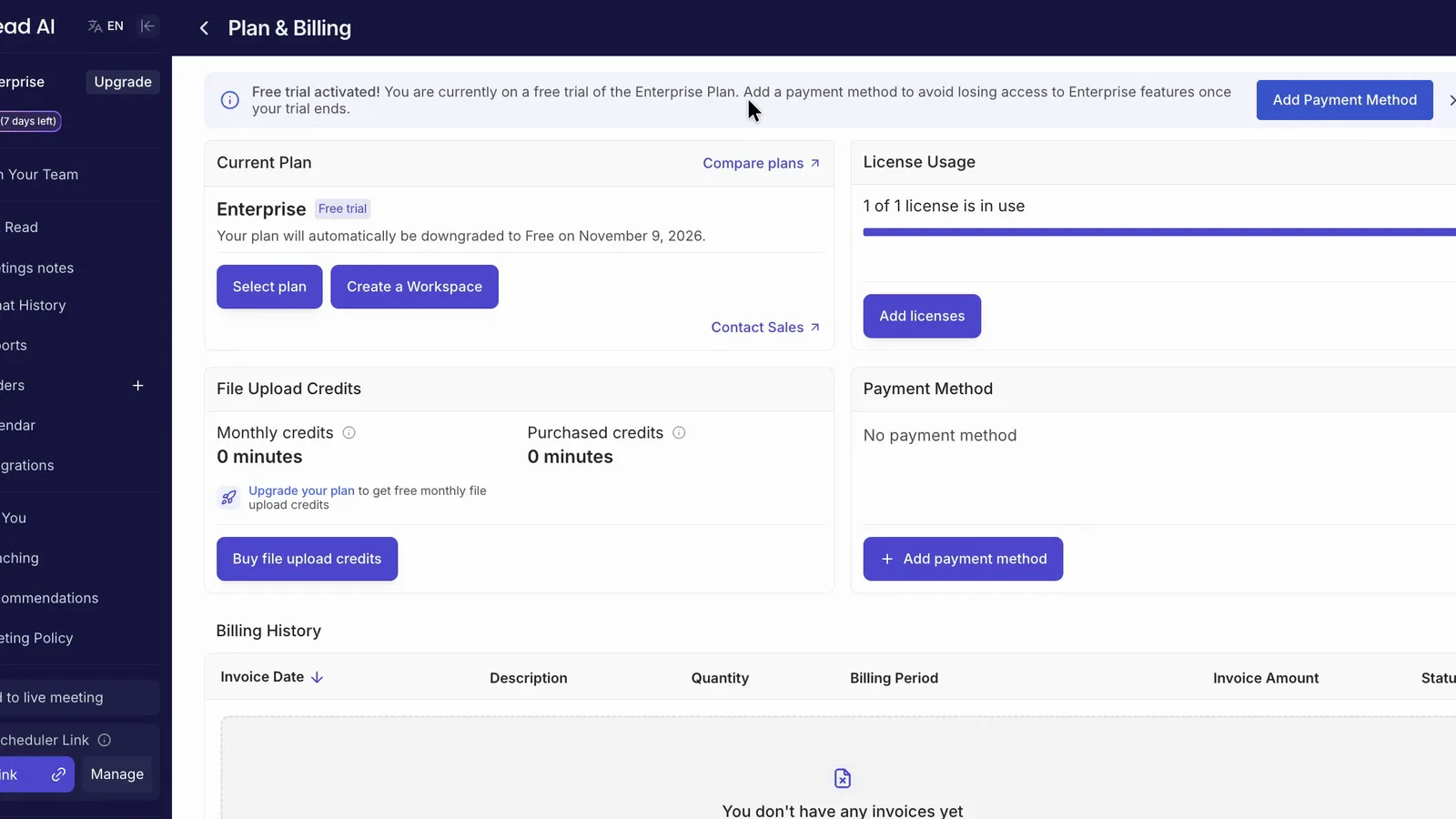
The testing ran on Read's 7-day trial, which is a trial of the Enterprise plan. It started on 2 November 2026 and drops to Free on 9 November, so each feature below is labelled with the plan it needs. Only Google Meet calls were recorded. The main test was a scripted five-minute team meeting with nine tasks, eight due dates, 18 figures and several local names, played into one Meet call with all four voices coming through one laptop. I played the same meeting into six other notetakers to compare the results.
 (enlarge)
Notes you can send as they are
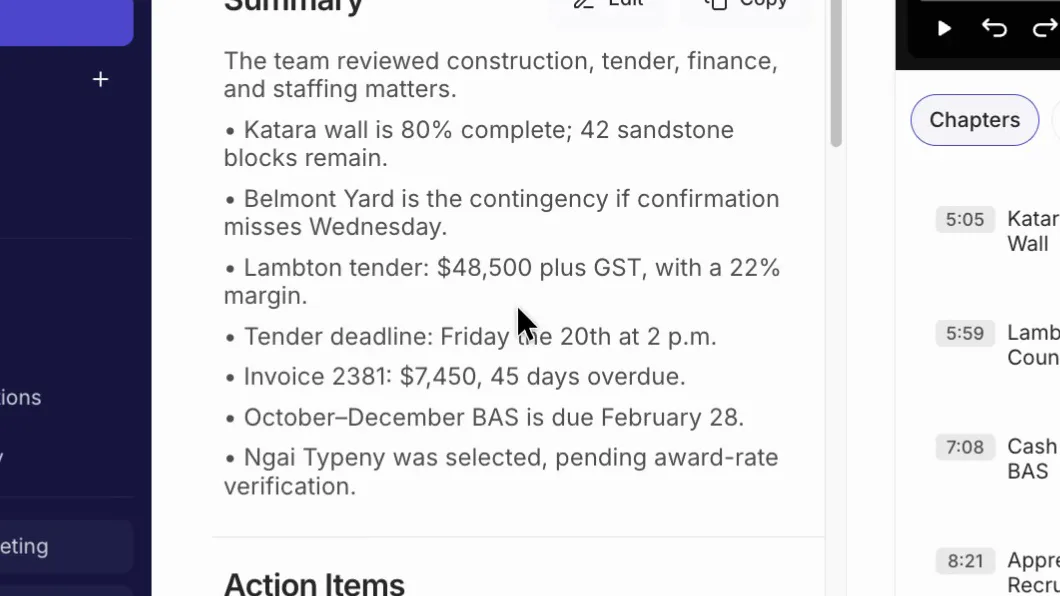
Read's summary can be trusted on numbers, but its action items need real fixing before a client sees them. Given the same meeting, Read found the fewest tasks cleanly and the fewest due dates of the seven notetakers, though it tied for the fewest made-up details.
It got all 18 figures right and kept both spoken corrections, where a speaker changed the BAS due date and the day of a follow-up call.
 (enlarge)
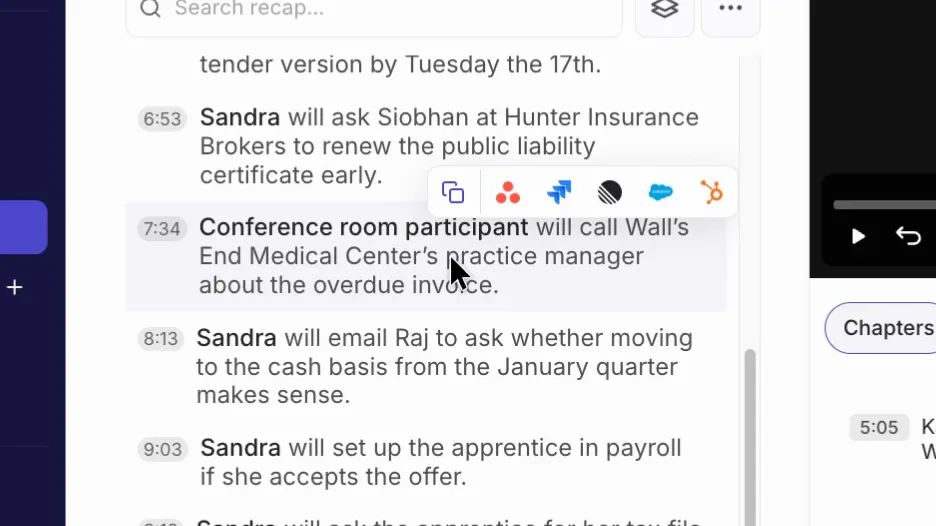
Read gave the request for a new apprentice's tax file number declaration and super details to the wrong person. It gave the overdue-invoice call to "Conference room participant", with no contact name, invoice number or day, and misspelt the client's name.
 (enlarge)
One task, an award-rate check, isn't listed at all and only appears as a condition on another item. Only 2 of the 9 items carry a date. "Today", "this week", "tomorrow" and "after the 20th" were all dropped.
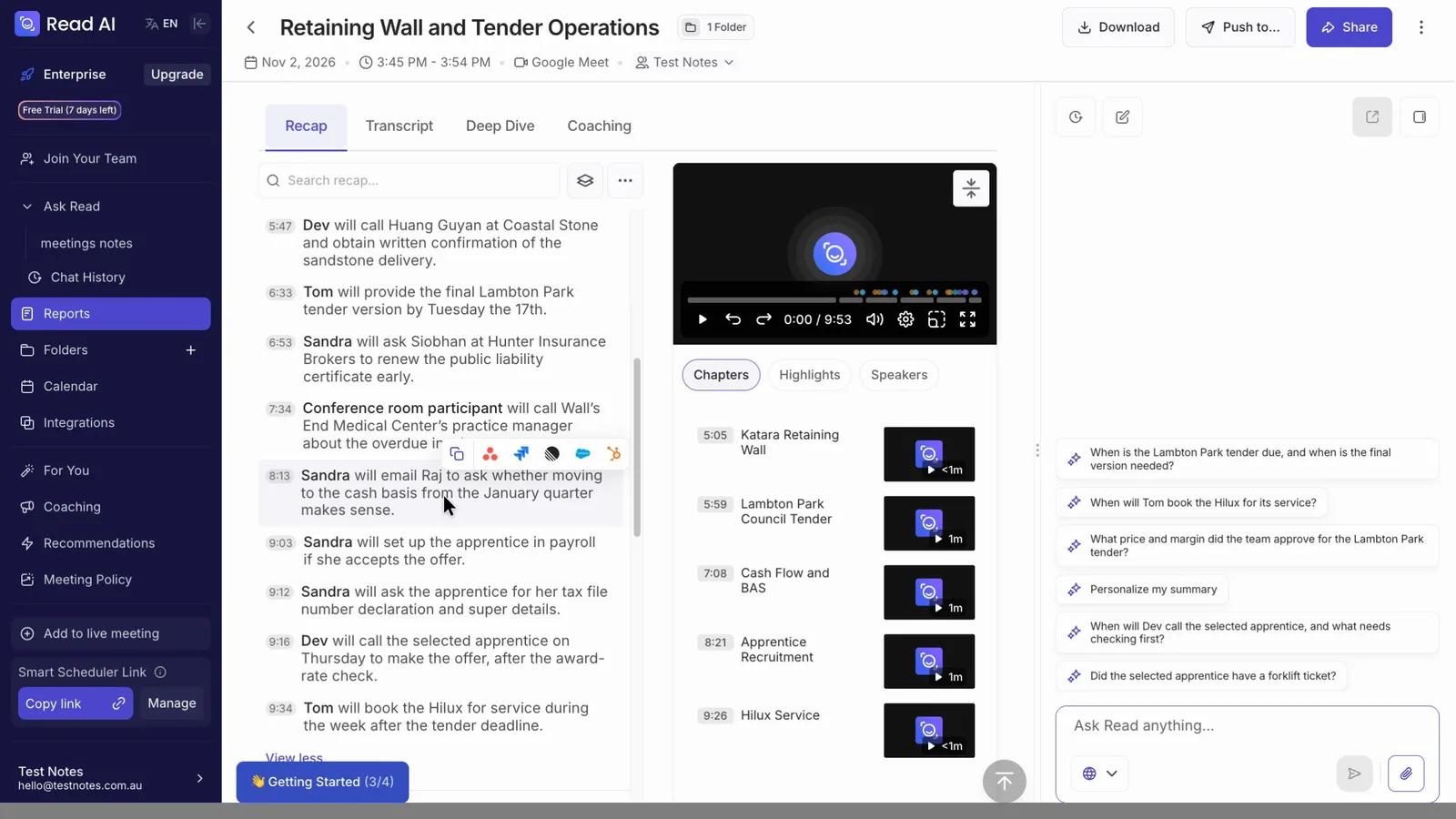 (enlarge)
The other six notetakers found 7 or 8 of the 9 tasks cleanly to Read's 5, and got 6 or 8 of the 8 due dates against Read's 4. Read's one made-up detail was saying a job candidate was chosen "pending award-rate verification" when the offer had been made outright.
Every tool misheard local names, and all seven wrote "Katara" for Kotara. Read's notes also list "Ngai Typeny, also referred to as Ningairi T. Painey", as if a mishearing were a second name for the same person.
Because all four voices came through one laptop, it was harder for any notetaker to tell who said what. A first pass at editing came to about 14 fixes before the recap could go to a client, though that count wasn't checked by hand.
Each section of the summary has its own edit box, and edits save and carry into the downloaded notes. Fixing names is slower. Renaming a speaker updated all 19 of their lines in the transcript, but after a reload the recap still said "a participant agreed to contact the customer".
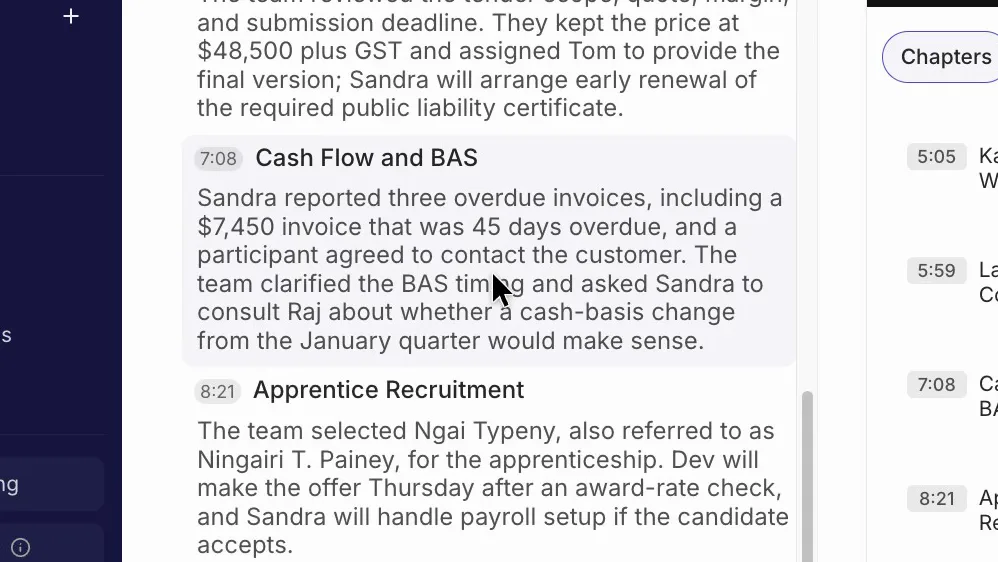 (enlarge)
The recap's menu offers only "Copy Recap" and "Revert recap to original", so there's no way to rewrite the summary with the new name. Each name has to be fixed by hand in the summary, the action items and the discussion points.
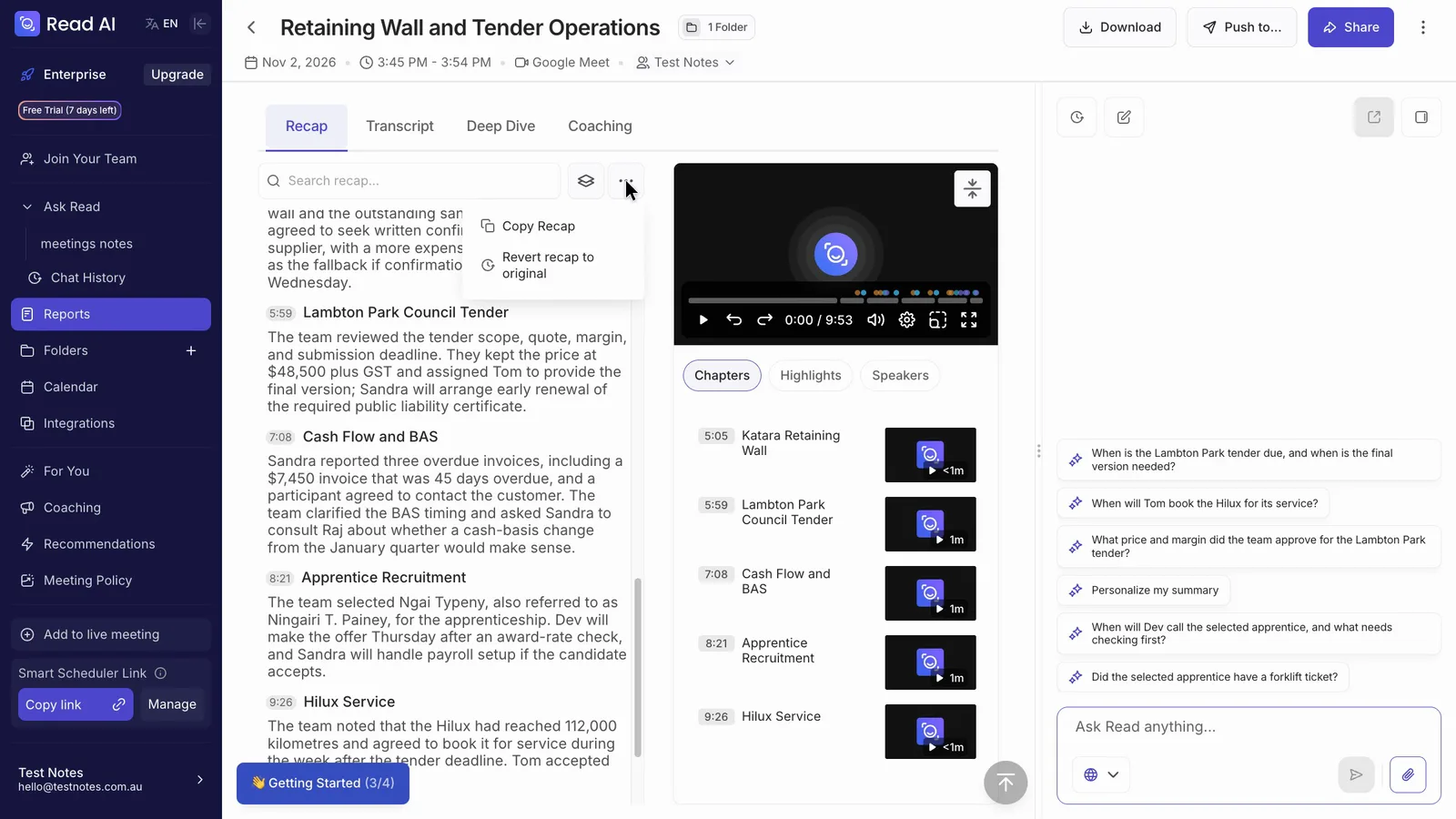 (enlarge)
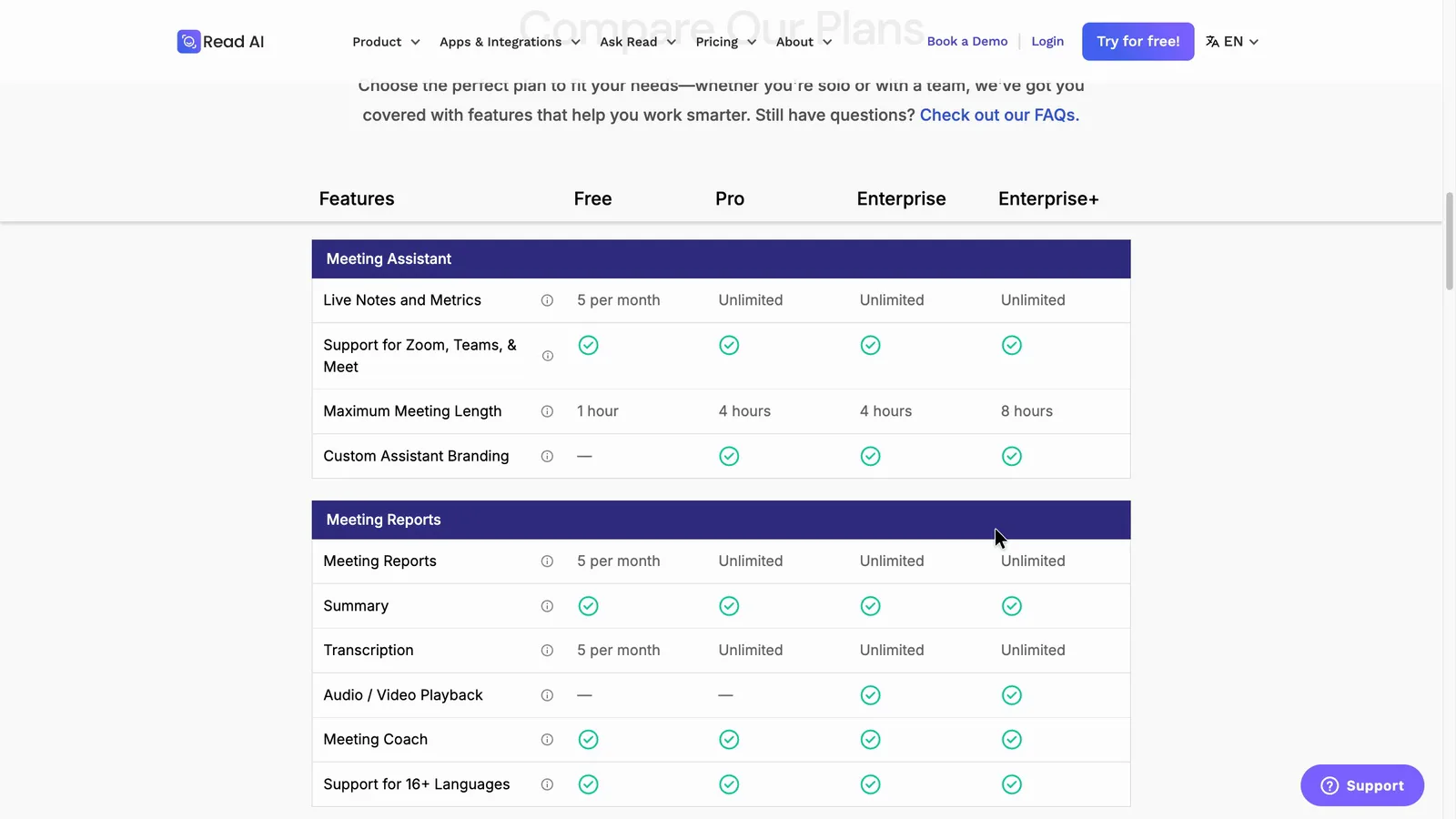
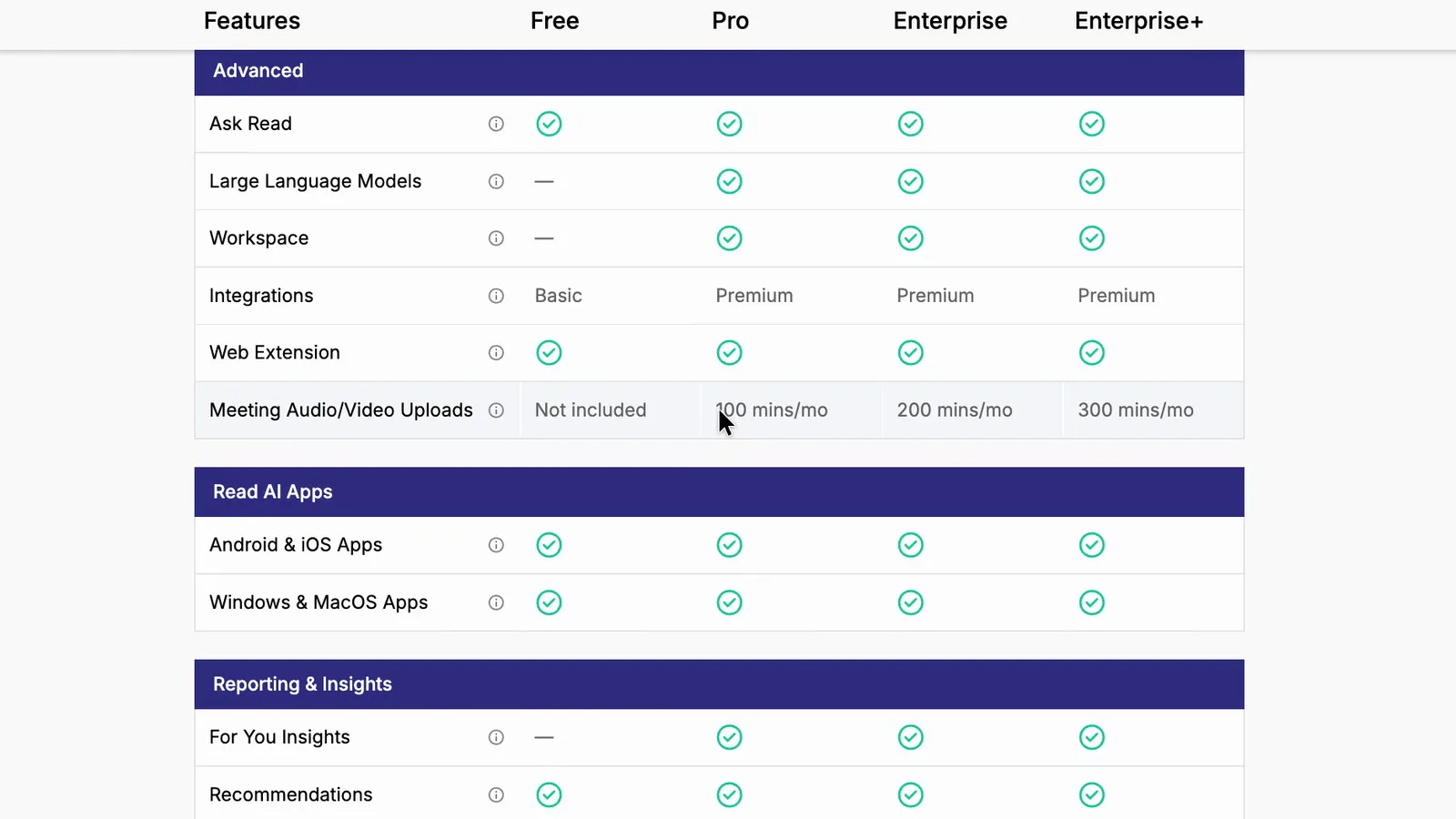
Clicking the time next to an action item plays the recording from that moment, which is the quickest way to check who really said something. That was on the Enterprise trial. Read's price table shows a dash for audio and video playback on Free and Pro.
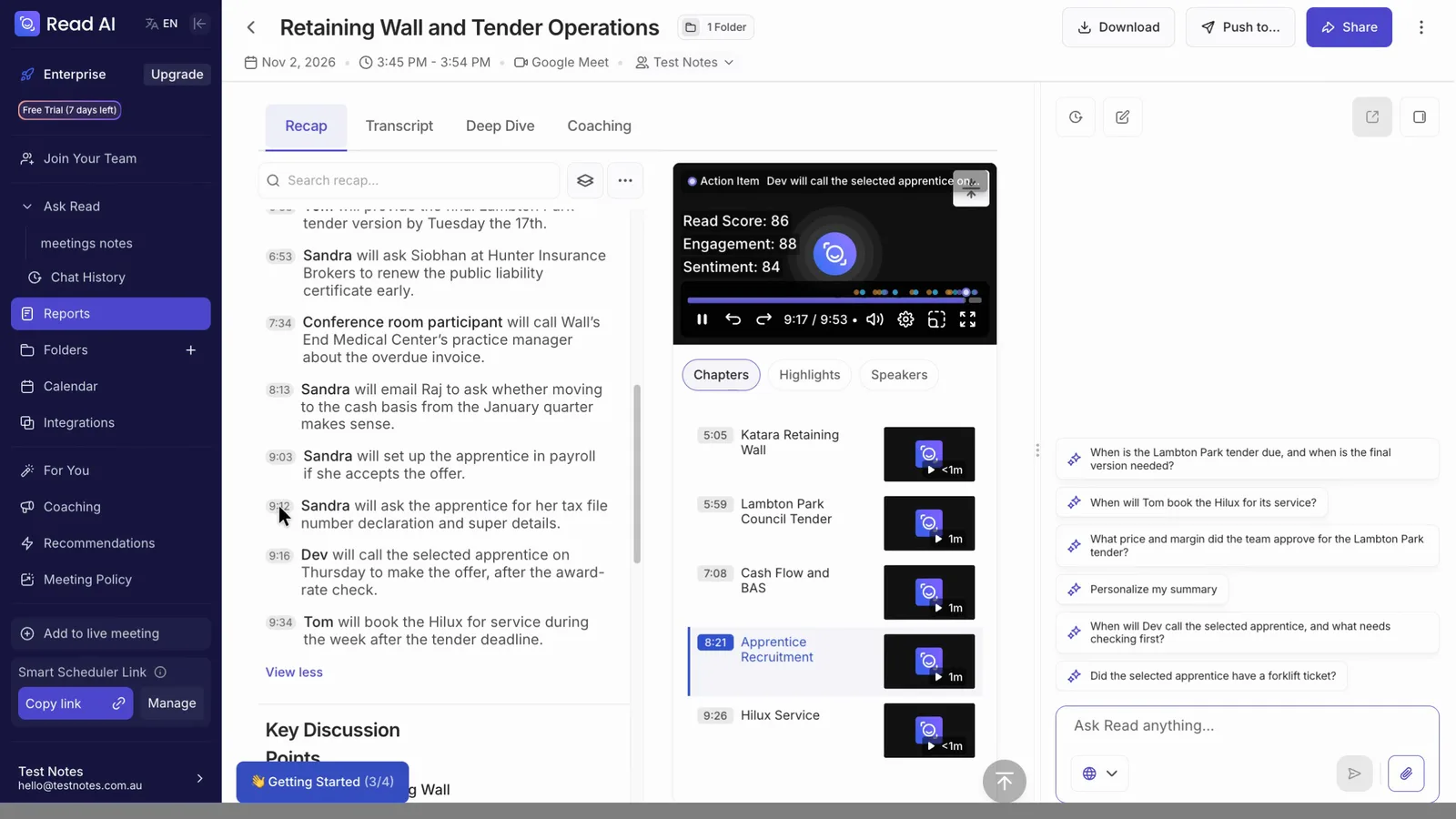 (enlarge)
 (enlarge)
Online calls and in-person meetings
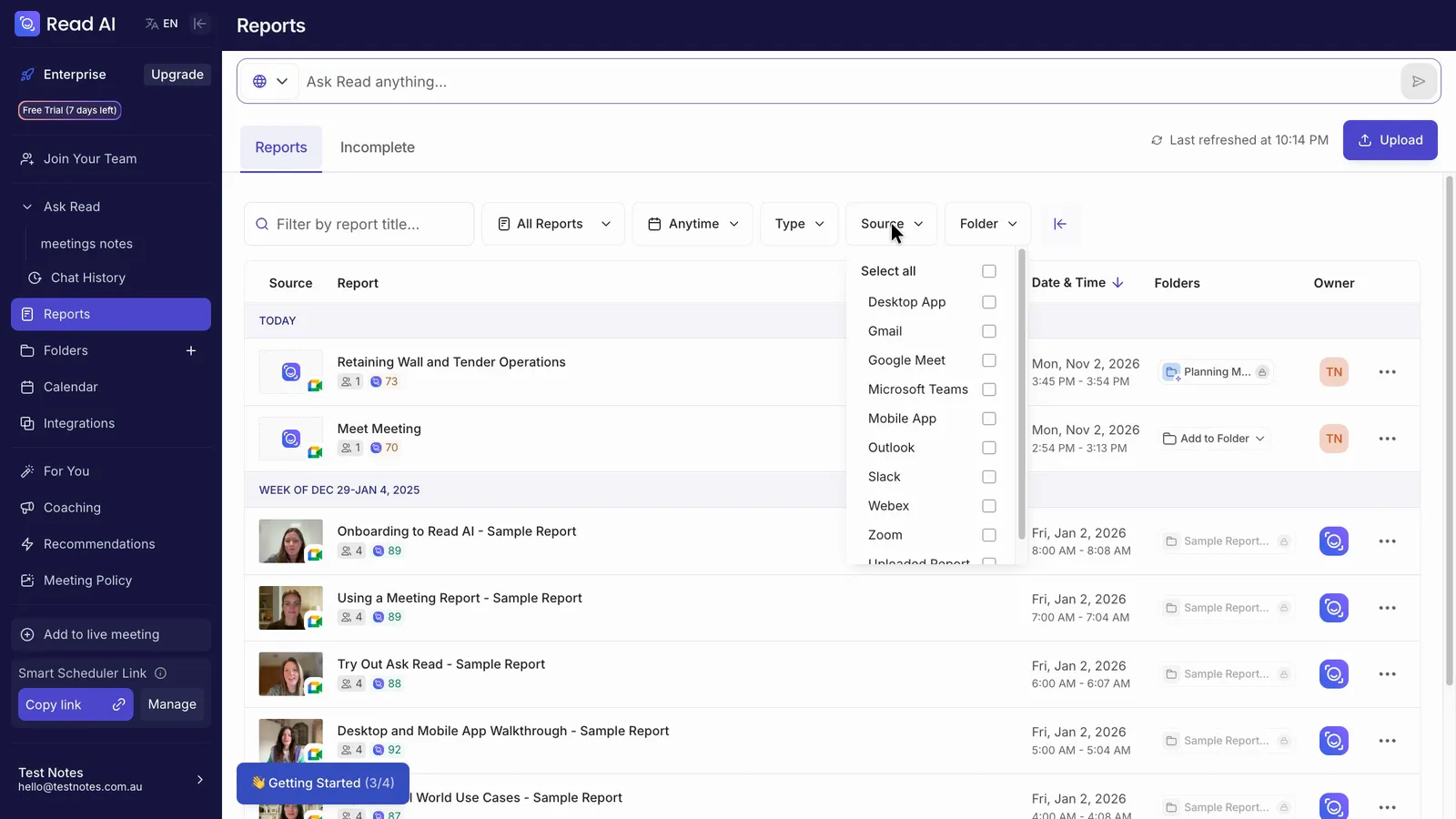
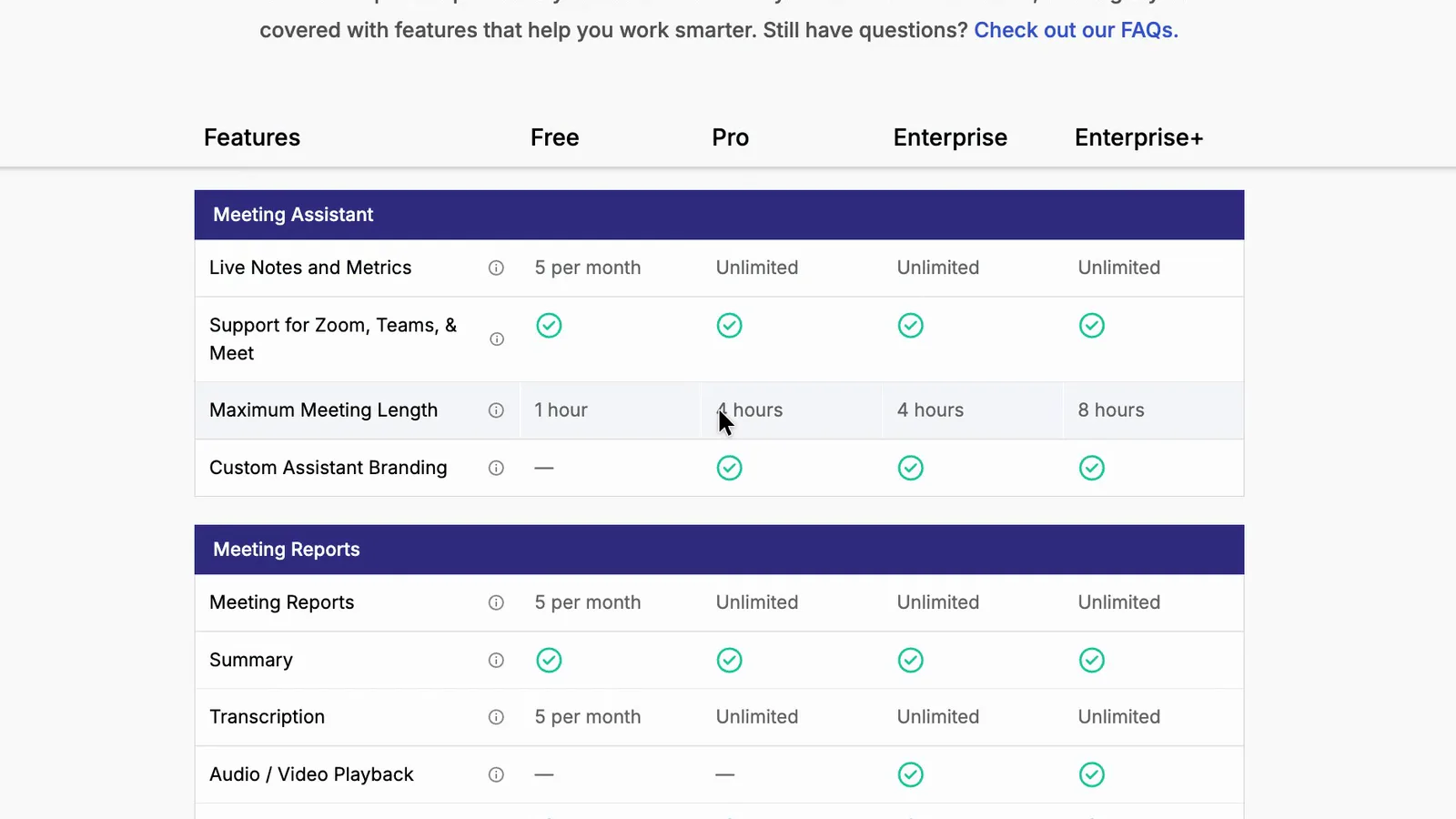
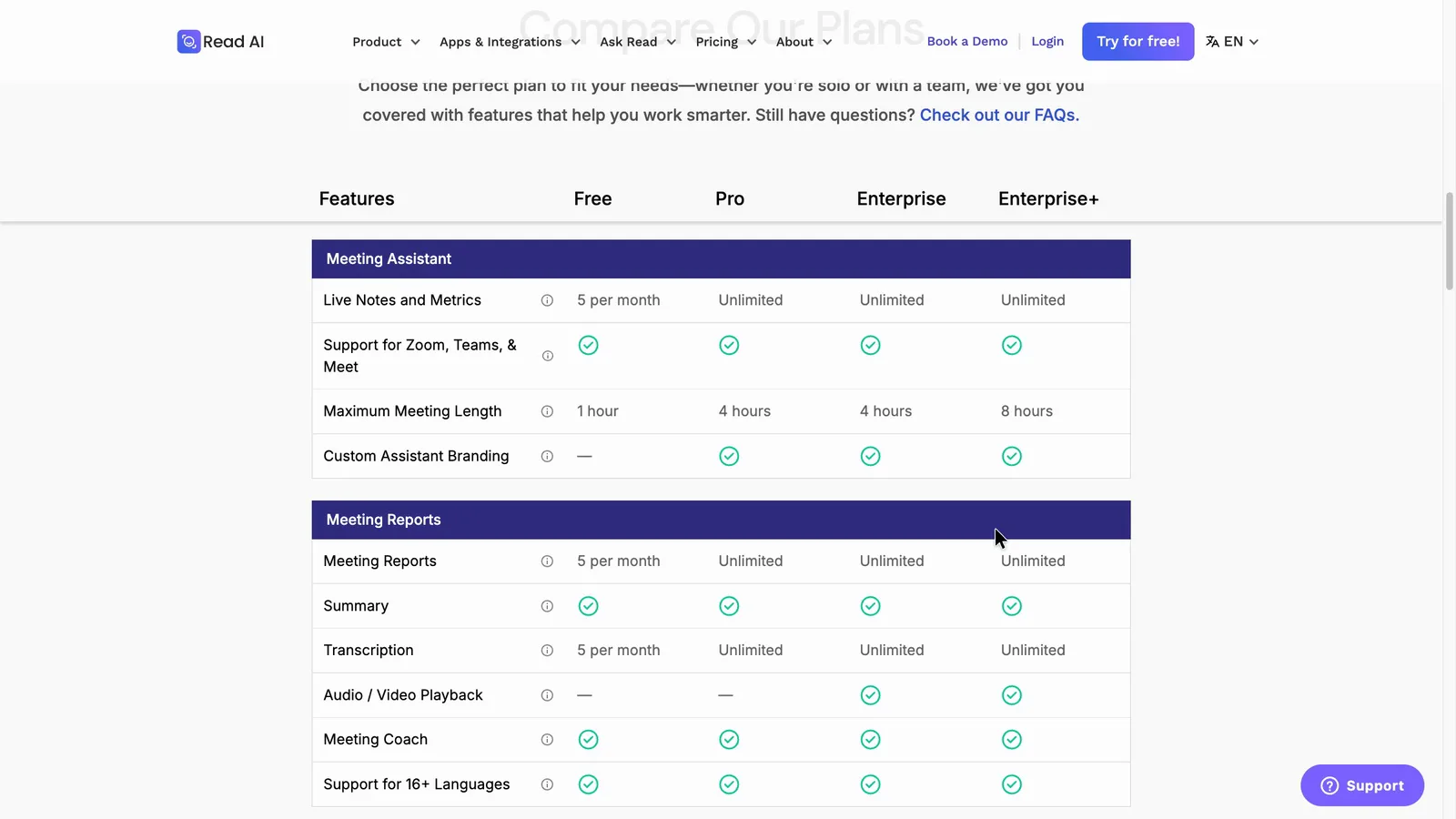
Read's main advantage is one library for every kind of meeting. Its report filter lists Zoom, Microsoft Teams, Google Meet, Webex, the desktop app, the phone app and uploaded files as sources, and the price table ticks Zoom, Teams and Meet support on every plan, Free included.
 (enlarge)
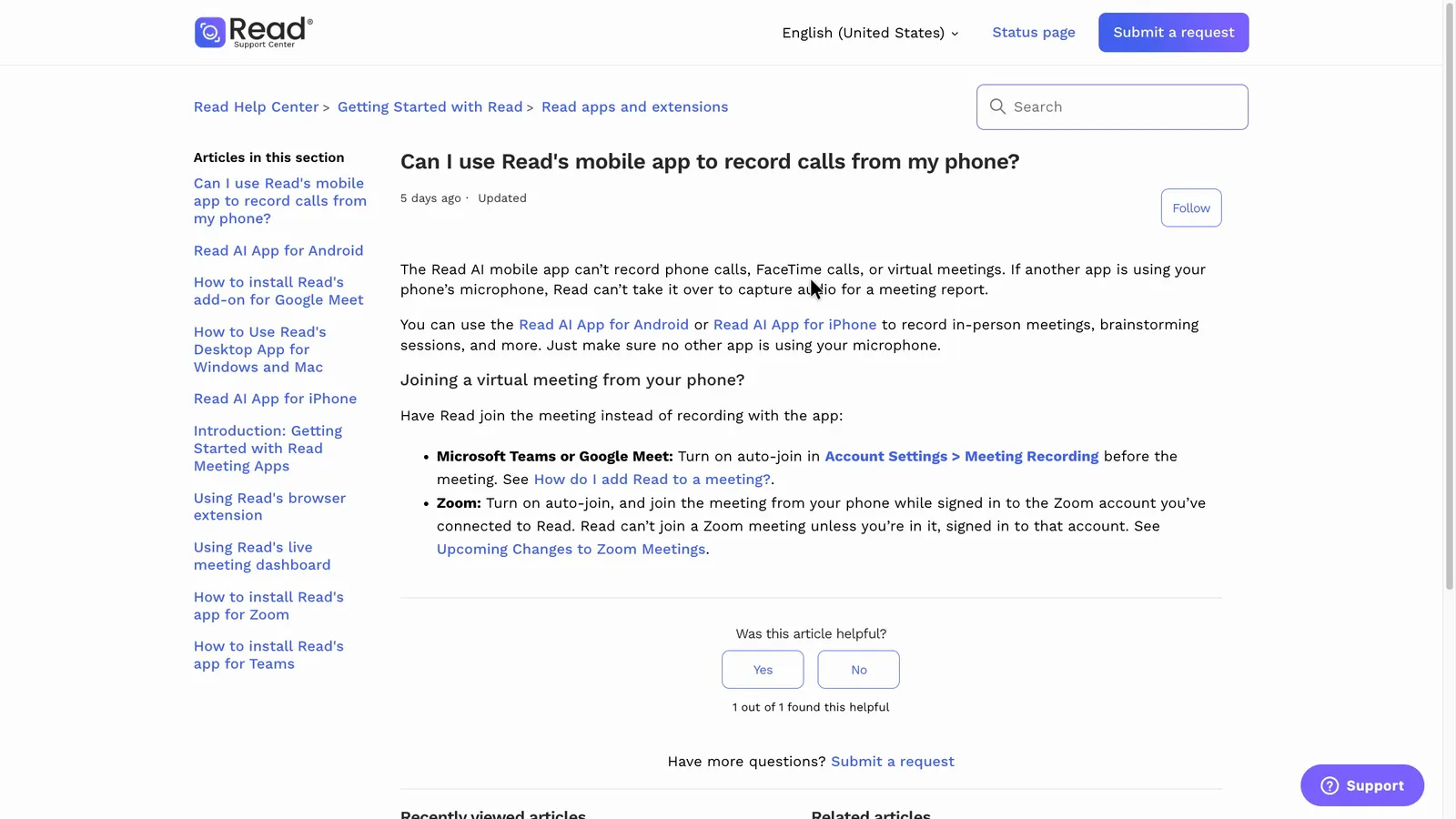
The phone app covers meetings with the phone on the table. Read's help centre says the mobile app "can't record phone calls, FaceTime calls, or virtual meetings".
 (enlarge)
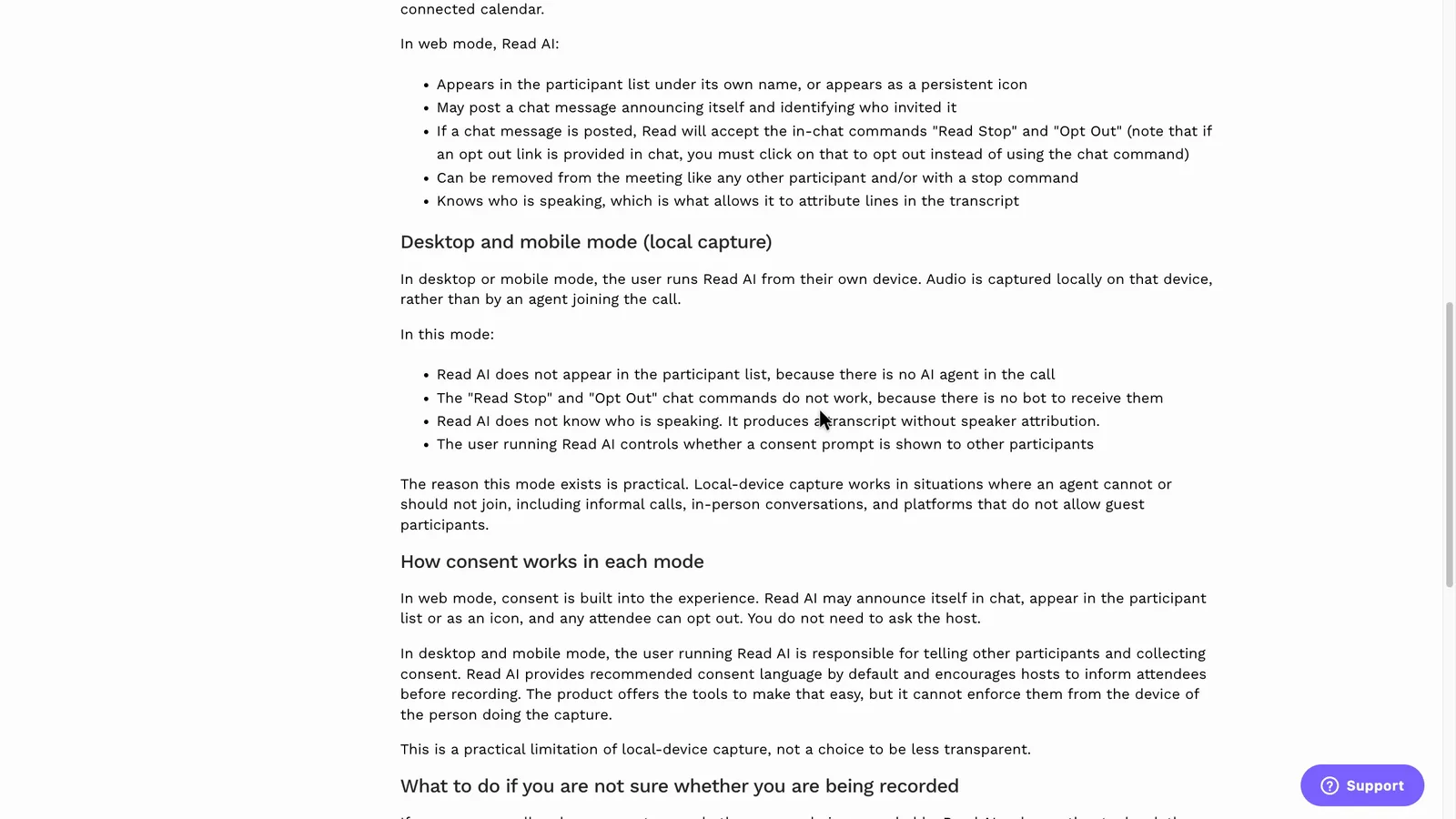
Recordings made on the phone or computer work differently from the bot. Read's help article on the two modes says that in this mode "Read AI does not know who is speaking", the chat opt-out commands don't work, and the user is "responsible for telling other participants and collecting consent". For an in-person client meeting, that means a transcript without speaker names and no built-in way for the client to say no.
 (enlarge)
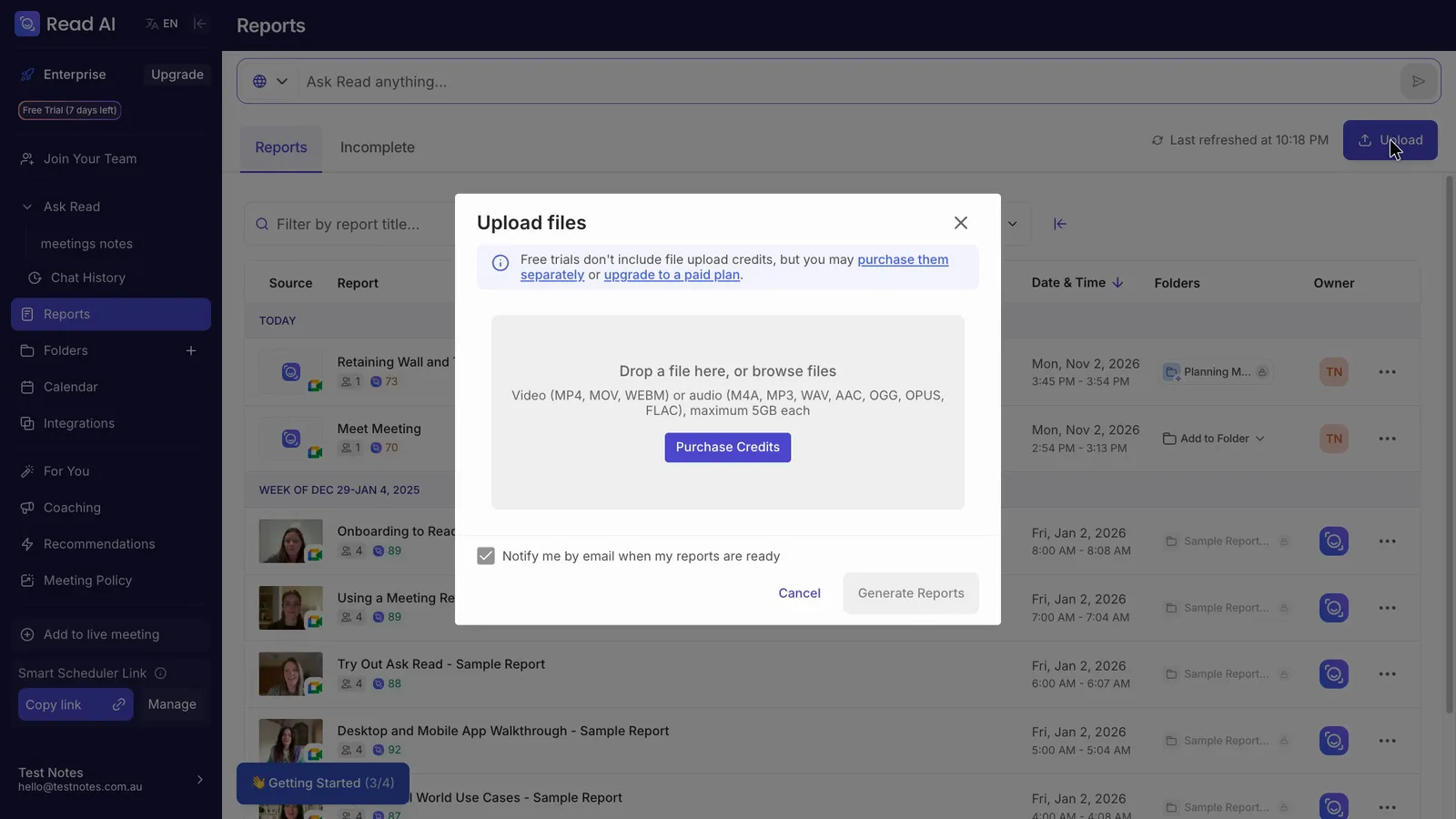
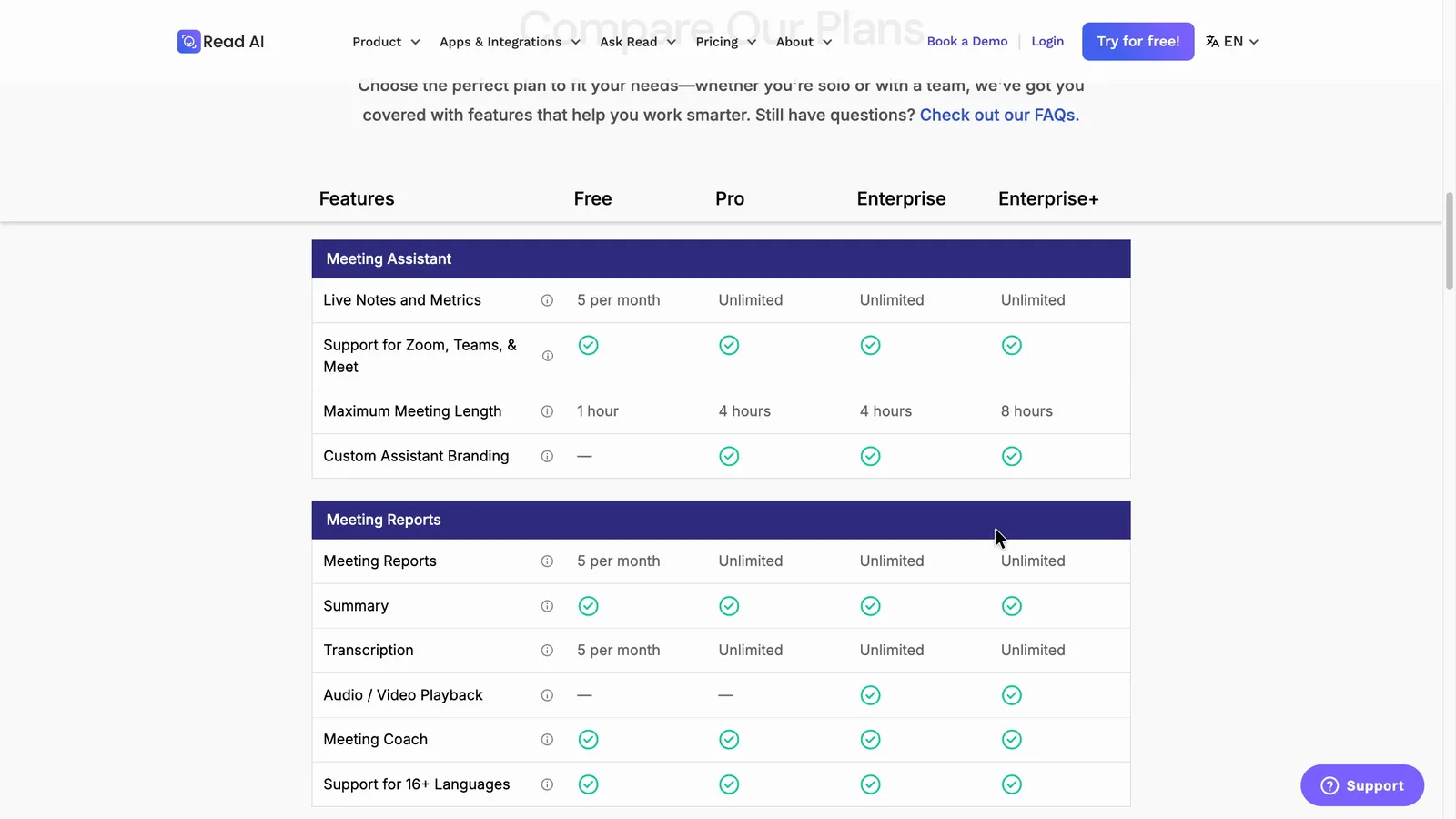
Uploading an old recording, such as a voice memo of a meeting, isn't included on the trial ("Free trials don't include file upload credits"). Read's help centre says extra upload credits can be bought on any plan, and its uploads page lists about US$0.04 a minute. The price table shows uploads aren't included on Free, and Pro gets 100 minutes a month. Free also stops a meeting at one hour, against four hours on Pro and Enterprise.
 (enlarge)
 (enlarge)
 (enlarge)
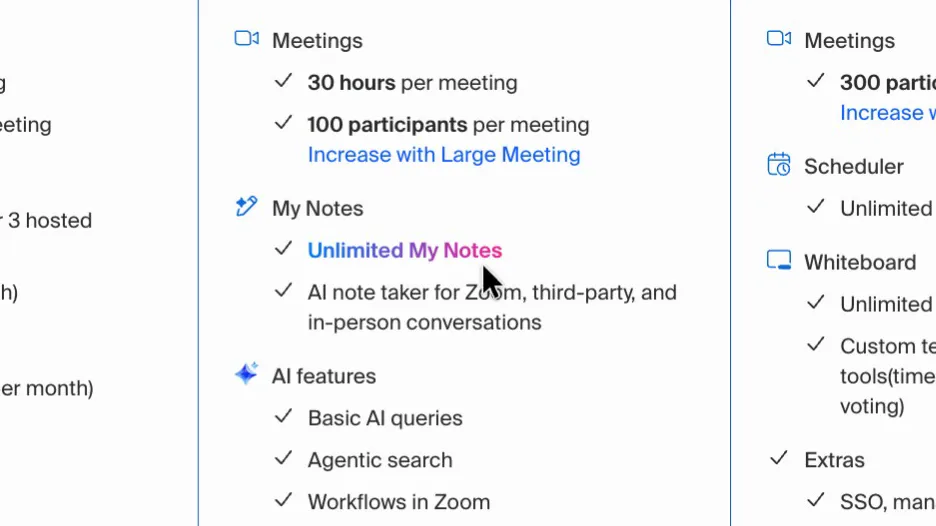
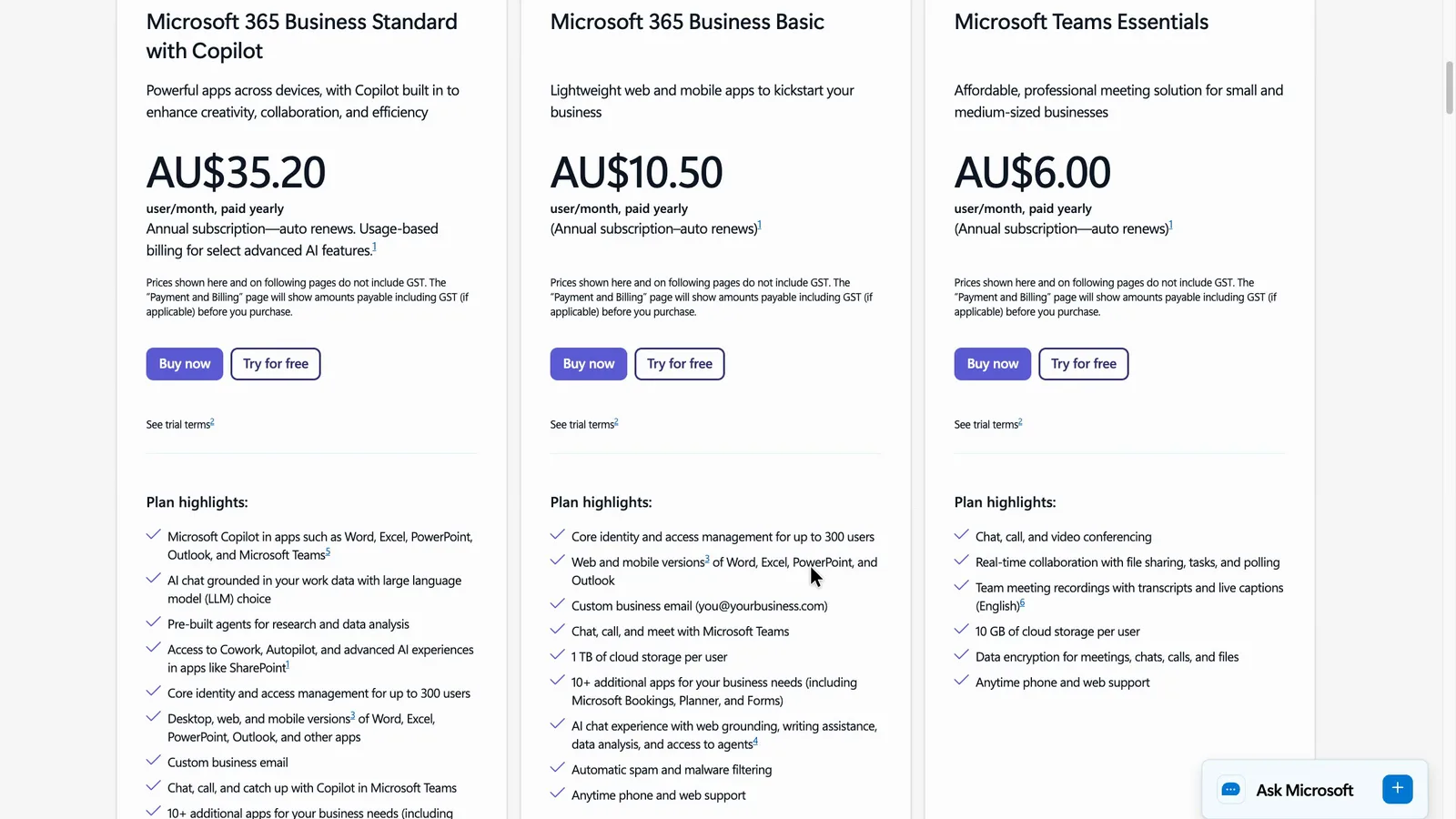
If all your meetings run on one platform, its own plan may do the same job. Zoom Workplace Pro includes an AI note taker, Google Workspace Business Standard has Gemini in Meet, and Microsoft 365 Business Standard with Copilot adds AI notes to Teams. These aren't all limited to their own platform. Zoom's AI Companion can join Teams and Meet calls, and its My Notes covers Teams, Meet and in-person meetings. Since August 2026, Gemini note-taking in Meet also works for in-person meetings on Android. Mixed apps or in-person meetings don't by themselves call for a second bill. How well those tools handle them compared with Read wasn't tested.
 (enlarge)
 (enlarge)
What my client sees
As this account was set up, clients get access to the report and the recap email, and in a host-only test call nothing on screen said the call was being recorded. Read says that with the bot, consent is built in: the bot appears in the participant list, anyone can opt out, and an automatic chat notice is posted "when available". In the test call that notice didn't appear, so in practice telling people may fall to you. In NSW you generally need everyone's consent to record a private conversation, and a recap that includes chat from before the client joined can end up in the client's inbox.
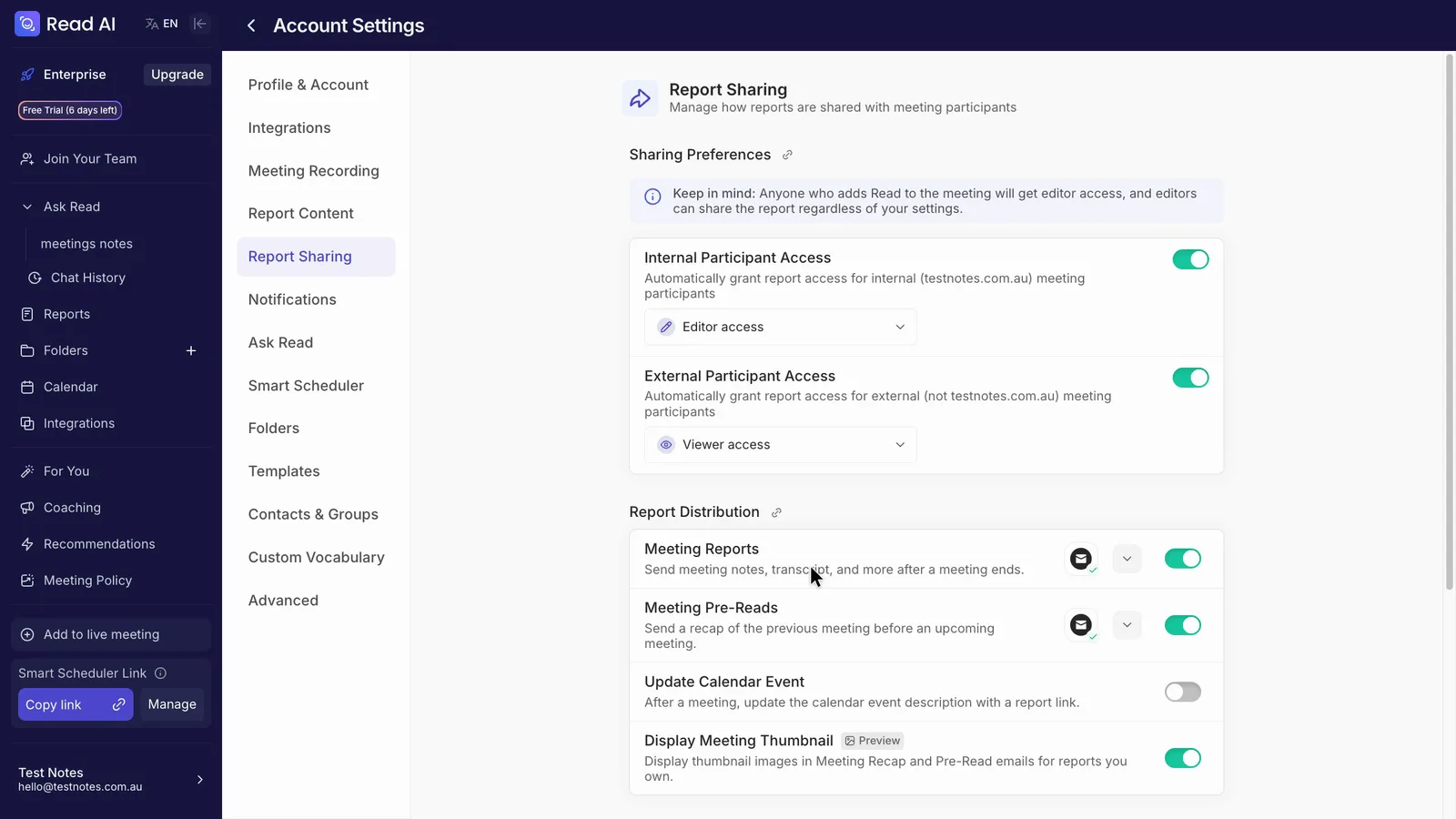
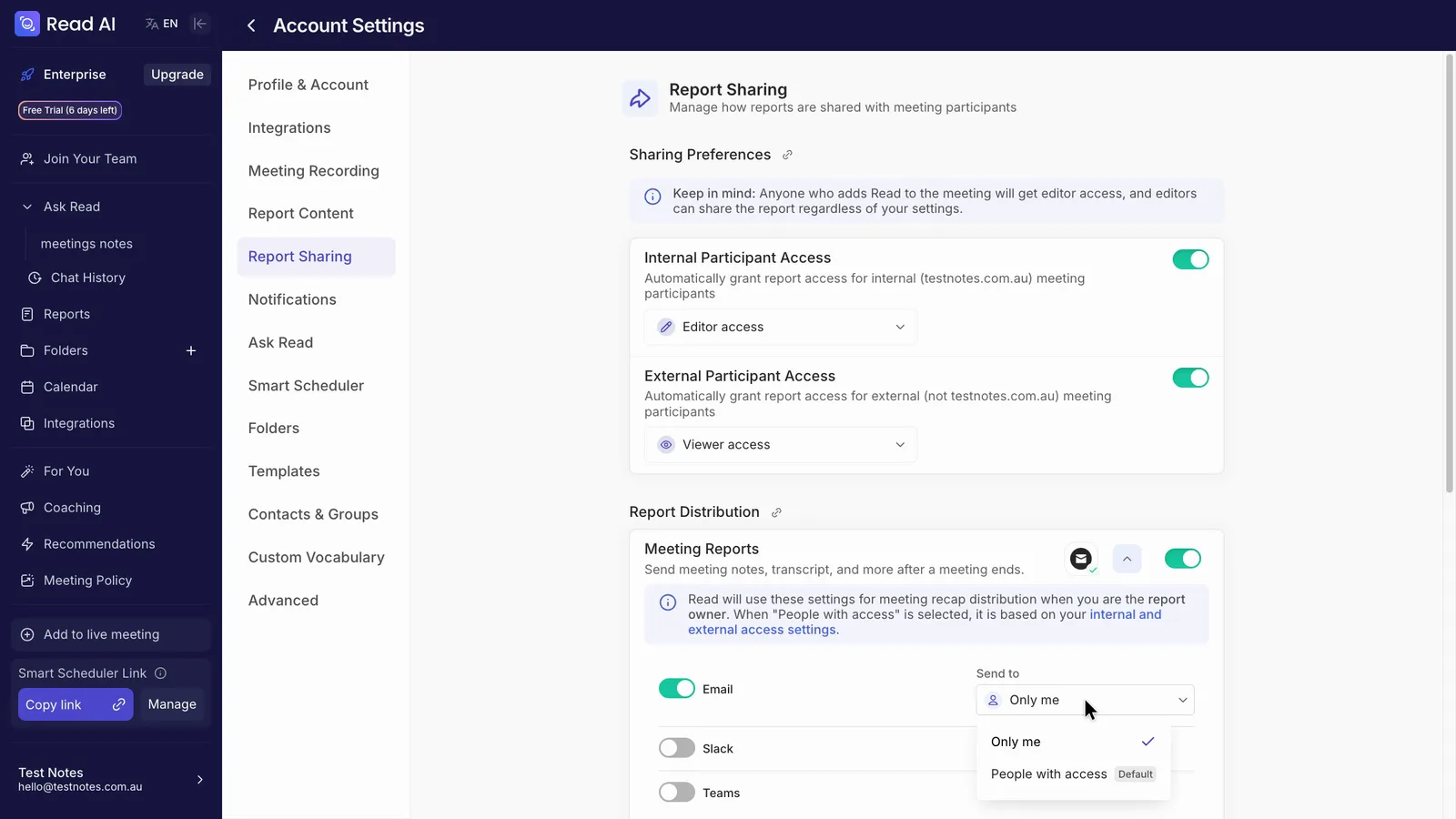
Under Report Sharing, external participants automatically get viewer access to the report. The recap email's "Send to" setting marks "People with access" as the default, and that group includes outside guests.
 (enlarge)
 (enlarge)
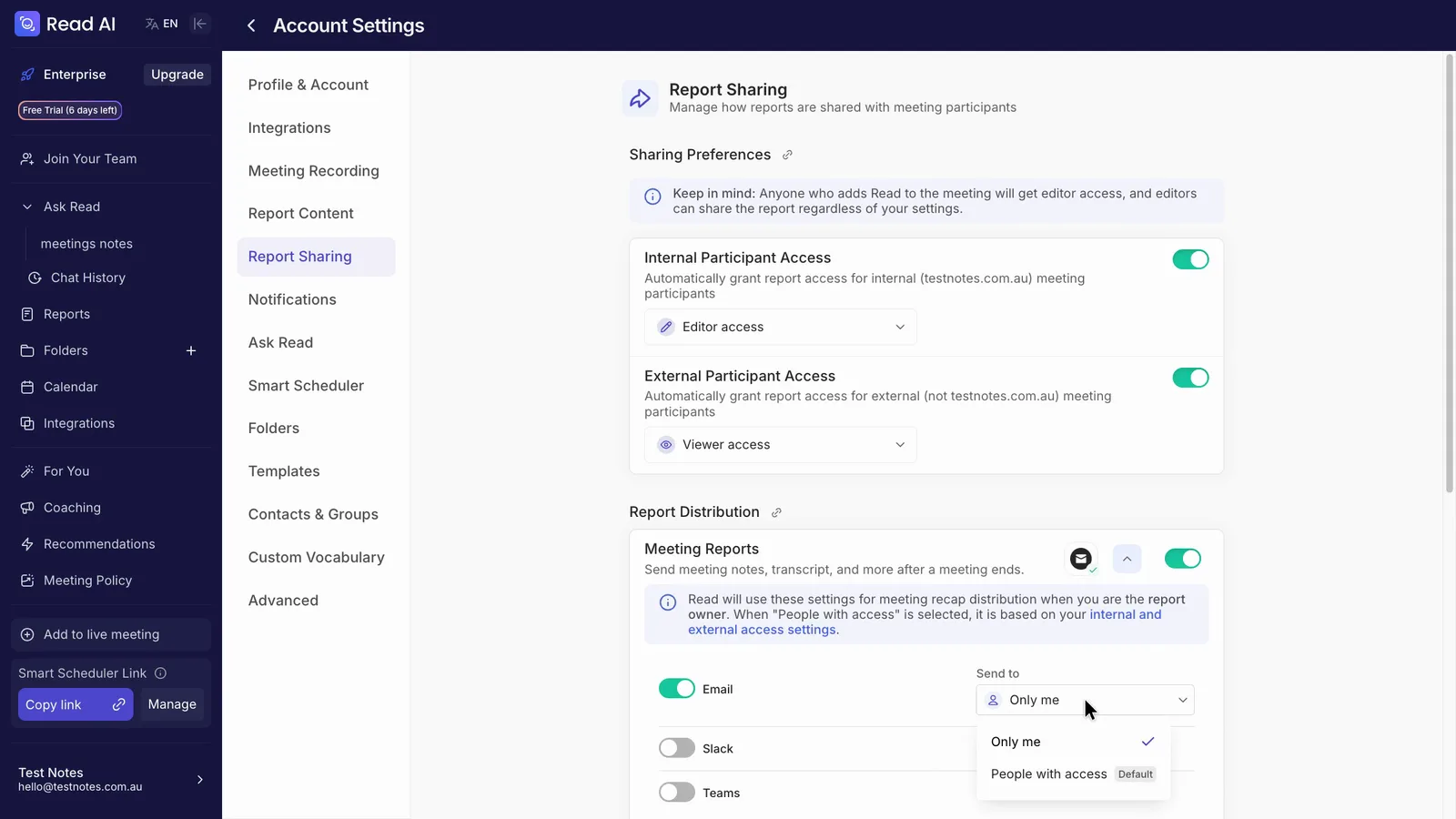
"Only me" is one click away in the same dropdown, and as an account setting it applies to every meeting by default. Read's help centre says sharing and recap distribution can also be changed for a single meeting, from the Calendar page for an upcoming meeting or from the Access & Distribution tab on a report. Those per-meeting controls weren't tried.
 (enlarge)
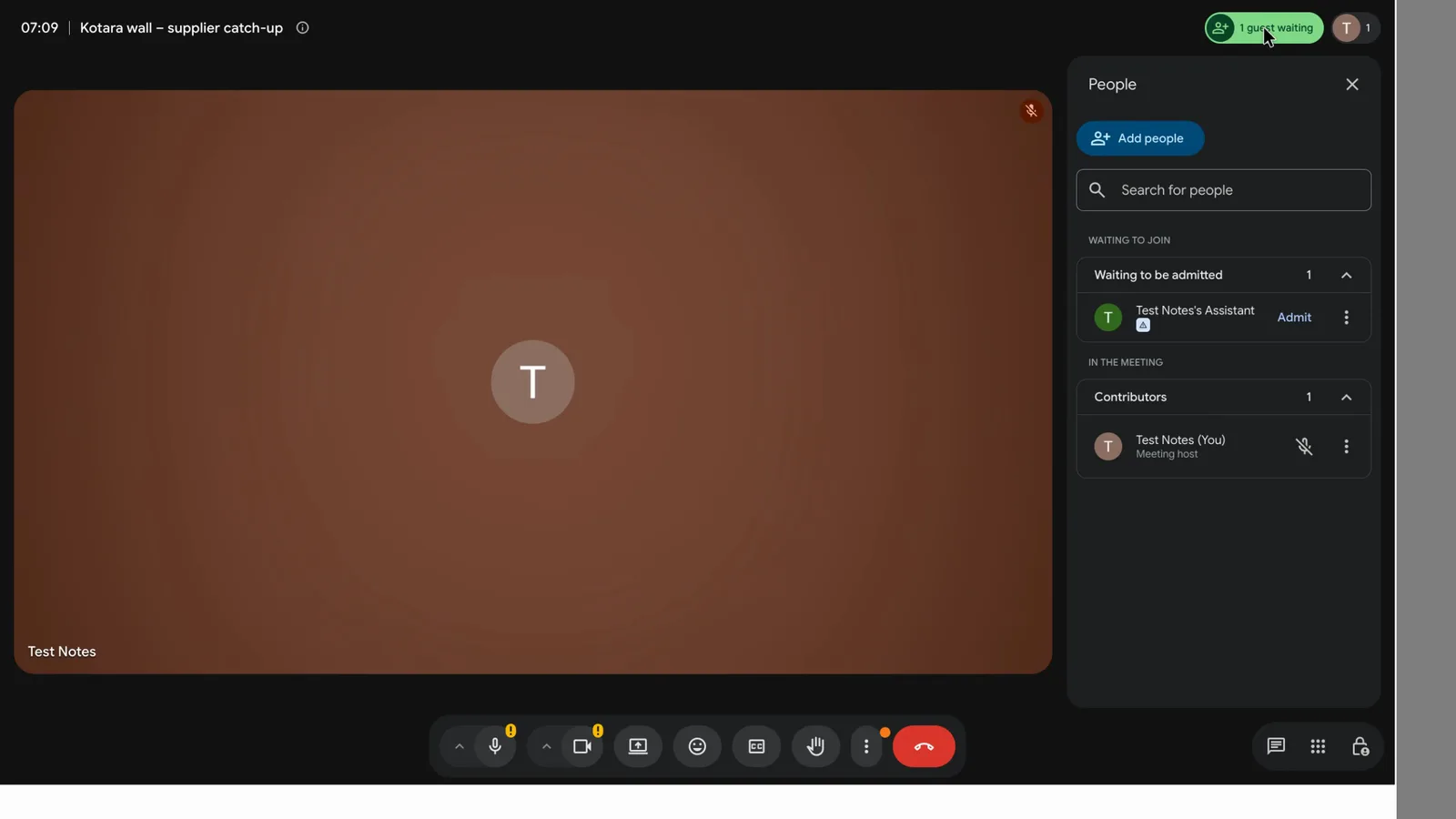
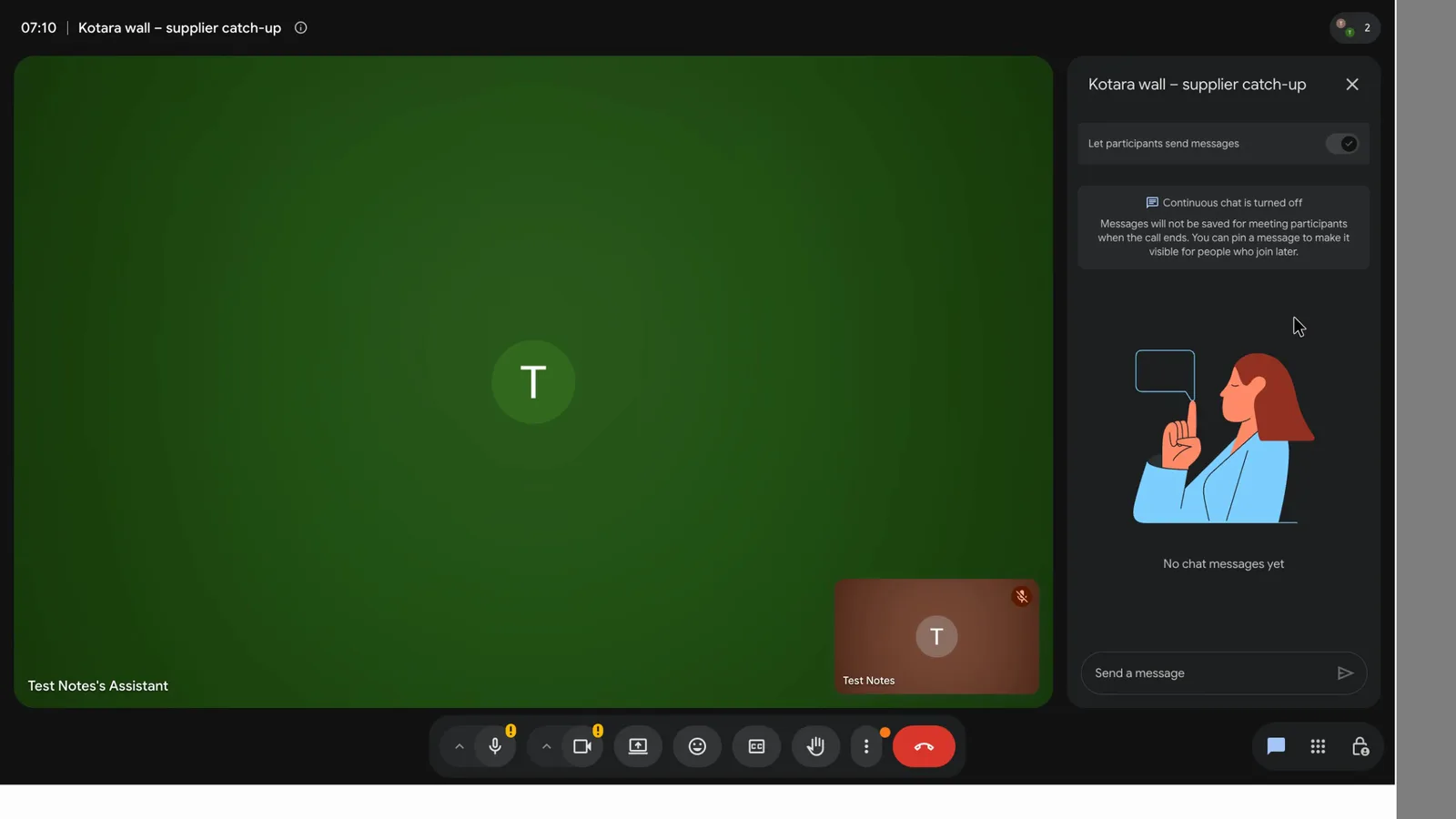
In a test call, the bot waited to be let in as "Test Notes's Assistant", named after the account rather than Read AI. About 70 seconds after it joined, the chat still said "No chat messages yet", and nothing on screen said the call was being recorded. Only the host was in that call, so what a guest sees wasn't checked.
 (enlarge)
 (enlarge)
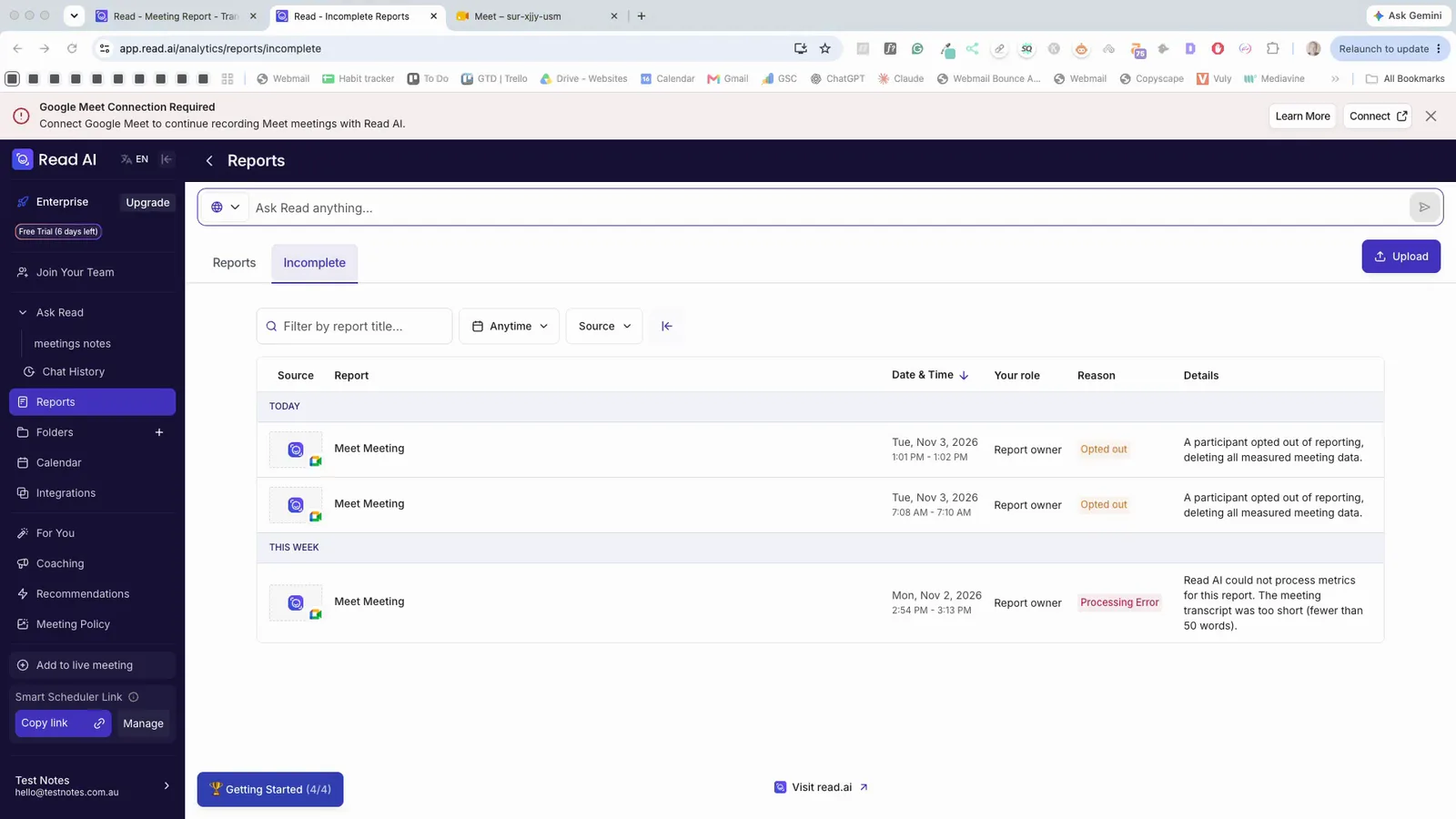
Typing "Opt Out" in the chat made the bot leave within seconds. No report was made, and the meeting is listed with "A participant opted out of reporting, deleting all measured meeting data". Read's instructions for removing the bot cover this command. It only works when the bot is in the call.
 (enlarge)
The Read Customer Experience Program, which lets Read use your meeting data to improve its product, is opt-in and was unticked.
Two settings under Settings > Report Sharing need changing before the bot joins a first client call: the recap email's "Send to" set to "Only me", and automatic access for outside guests turned off.
Stopping it joining and spreading
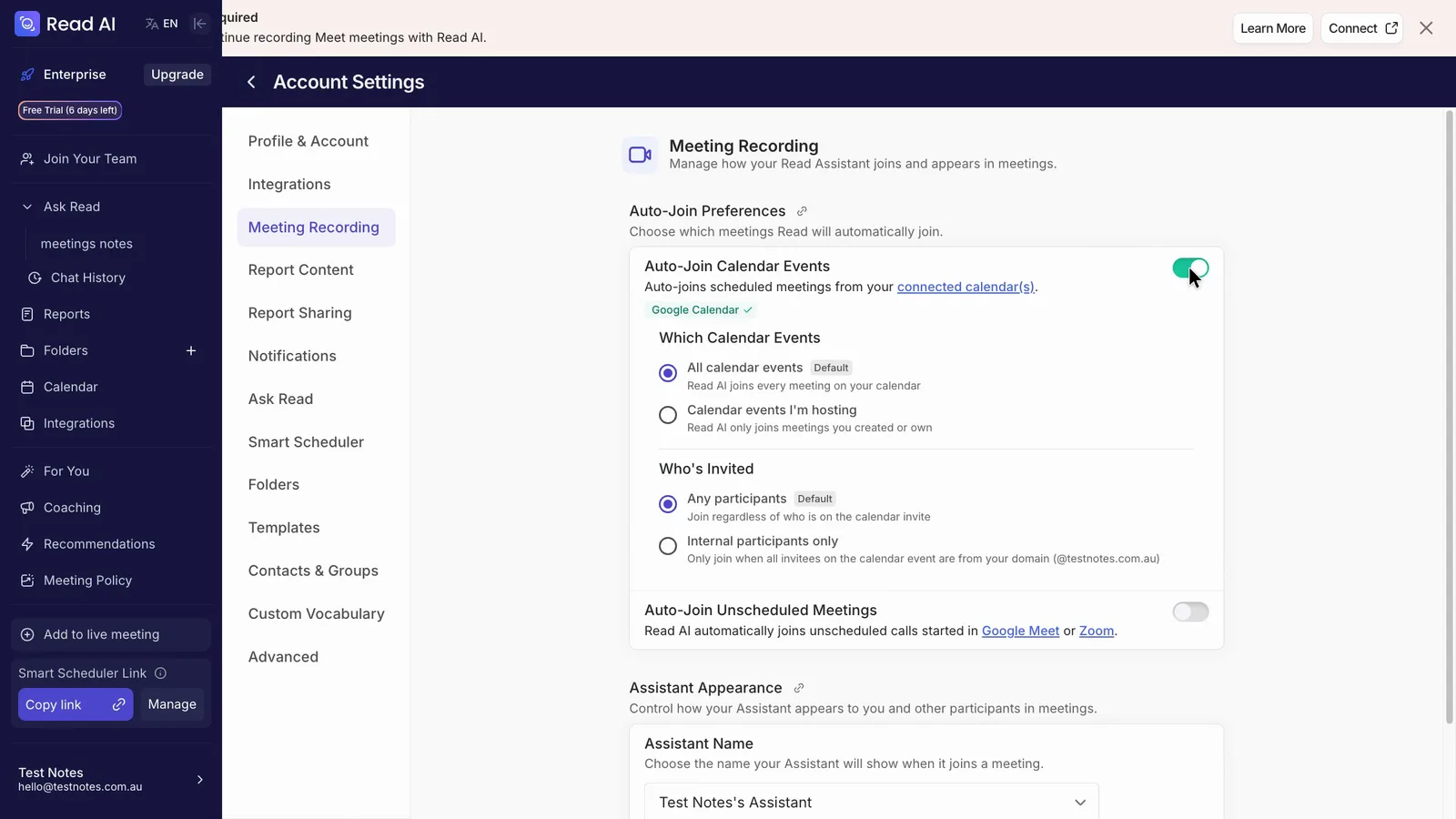
Turning Read off is easy. Turned on, though, it's set to join every meeting on your calendar, whoever invited you. With those defaults, the bot can turn up in meetings you never meant it to join.
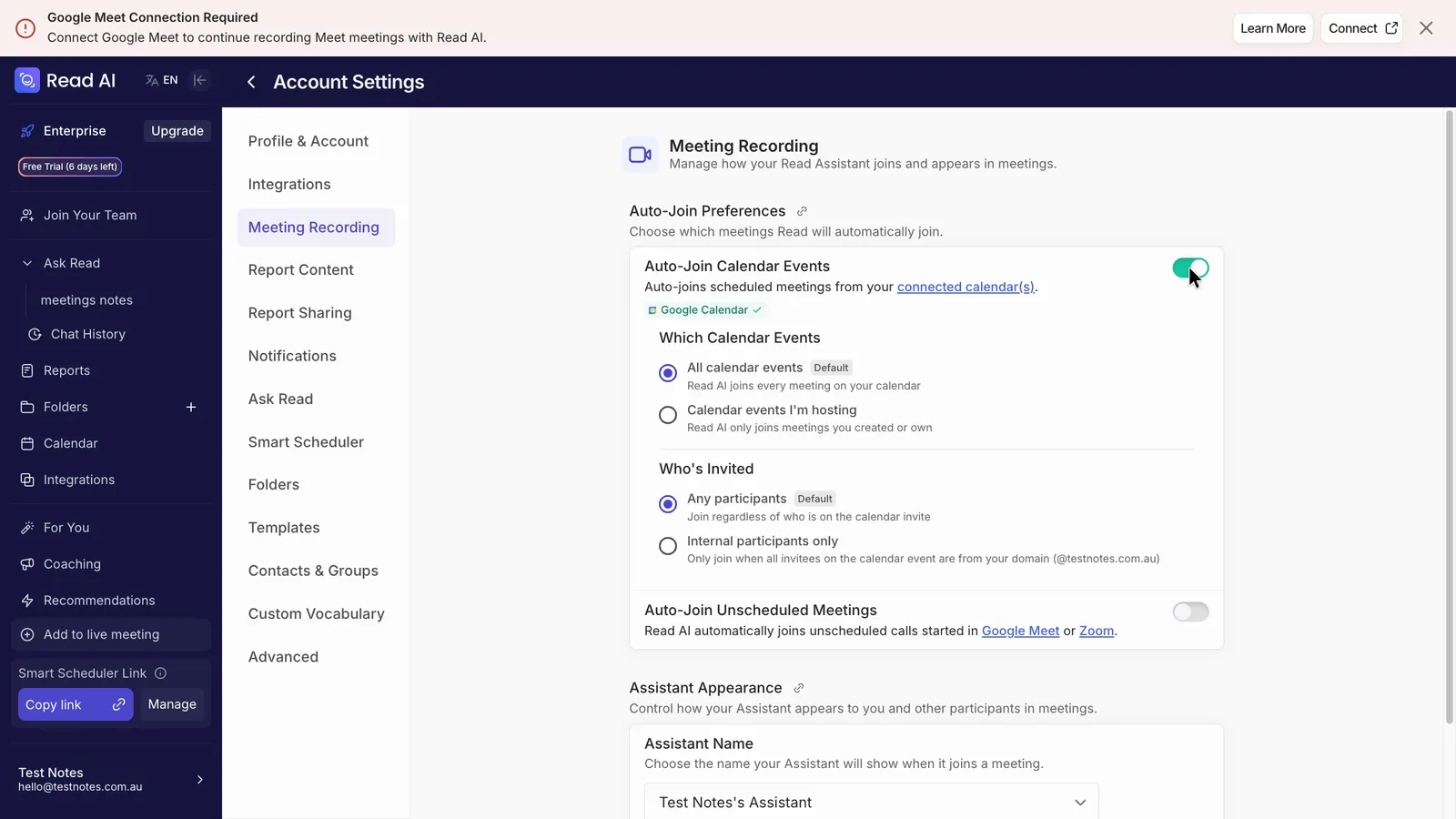
When calendar auto-join is switched on, it starts on "All calendar events" ("Read AI joins every meeting on your calendar") and "Any participants". "Calendar events I'm hosting" and "Internal participants only" are there, but you have to choose them.
 (enlarge)
One click turns auto-join off, and a client meeting that had been set to get the bot a moment earlier switched to off straight away.
 (enlarge)
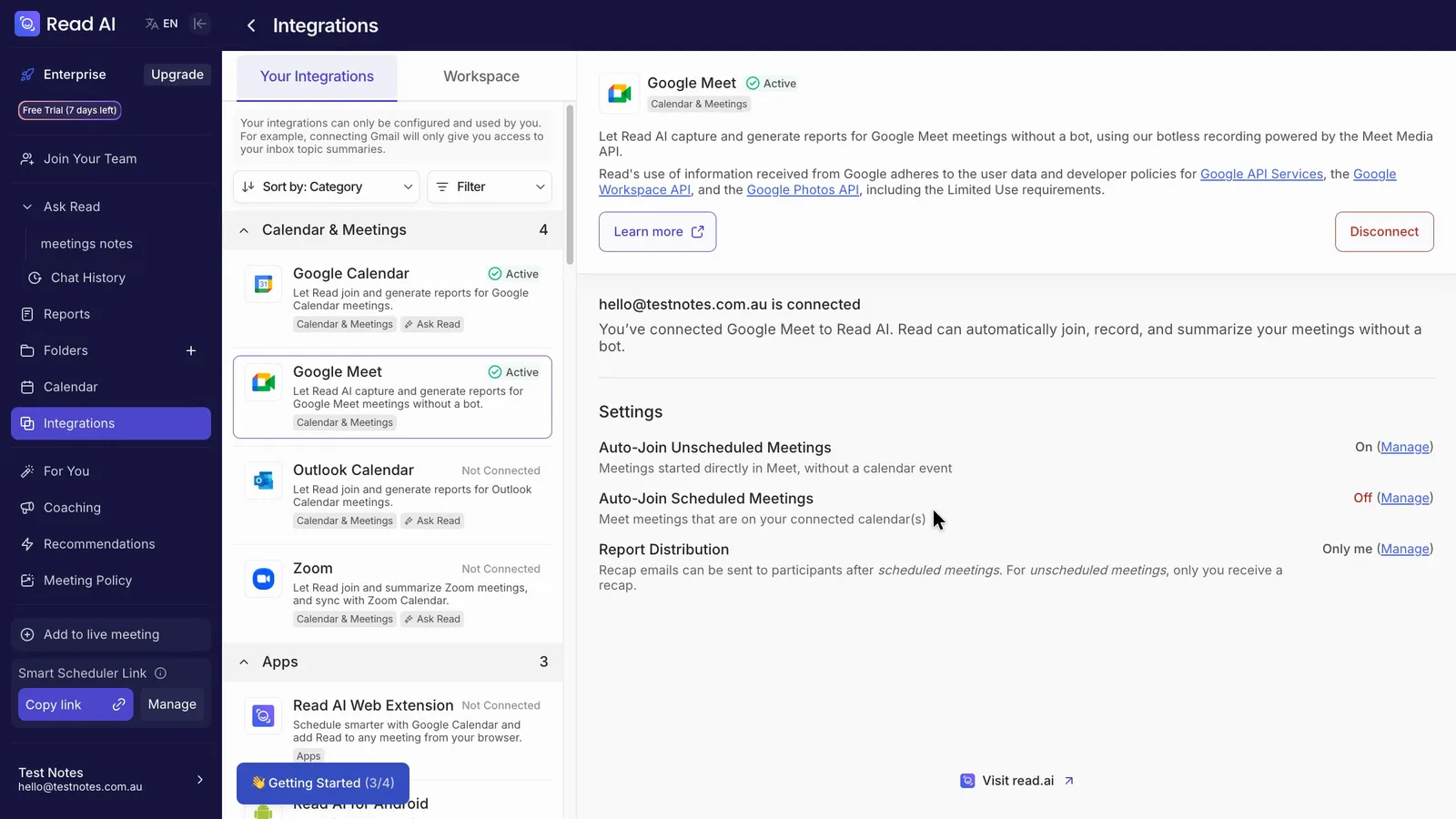
A separate setting had Read joining unscheduled Meet calls automatically while Meet was connected, and it only went off when the Meet connection was removed.
 (enlarge)
True cost in AUD
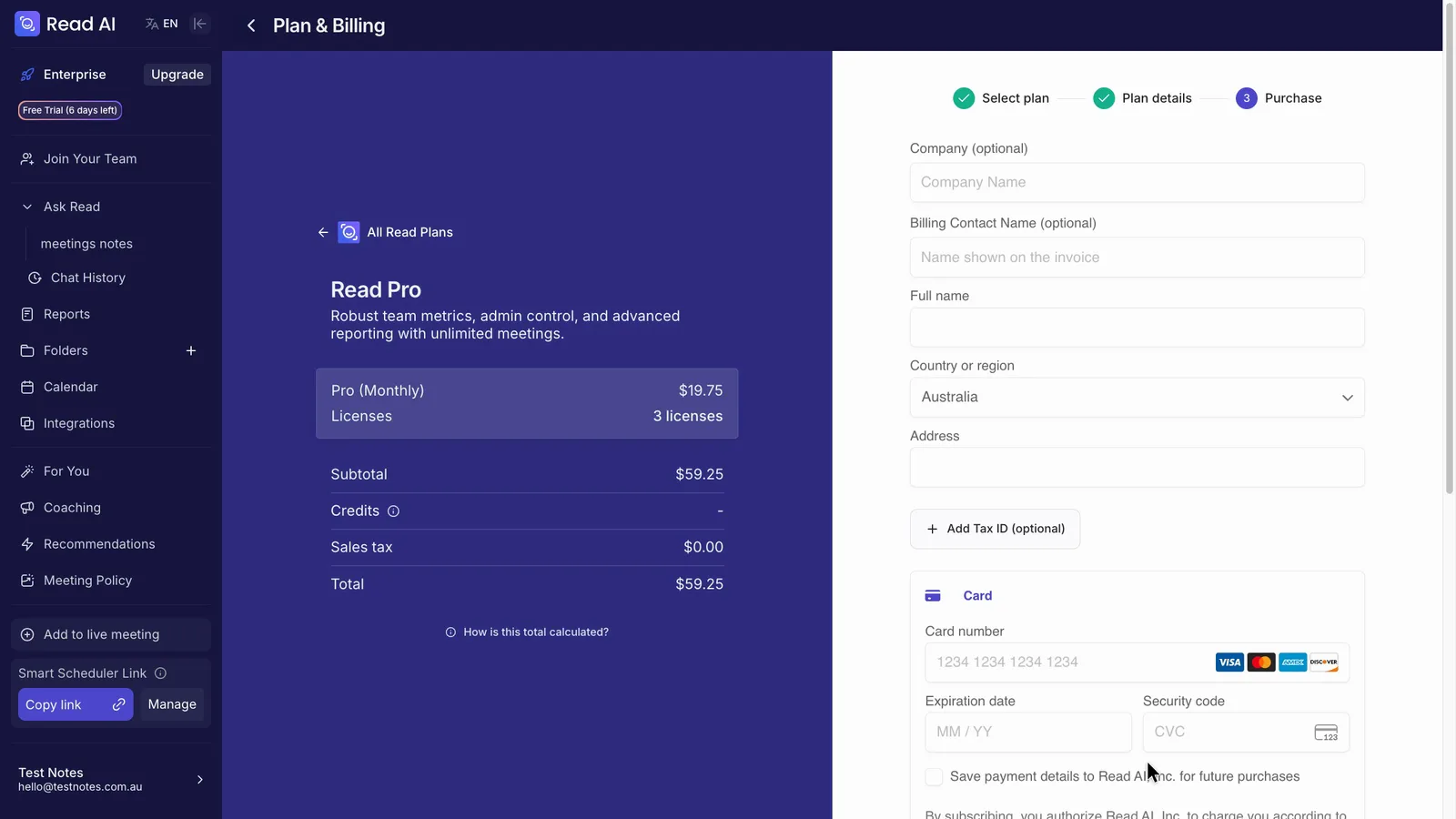
Read charges in US dollars per user, and the plans and checkout in the app offered no Australian dollar option. Checkout for three Pro users paying monthly came to just under US$60 a month.
 (enlarge)
Pro is about US$15 a user a month on yearly billing, or about US$20 monthly. At the mid-market rate on 2 November 2026 of about A$1.42, that works out at roughly:
- one user: A$21 to A$28 a month, depending on billing
- three users: A$64 to A$84
- five users: A$107 to A$140
Card fees for overseas payments are extra, and the price moves with the exchange rate. That's similar to the Zoom and Google plans that include AI notes for their own app. Otter's pricing page and Fireflies' own comparison put both below Read for one to three users, though their checkouts weren't seen.
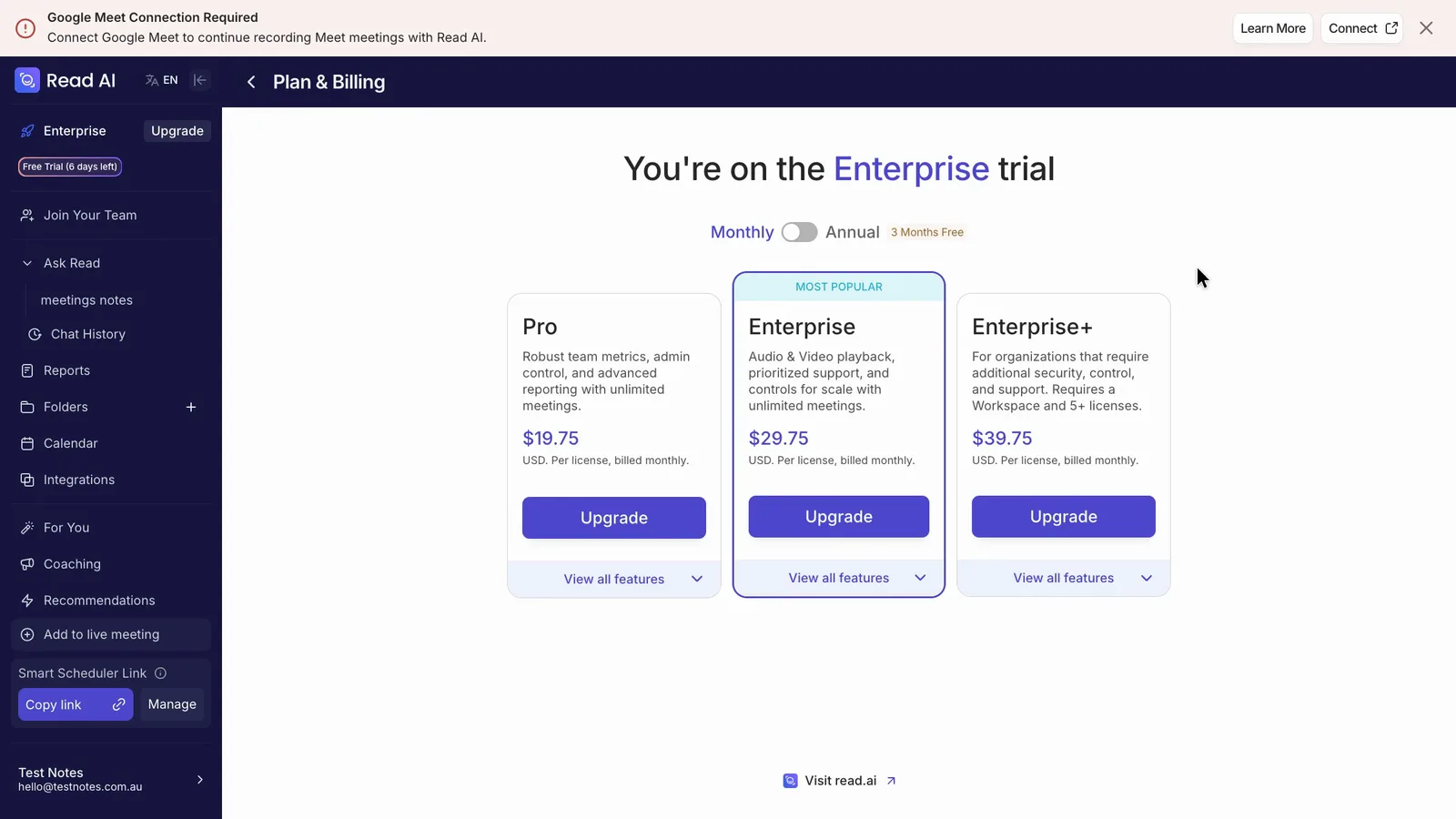
Playback needs Enterprise, which is roughly A$32 to A$42 a user a month depending on billing. On screen, the five-licence minimum appeared only on Enterprise+. Buying a single Enterprise seat wasn't tried, so whether a sole trader can get playback is unconfirmed.
 (enlarge)
Free covers five reports and five transcripts a month, with each meeting up to an hour. Of what this review saw, a free account loses playback, meetings over an hour, anything past five reports a month, and the premium links to tools such as HubSpot and Notion. Uploads aren't included either, though upload credits can be bought at about US$0.04 a minute. Read's plan table shows Free keeping Zoom, Teams and Meet support, the desktop and phone apps, summaries and editing.
 (enlarge)
 (enlarge)
Keeping your records
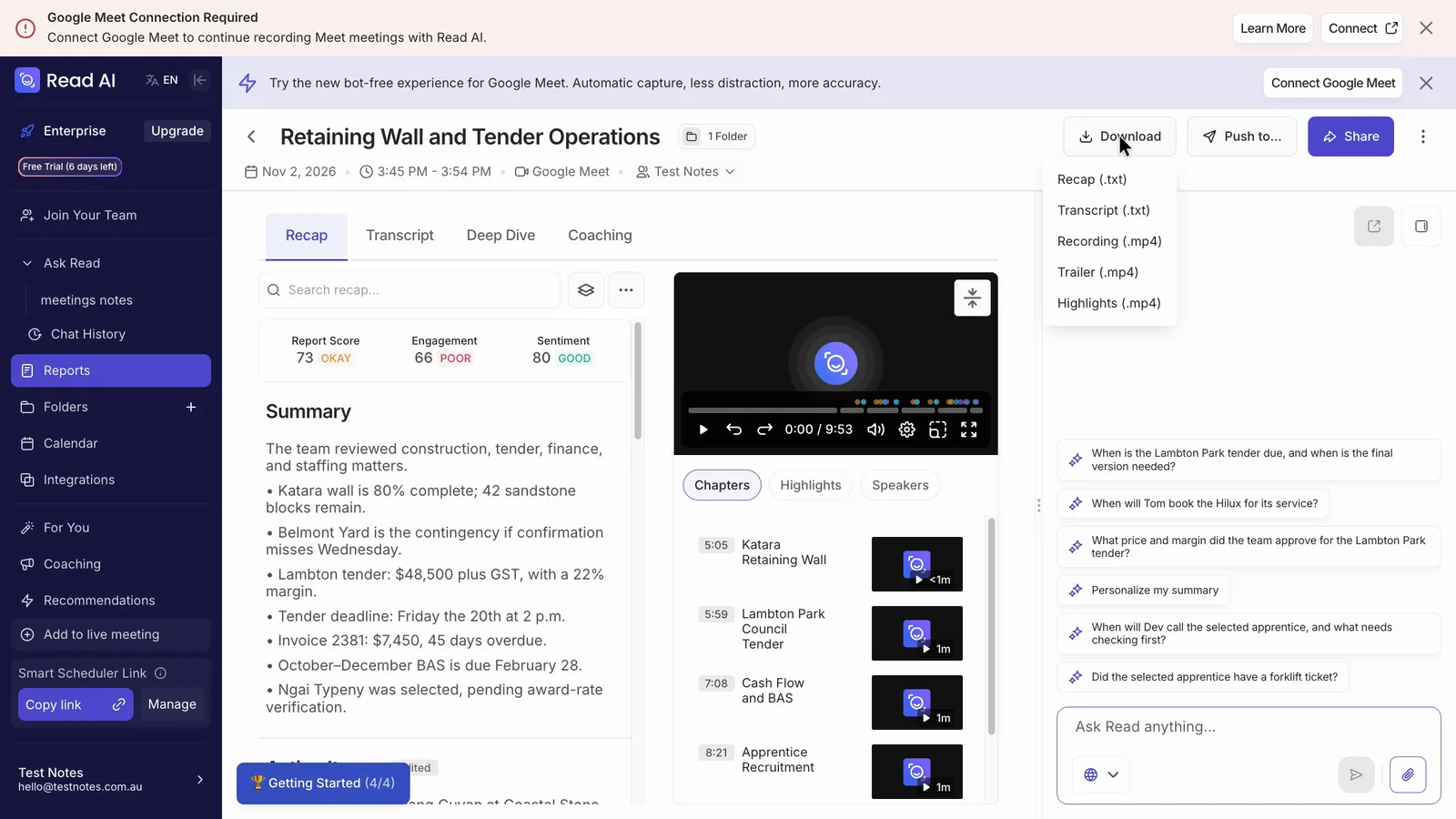
You can download each meeting's summary and transcript as text files and the recording as a video, but as far as the app shows, only one meeting at a time. The download menu offers Recap (.txt), Transcript (.txt) and several MP4 options, with no PDF or Word file.
 (enlarge)
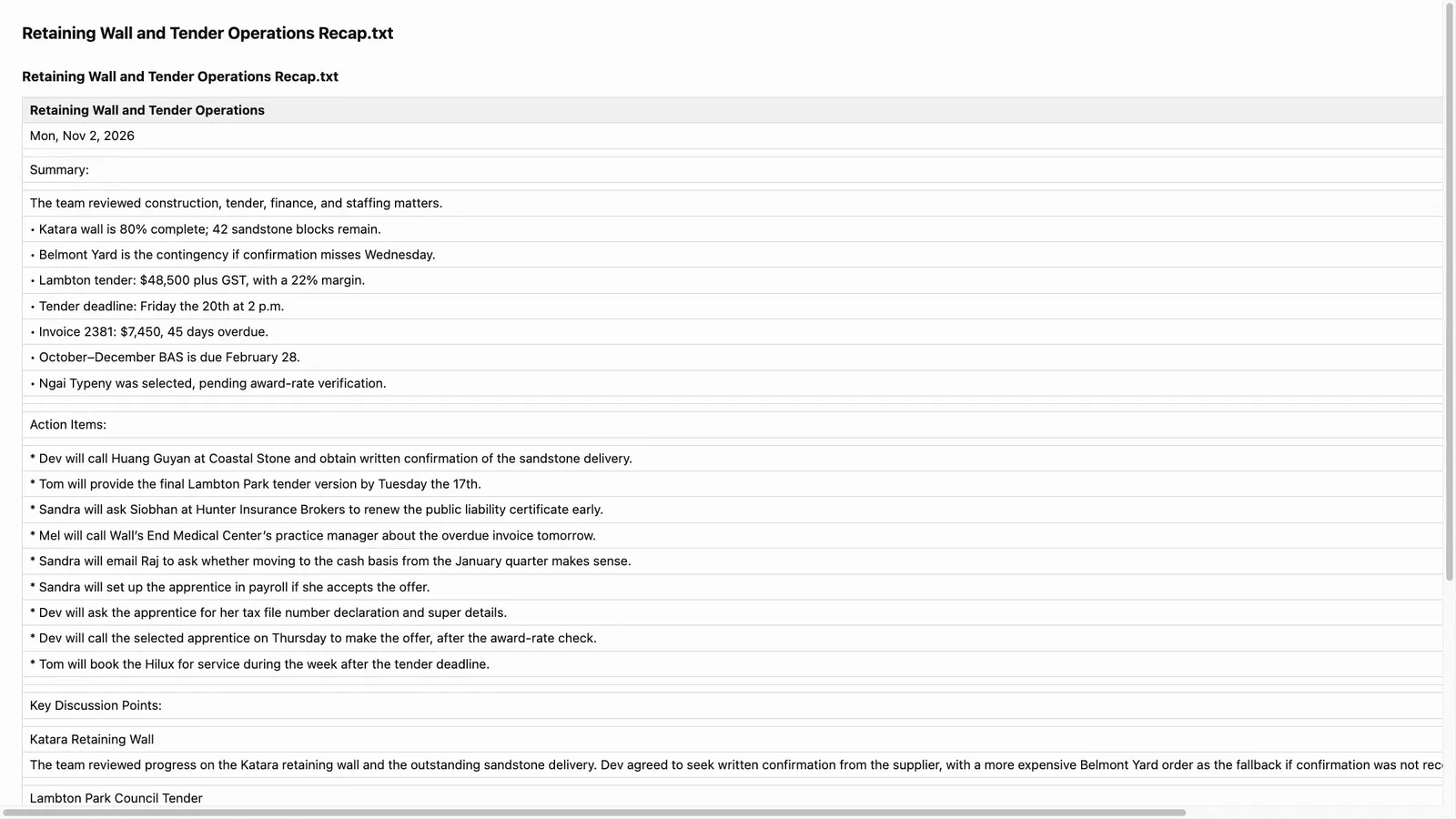
Both text files opened, matched the figures in the app and kept the edits, including the renamed speaker.
 (enlarge)
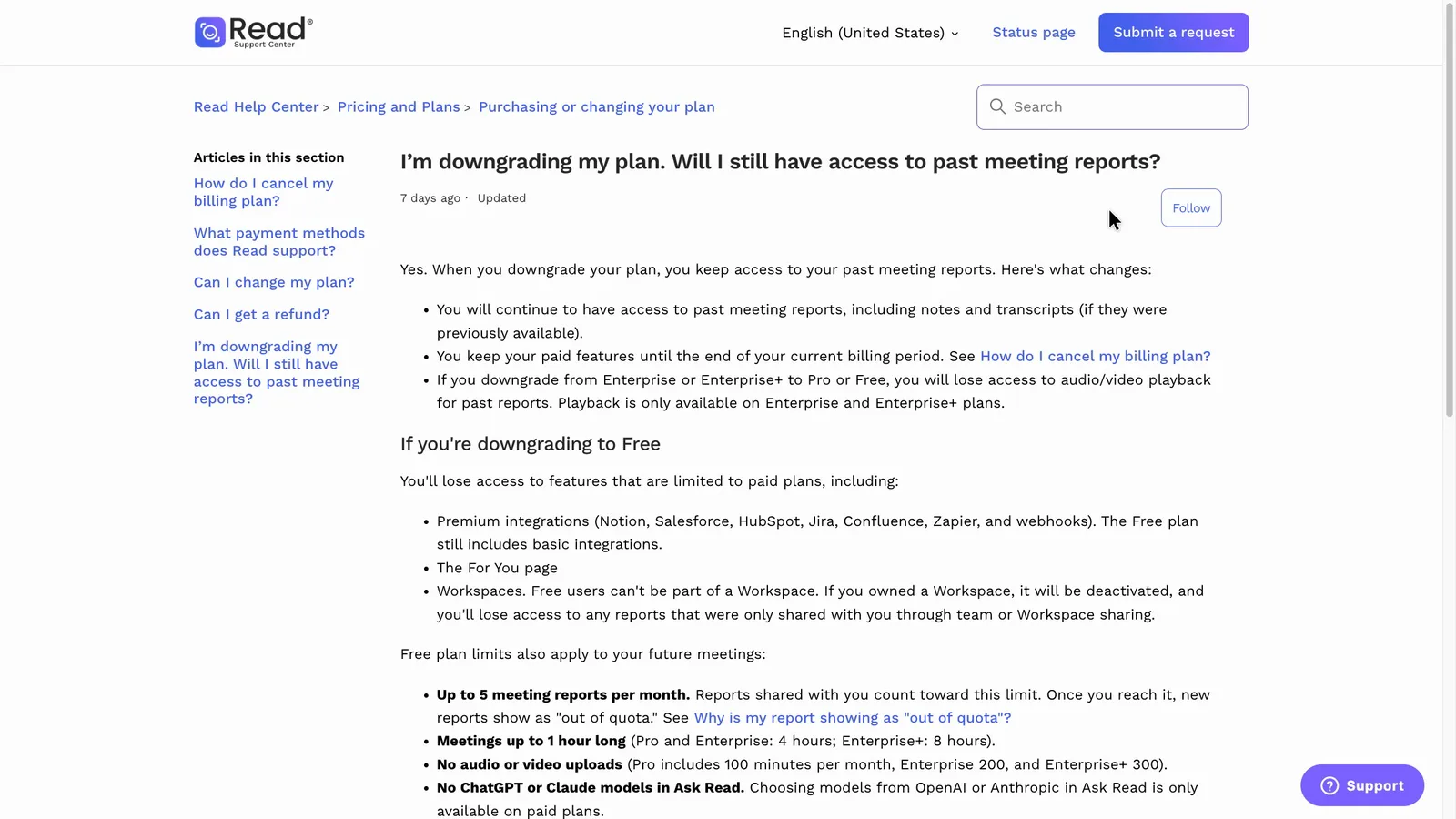
Read's help article on downgrading says you keep your past notes and transcripts but "will lose access to audio/video playback".
 (enlarge)
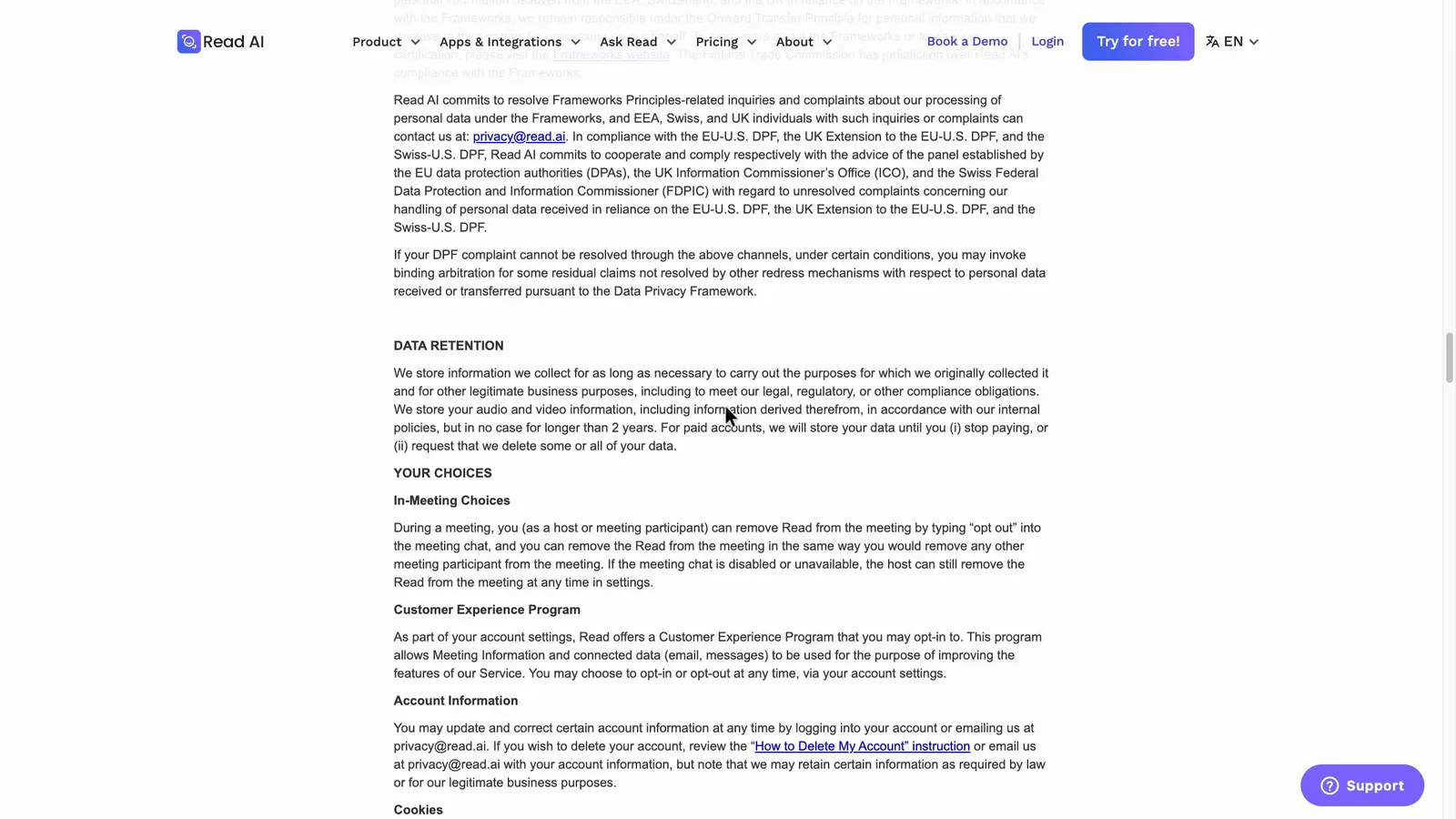
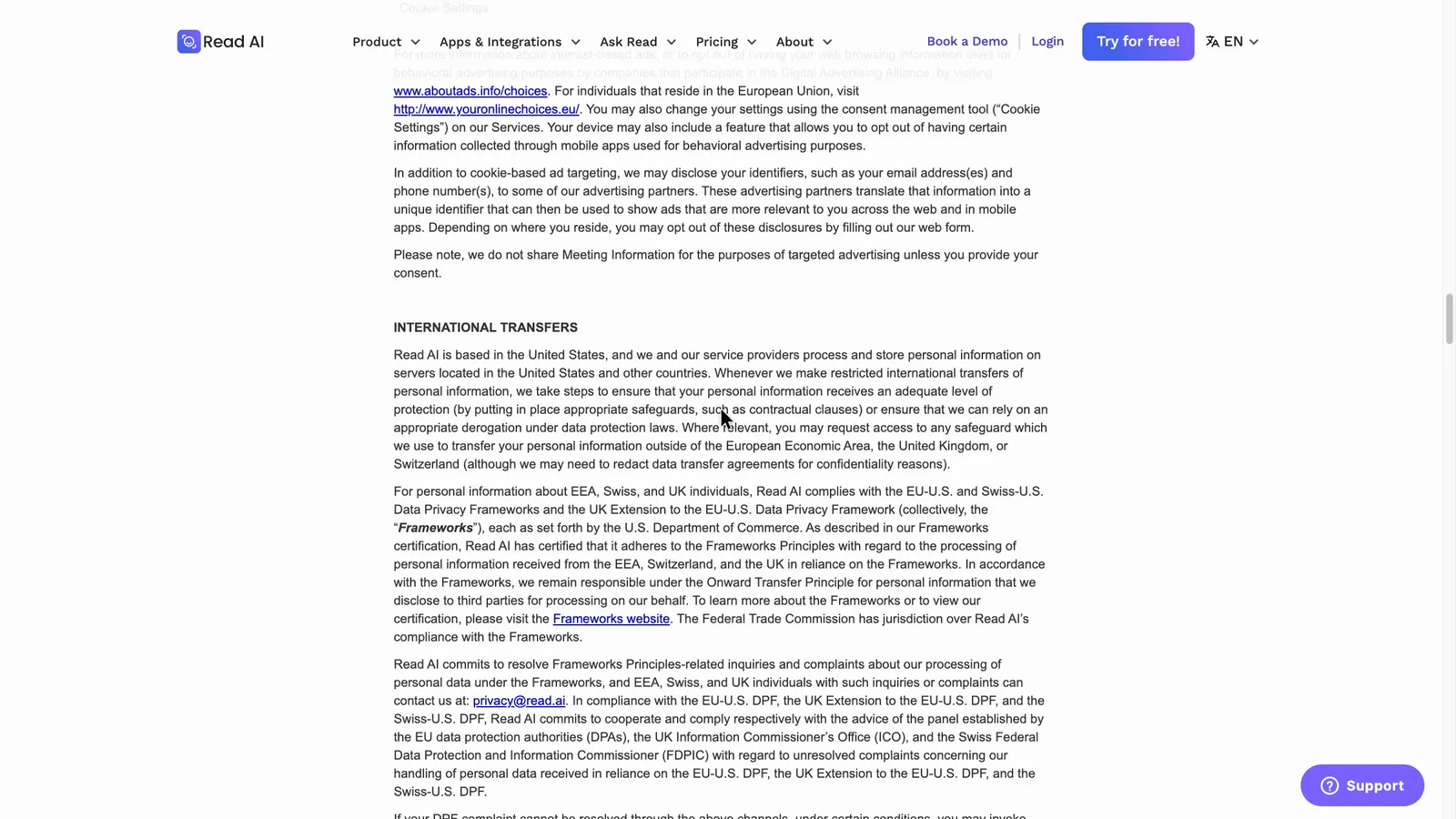
The privacy policy says audio and video are kept "in no case for longer than 2 years", and that paid-account data is stored "until you (i) stop paying" or ask for it to be deleted, which is harder to square with the help article. A business leaving Read, or dropping to Free, would need to download what it wants to keep first, one meeting at a time. The policy also says Read's servers are "in the United States and other countries".
 (enlarge)
 (enlarge)
Pricing
| Plan | Price | Per | Includes |
|---|---|---|---|
| Free | Free | 5 transcripts and 5 meeting reports a month, meetings up to 1 hour, no uploads included, no audio or video playback, basic integrations; Zoom, Teams and Meet supported | |
| Pro (monthly) | US$19.75 ex tax | per user per month | Unlimited reports, meetings up to 4 hours, 100 upload minutes a month, premium integrations; no audio or video playback |
| Pro (annual) | US$15 ex tax | per user per month | Billed US$180 per licence a year; same features as Pro monthly |
| Enterprise (monthly) | US$29.75 ex tax | per user per month | As Pro, plus audio and video playback and 200 upload minutes a month |
| Enterprise (annual) | US$22.50 ex tax | per user per month | As Enterprise monthly, billed yearly |
| Enterprise+ (monthly) | US$39.75 ex tax | per user per month | Requires 5+ licences; meetings up to 8 hours, 300 upload minutes a month, playback |
| Enterprise+ (annual) | US$29.75 ex tax | per user per month | Requires 5+ licences; as Enterprise+ monthly, billed yearly |
Read AI charges in US dollars. Your bank converts the price and may charge a foreign transaction fee. Checked 2 Nov 2026. Source: read.ai/plans-pricing
Integrations
| Connects to | What syncs | Direction | Checked |
|---|---|---|---|
| Google Meet | Bot joins and records calls; reports land in the Read library | Google Meet → Read AI | |
| Google Calendar | Calendar events the bot is scheduled to join | Google Calendar → Read AI | |
| Zoom | Bot joins and records Zoom meetings | Zoom → Read AI | |
| Microsoft Teams | Bot joins and records Teams meetings | Microsoft Teams → Read AI | |
| HubSpot | Not stated | Not stated | |
| Notion | Not stated | Not stated |
What I didn't test (15 things)
- Zoom and Microsoft Teams calls: only Google Meet was recorded
- A call where each person joins from their own device, so speaker naming in a real call wasn't checked
- What an outside guest sees and receives: the guest's view, the recap email and a late joiner
- Clicking someone else's recap link from a new account, and whether that signs you up and turns on auto-join
- Disconnecting the calendar, deleting the account, and whether the bot still joins afterwards
- Fresh-account defaults: this account's settings had been changed before testing
- The phone app, desktop app and Chrome extension in use, including an in-person recording; these are covered from Read's help centre only
- The 'Read Stop' command, the botless Google Meet mode and a guest declining the Meet prompt
- Uploading a recording: the trial has no upload credits
- The Free usage counter, the sixth meeting in a month and the one-hour cut-off, because the account was still on the trial
- Reopening reports after the trial ends on 9 November 2026
- Buying a single Enterprise seat, and Pro annual checkout for one and five users
- Whether an Australian ABN can be entered at checkout
- Pushing action items to another tool, Ask Read search across meetings, and whether custom vocabulary fixes names in a new meeting
- Accounting software links and support during Australian business hours
Video transcript
Introduction
Read AI is an AI meeting notetaker that records your meetings and writes up a summary, action items, and a transcript. It suits a business that meets clients across Zoom, Teams, Meet and in person and wants all the notes in one place, as long as someone checks the action items before they go out. However, if you only use one meeting app, the AI notes in your Zoom, Google or Microsoft plan may be enough. With the help of my AI review agent, I tested it hands-on to find its strengths and weaknesses and who it suits best, then checked the key findings myself. This was done on a week-long trial of the Enterprise plan in November 2026.
Notes you can send as they are
To test the tool, we put the same pre-recorded team meeting through seven popular AI notetakers. Read AI got every figure right and handled both spots where someone corrected themselves.
Notes you can send as they are
Where it fell behind was the action list: it identified the fewest tasks of the seven, and only four of the eight due dates were right, against six or eight for the rest.
Notes you can send as they are
For a comment about an overdue invoice, it lost the contact's name, the invoice number and the day.
Notes you can send as they are
Checking an item you're not sure about is quick on the Enterprise plan, you just click the time next to an action item and it plays the recording from the moment it was said. Free and Pro plans unfortunately don't have this feature. Renaming a speaker will update every line in the transcript, but the summary still says 'a participant', and there's no button to rewrite it, so names in the notes have to be fixed by hand.
Online calls and in-person meetings
Now, recording different kinds of meetings. Read's report list takes meetings from Zoom, Teams, Google Meet, Webex, its desktop app and its phone app, all in one library, and Zoom, Teams and Meet work on every plan, Free included. Only Google Meet was recorded for this review, so Zoom and Teams weren't tested. The phone app is for meetings with the phone on the table, it can't record phone calls, FaceTime calls or online meetings.
Online calls and in-person meetings
Older recordings and long meetings have limits. Uploading an old recording, like a voice memo of a meeting, isn't in the trial or on the Free plan, and Pro only gives you 100 minutes a month. Free stops a meeting at one hour, while Pro allows up to four. If all your meetings are on one platform, its own plan may do the job. For example, Zoom Workplace Pro, at about $22 a user a month, includes an AI notetaker. Google Workspace Business Standard, at about $20, has AI in Meet. And Microsoft 365 Business Standard with Copilot, at about $35, adds it to Teams.
What my client sees
Next, what a client sees and receives when the bot joins their call. Depending on how your account is set up, outside guests can automatically get access to view the meeting report, and the recap email goes by default to 'People with access', which includes them. However, you can change this to 'Only me' easily. In a test call the bot asked to be let in under the account's name, not as Read AI. About 70 seconds after it joined, the chat still said 'No chat messages yet', and nothing on screen said the call was being recorded.
What my client sees
Now, how someone in the call can ask the bot to leave. Typing 'Opt Out' in the chat made the bot leave within seconds. No report was made, and the meeting is listed as opted out, with all its meeting data deleted. That only works with the bot, though. Recording from the phone or desktop app has no bot to tell, so getting everyone's consent is up to you. Letting Read use your meetings to improve its product is opt-in, and it was switched off by default.
Stopping it joining and spreading
If you want to keep the bot out of meetings you don't want it in, turning it off is easy enough. One click stops it joining calendar meetings. But when I turned calendar joining on, it started on every event on my calendar and any participants, so it would join client meetings and meetings other people host. 'Calendar events I'm hosting' and 'Internal participants only' are there, but you have to choose them.
Stopping it joining and spreading
A separate setting had Read joining unscheduled Meet calls automatically while Meet was connected, and it only went off when the Meet connection was removed. On the calendar, a meeting booked for the bot joins under your business's name.
True cost in AUD
In terms of cost, Read charges in US dollars per user. At the time of recording, the Pro plan was 15 US dollars a user a month paid yearly, or about 20 paid monthly. Converted to Australian dollars, that's roughly $21 to $28 per user per month, plus any fee your card charges for overseas payments. That's close to the Zoom and Google plans with AI notes built in. Enterprise, which has the playback feature, is about 23 to 30 US dollars a user. Only Enterprise+ lists a five-licence minimum, and buying a single Enterprise seat wasn't tried.
True cost in AUD
The free plan covers five meeting reports a month, and keeps Zoom, Teams and Meet support. It leaves out the paid links to tools like HubSpot and Notion.
Keeping your records
Finally, keeping your records if you stop paying. Each meeting can be downloaded as a text file of the summary, a text file of the transcript and a video of the recording, but only one meeting at a time, as far as the app shows, and there's no PDF or Word option. Both text files opened and kept the edits I had made.
Keeping your records
Read's help centre says you keep your notes and transcripts after downgrading but lose audio and video playback, but I didn't reopen a report after the trial ended to check. The privacy policy says paid-account data is kept until you stop paying, and audio and video no more than two years, which doesn't match the help article. Read stores data in the US and other countries.
Who it suits
I'd pick Read for a business with a few staff that meets clients on a mix of Zoom, Teams and Meet, or in person, and wants every meeting's notes in one place. It got every figure right, but I'd check each action item before it goes out, because it missed a task and left out half the due dates. And before the bot joins its first client call, I'd set the recap email to 'Only me' and turn off automatic access for outside guests. For a business that only meets on one app, I'd use the AI notes in its Zoom, Google or Microsoft plan instead, which do the same job without another subscription. I hope that helps you decide whether Read AI is right for your business.